Key Takeaways
- When you want to Connect Phone or Tablet to WIFI, bypassing cellular data limits unlocks faster downloads and lower latency for data-heavy tasks.
- Built-in settings panels on iOS and Android handle standard pairing when you Connect Phone or Tablet to WIFI, while third-party utilities provide deeper diagnostics.
- Securing your connection when you Connect Phone or Tablet to WIFI requires choosing WPA2 or WPA3 encryption protocols to prevent unauthorized data snooping.
- Troubleshooting persistent connection drops when you Connect Phone or Tablet to WIFI typically involves power-cycling hardware or forgetting saved profiles.
How to Connect Phone or Tablet to WIFI: A Comprehensive Guide
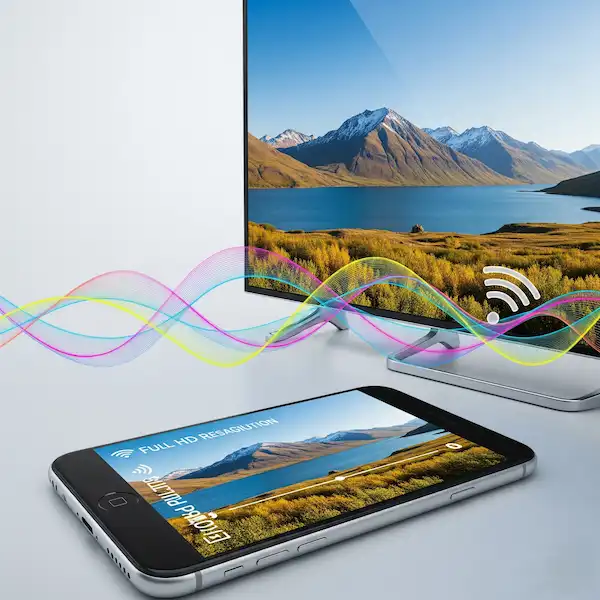
Connecting your phone or tablet to WIFI is a fundamental step in today’s digital world, unlocking a world of internet access without relying on your mobile data plan. This comprehensive guide, will walk you through the process for both iPhone and Android devices, delve into built-in and third-party apps, provide a helpful comparison, and offer practical troubleshooting tips. Learn how to easily connect phone or tablet to WIFI.
WIFI provides faster speeds, lower latency, and saves your mobile data. Whether you’re at home, a coffee shop, or an airport, knowing how to connect your device is essential.
How do I Connect Phone or Tablet to WIFI?
To Connect Phone or Tablet to WIFI successfully, you must access your device’s native system settings to locate and authenticate with a secure wireless access point. Doing this properly saves cellular data and ensures stable internet speeds for streaming and browsing whenever you Connect Phone or Tablet to WIFI.
How do I connect my iPhone or iPad to WIFI?
Apple’s iOS operating system manages wireless access points through the main system settings application whenever you need to Connect Phone or Tablet to WIFI.
- Go to Settings: From your Home screen, tap the settings app icon.
- Select WIFI: In the main menu, tap on the network option to Connect Phone or Tablet to WIFI.
- Turn on WIFI: Ensure the top toggle switch is active so your device begins scanning for nearby broadcast signals.
- Choose Your Network: A list of available WIFI networks will appear under local connections.
- Enter Password: Input the exact case-sensitive security key required by the router.
- Join: Tap the join option to complete the handshake and confirm the checkmark appears next to the network name.
How do I connect my Android phone or tablet to WIFI?
Android devices route network configuration through quick settings or connection menus when you want to Connect Phone or Tablet to WIFI, which varies slightly depending on the manufacturer.
Connect: Tap the connect button to finalize the pairing sequence.
Open Settings: Swipe down from the top of your screen to open the quick toggle panel, then tap the gear icon.
Navigate to Network & Internet: Select the network or connections menu.
Select WIFI: Tap the wireless option to Connect Phone or Tablet to WIFI and ensure the toggle is active.
Choose Your Network: Locate your target SSID from the scanned list.
Enter Password: Type the required network key when prompted.
What third-party apps help manage WIFI?
Third-party network tools provide advanced diagnostic metrics, security auditing, and signal mapping that native operating system settings omit when you Connect Phone or Tablet to WIFI. Utilizing these utilities helps identify dead zones and optimize channel selection for your home router.
- Fing (iOS & Android): A popular network scanner that maps every device tied to your gateway when you Connect Phone or Tablet to WIFI, runs speed checks, and flags unauthorized intrusions.
- NetSpot (iOS & Android): A professional site survey tool providing detailed dBm signal strength values and channel interference readouts.
- WIFI Analyzer (Android): An open-source utility that visualizes overlapping radio frequencies to help users choose less congested channels.
- Ubiquiti WiFiman (iOS & Android): A clean interface built for measuring real-time throughput speeds and monitoring local hardware health.
- Speedtest by Ookla (iOS & Android): The industry standard for verifying actual downstream and upstream performance metrics after pairing.
How do built-in and third-party WIFI apps compare?
| Feature | Built-in WIFI Settings | Third-Party WIFI Apps |
| Primary Function | Native device pairing | Deep diagnostics and scanning |
| Device Discovery | Hidden from user view | Comprehensive list of connected hardware |
| Channel Analysis | Unavailable | Visualized frequency congestion graphs |
| Speed Verification | None | Real-time download and upload testing |
| Security Auditing | Basic encryption status | Vulnerability and port checks |
What should I know about WIFI security and best practices?
Protecting your personal data requires understanding modern encryption standards like WPA3 when you Connect Phone or Tablet to WIFI, which prevents malicious actors from intercepting wireless traffic. Practicing safe connection habits keeps your accounts secure whether you are at home or utilizing a public hotspot.
- Encryption Standards: Always prefer networks utilizing WPA2 or WPA3 security protocols when you Connect Phone or Tablet to WIFI, as older WEP and WPA standards contain critical vulnerabilities documented by the Wi-Fi Alliance.
- Public Hotspots: Avoid conducting online banking or entering sensitive credentials on open public networks unless you route your traffic through a trusted Virtual Private Network (VPN).
- SSID Customization: Modify your home router’s default service set identifier to something unique that does not broadcast personal or location details.
- Router Placement: Position your gateway centrally in your home, elevated and away from thick masonry walls or interfering electronics like microwaves.
How do I fix common WIFI troubleshooting problems?
Resolving intermittent connectivity failures when you Connect Phone or Tablet to WIFI usually requires cycling device power or resetting corrupted network profiles stored in system memory.
- Fixing Incorrect Password Errors: Double-check character casing, power cycle both your mobile device and gateway modem, and select the option to forget the network before attempting a fresh pairing.
- Resolving Connected But No Internet: Confirm whether other devices in your household can access external websites, which helps determine if the issue stems from your internet service provider or local hardware.
- Combating Slow Speeds: Move closer to your router, switch to the less congested 5 GHz frequency band if available, or review Cloudflare DNS Documentation to ensure your name resolution isn’t lagging.
- Resetting Network Configurations: If all else fails, use your system menu to wipe all saved network caches completely—following procedures outlined by Apple Support or Google Android Help.
Frequently Asked Questions (FAQ) For Connect Phone or Tablet to WIFI
Q1: What’s the difference between 2.4 GHz and 5 GHz WIFI? A1: 2.4 GHz offers a wider range and better penetration through walls but is generally slower and more prone to interference. 5 GHz provides faster speeds and less interference but has a shorter range and struggles more with obstacles. Many modern routers offer both.
Q2: How do I find my WIFI password? A2: If it’s your home network, the password is often printed on a sticker on the bottom or back of your WIFI router. If someone else set it up, you’ll need to ask them. On connected devices, you might be able to view the password (e.g., on Android 10+ by sharing the QR code, on iOS via Keychain Access if synced with a Mac).
Q3: Is public WIFI safe? A3: Public WIFI is generally not secure. Avoid accessing sensitive information (banking, email logins) on public networks. Using a Virtual Private Network (VPN) is highly recommended when on public WIFI to encrypt your data.
Q4: My WIFI signal is weak in certain parts of my house. What can I do? A4: Consider moving your router to a more central location. You can also invest in WIFI extenders, mesh WIFI systems, or powerline adapters to boost coverage.
Q5: What is an SSID? A5: SSID stands for Service Set Identifier. It’s simply the name of your WIFI network that appears in the list of available networks.
Q6: Why does my phone automatically connect to a weaker WIFI network instead of my strong home network? A6: Your phone prioritizes networks it has previously connected to and “prefers” based on various factors, sometimes including past stability over current signal strength. You can “forget” the weaker network or manually select your preferred network to override this.
Additional Helpful Information
An easy method to share a WIFI password – How to Share WIFI Password With QR Code?
External Links for Authoritative Sources
- Apple Support – Connect to WIFI on your iPhone, iPad, or iPod touch: https://support.apple.com/en-us/HT202639
- Android Help – Connect to WIFI networks on your Android device: https://support.google.com/android/answer/9075847
- WIFI Alliance (for information on WIFI standards and security): https://www.wi-fi.org/
- Cloudflare – What is DNS? (helps understand internet connectivity): https://www.cloudflare.com/learning/dns/what-is-dns/