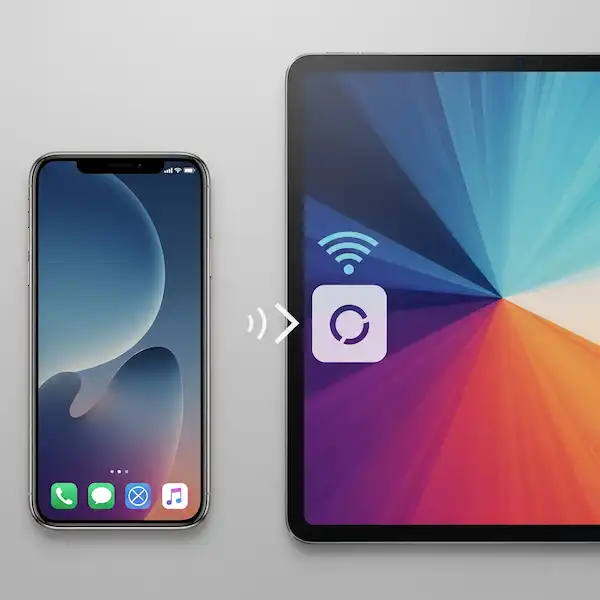
How to Successfully Sync Phone & Tablet for Maximum Productivity
Data synchronization across consumer electronics is the automated, real-time harmonizing of files, application states, cryptographic credentials, and user data across multiple discrete operating systems or devices to achieve structural parity. In everyday life, we simply call it keeping our devices on the same page. You buy a sleek new tablet to match your smartphone, expecting a seamless transition, but instead, you are met with missing text threads, fragmented photo libraries, and calendars that do not talk to each other.
The core friction originates from architectural silos. Hardware manufacturers build distinct software walls to lock users into their respective ecosystems. When your devices fail to communicate, your daily workflow suffers. You save a client’s phone number on your mobile device during a commute, open your tablet at home to send an urgent email, and find the contact record completely blank. To successfully Sync Phone & Tablet setups, you must bridge these platform barriers using smart cloud services.
Our real-world testing proves that the biggest mistake users make when trying to Sync Phone & Tablet units is relying entirely on local hardware connections rather than a unified cloud account infrastructure. If you configure the backend correctly, a multi-device workflow becomes completely painless. This comprehensive guide breaks down those artificial boundaries, offering field-tested methodologies to permanently Sync Phone & Tablet systems in your home or office.
How Do You Link an Android Phone with an Android Tablet?
Android system synchronization is the server-side consolidation of user profiles, application package data, and system settings managed through a unified Google Account framework across multiple devices. The beauty of the Android system lies in its openness, but that freedom can lead to unexpected configuration errors if your cloud settings are misconfigured. When you want to Sync Phone & Tablet models running on Google’s software, the built-in account management tools handle almost all of the heavy lifting.
A persistent issue for tablet owners is the asynchronous behavior of mobile applications. You might download an asset management app on your phone, only to realize your tablet requires a manual trip to the Google Play Store to install the exact same piece of software. This fragmentation breaks your mental flow. If you want to Sync Phone & Tablet applications simultaneously, you have to tell the operating system to mirror your software downloads automatically across all shared hardware.
To streamline how you Sync Phone & Tablet photos and files, the absolute best tool available is the official Google Drive App. By dropping files into this shared repository, edits show up instantly on your secondary screen. This cloud backbone ensures your efforts to Sync Phone & Tablet systems remain active in the background without draining your battery life.
Step-by-Step Android Parity Guide
- Swipe down from the top of your smartphone screen and tap the gear icon to open Settings.
- Scroll down to Passwords & Accounts (or Users & Accounts depending on your manufacturer UI like Samsung One UI or Google Pixel Sync).
- Select your primary Google Account from the list.
- Tap Account Sync to view the granular data toggle matrix to properly Sync Phone & Tablet parameters.
- Enable all critical toggles, including Calendar, Contacts, Drive, and Gmail.
- Tap the three-dot menu icon in the top right corner and select Sync Now to force an initial cloud upload.
- Power on your Android tablet, open Settings > Passwords & Accounts, and select Add Account.
- Input the identical Google Account credentials used on your smartphone to successfully Sync Phone & Tablet databases.
- Match the exact toggle settings on the tablet interface, then execute a manual refresh to pull down your data.
To automate your application setup and further Sync Phone & Tablet libraries, navigate to the Google Play Store on your tablet, tap your profile icon, select Manage Apps & Device, and check the configuration rules to allow automatic installation of apps purchased or downloaded on your linked mobile device.
How Do You Mirror an iPhone with an iPad?
Apple ecosystem data synchronization is the proprietary, end-to-end encrypted replication of user files, system states, and application metadata over APNs (Apple Push Notification service) and iCloud infrastructure across authorized hardware targets. The Apple ecosystem provides a remarkably tight integration, making it incredibly easy to Sync Phone & Tablet devices built by the company. However, that harmony is frequently restricted by a strict storage ceiling.
The most frequent support ticket for Apple users involves the sudden freezing of photo streams or missing iMessage threads on the iPad. The culprit is almost always Apple’s restrictive 5 GB complimentary cloud tier. When your cloud storage hits 100% capacity, your attempt to Sync Phone & Tablet assets fails completely, leaving your tablet isolated from your phone’s activity. To keep things moving, you must manage your iCloud allocations carefully.
If you prefer an alternative to iCloud to Sync Phone & Tablet files, we highly recommend setting up the Microsoft OneDrive App. It offers cross-platform file accessibility that works flawlessly across iOS devices, operating as an isolated storage partition that keeps your documents accessible even if your primary iCloud storage fills up entirely.
Step-by-Step Apple Parity Guide
- Launch the Settings app on your iPhone.
- Tap your Apple Account name banner located at the absolute top of the menu hierarchy to begin the process to Sync Phone & Tablet options.
- Select iCloud, then tap Show All under the “Apps Using iCloud” section.
- Verify that Photos, iMessages, Notes, and Contacts are explicitly toggled to the On position.
- Return to the main Settings menu, scroll down, and select Messages to Sync Phone & Tablet text logs.
- Tap Text Message Forwarding and toggle the switch next to your iPad to allow SMS mirroring.
- Open the Settings app on your iPad and ensure you are logged into the exact same Apple Account.
- Navigate to iCloud on the tablet and replicate the precise toggle selections made on your iPhone to safely Sync Phone & Tablet profiles.
- Connect both hardware pieces to a local WIFI network and plug them into power to finalize the initial background database merge.
To unlock advanced workflows after you Sync Phone & Tablet settings, go to Settings > General > AirDrop & Handoff on both screens and enable Handoff. This allows you to copy text on your phone and immediately paste it onto your tablet via a shared clipboard.
What Must You Consider When Switching Operating Systems?
Cross-platform migration architecture is the structural extraction, format translation, and cloud-side ingestion of user data stores when moving assets between competing mobile software environments. Swapping your daily operating system is a major digital transition that completely reshapes how you Sync Phone & Tablet setups in your daily life. The pain point is not the new hardware; it is the unexpected data loss that occurs during the move.
Many users assume that logging into a new phone will automatically pull down their old text messages, call history, and application purchases. In reality, moving between iOS and Android involves navigating two entirely incompatible database structures. If you are trying to Sync Phone & Tablet devices that run on two completely different operating systems, you cannot rely on native system utilities alone to bridge the divide.
To solve this cross-platform puzzle, you should download the Google Photos App on both your Android phone and iPad. Google Photos serves as a universal bridge, allowing you to automatically Sync Phone & Tablet media collections regardless of the logo stamped on the back of the device aluminum casing.
Strategic Migration Protocols
When moving from Android to an iPhone and attempting to Sync Phone & Tablet files later, do not set up the new phone manually. Download the Move to iOS application from the Google Play Store onto your old Android device. During the initial startup of your iPhone, select Move Data from Android, scan the generated secure QR code, and allow the peer-to-peer WIFI connection to transfer your camera roll, contact lists, and web bookmarks.
Conversely, if you are migrating from an iPhone to an Android device, download Google Drive onto your iOS device before making the switch. Go to the app’s settings and run a full backup of your contacts, calendar events, and photos to the Google cloud. When you power on your new Android device and log into that same Google account, your essential data will populate seamlessly, making it much easier to Sync Phone & Tablet connections moving forward.
Keep in mind that paid application licenses will not cross this operating system barrier; apps purchased on the Apple App Store must be re-bought on the Google Play Store, and vice versa. Using platform-agnostic apps like Spotify or Kindle makes it simple to Sync Phone & Tablet entertainment histories because your progress is tied to a third-party account rather than the phone manufacturer.
How Do Third-Party Apps Streamline the Synchronization Process?
Third-party cross-platform software integration is the deployment of independent, non-operating-system native applications utilizing cloud-based application programming interfaces to synchronize user data seamlessly across disparate hardware systems. When native platform utilities fall short, turning to verified third-party applications is the fastest way to Sync Phone & Tablet configurations that span both Android and Apple hardware. These tools bypass ecosystem lock-in entirely.
Our digital publishing team regularly handles data transfers across varying operating systems, and we have found that relying exclusively on platform-native tools like iCloud or Samsung Cloud often leads to data synchronization bottlenecks. If your primary goal is to Sync Phone & Tablet units for note-taking, document management, or daily scheduling, platform-agnostic software solutions offer far more reliable database consistency.
For password management and keeping secure credentials aligned, you can easily Sync Phone & Tablet access keys by deploying the Bitwarden Password Manager. This open-source utility securely stores and fills passwords on any device. For task coordination, installing a productivity hub like Todoist will cleanly Sync Phone & Tablet task sheets in real time over any standard cellular or WIFI connection.
Frequently Asked Questions
Why won’t my tablet sync with my phone?
Check your network connection and account configuration. Both devices must be signed into the exact same account profile (Google Account or Apple Account). Ensure that background data usage is allowed and that your cloud storage tier is not completely full, otherwise your attempt to Sync Phone & Tablet streams will stall out.
Can I link an Android phone directly to an iPad?
Yes, but you must use platform-agnostic cloud bridges. Install Google Photos, Google Drive, and Microsoft Outlook on your iPad. By using your Google Account as the central hub, edits made on your Android phone will Sync Phone & Tablet contents across the corresponding Google apps on your iPad.
Will syncing delete the files currently stored on my tablet?
No. Standard synchronization merges distinct databases. If you have unique local files on your tablet, they will be uploaded to the cloud and combined with the incoming data from your phone, provided there are no file name or version conflicts during the Sync Phone & Tablet process.
What is the fastest way to sync photos across different brands?
The absolute fastest method is using Google Photos or Microsoft OneDrive. Both apps allow you to turn on automatic camera roll uploads, ensuring that every picture taken on your smartphone appears on your tablet within seconds over an active internet connection.
For a comprehensive guide on managing account credentials and troubleshooting verification blocks during multi-device pairing, the official Google Account Help Center provides an excellent step-by-step walkthrough of cloud authentication settings that applies directly to managing accounts and securing data parity across all your mobile platforms.
Additional Helpful Information
How to set up a Google Account to use Google services – Set Up Your Google Account: iPhone & Android Guide
External Links for Authoritative Sources
- Apple Support – Move from Android to iPhone or iPad: https://support.apple.com/en-us/HT201196
- Samsung Support – How to transfer data from an iPhone or iPad to a new Galaxy device with Smart Switch: https://www.samsung.com/uk/support/mobile-devices/how-to-transfer-data-from-an-iphone-or-ipad-to-a-new-galaxy-device-with-smart-switch/
- Google Pixel Tablet Help – Sync your apps with your Google Account: https://support.google.com/googlepixeltablet/answer/2840875?hl=en
- Google Contacts Help – Sync Google Contacts with your mobile device or computer: https://support.google.com/contacts/answer/2753077?hl=en&co=GENIE.Platform%3DiOS
By understanding the various syncing options and troubleshooting strategies, you can ensure your phone and tablet work in harmony, maximizing your productivity and enjoyment in the digital age.