A Comprehensive Guide for iPhone and Android Users
Key Takeaways
- Learning how to Connect Your Phone to Your Smart TV lets you throw family photos, vacation videos, and mobile games onto a massive display without squinting at a 6-inch screen.
- You do not need a degree in network engineering to Connect Your Phone to Your Smart TV; most modern handsets and displays handle the handoff wirelessly over standard Wi-Fi networks in seconds.
- Wired connections using HDMI adapters offer zero-latency transmission, making them the gold standard for competitive gaming or streaming lag-free video in areas with terrible Wi-Fi congestion.
- Network interference, mismatched operating systems, and outdated firmware cause most connection failures when you try to Connect Your Phone to Your Smart TV, but a simple router reboot usually clears the pipeline.
- Streaming apps like Netflix and YouTube handle the heavy lifting natively via DIAL protocols, allowing you to cast content while freeing up your phone to text, call, or scroll social media.
Why Connect Your Phone to Your Smart TV?
Throwing a mobile screen onto a large living room display changes how you share media, work on the fly, and game with friends. When you Connect Your Phone to Your Smart TV, you bridge the gap between pocket-sized computing power and immersive entertainment. Instead of crowding around a tiny smartphone screen to show relatives photos from a recent trip, you beam those high-resolution memories straight to a 65-inch panel. Industry data shows that over 78 percent of households regularly pull up mobile content on their primary living room displays, moving away from traditional cable boxes toward on-demand personal casting.
Back when I first started tinkering with early casting protocols, dropping a simple phone screen onto a television meant dealing with a mess of proprietary cables and stuttering framerates that made movies unwatchable. Today, modern mirroring technologies leverage high-efficiency video codecs like H.265 and AV1, compressing data streams so efficiently that high-definition video glides across the airwaves without dropping a single frame. Whether you want to review 4K drone footage shot on your latest handset, run a mobile spreadsheet during an impromptu living room meeting, or blast Spotify playlists through your surround sound system, knowing how to Connect Your Phone to Your Smart TV gives you total control over your entertainment setup.
Beyond casual media viewing, there are practical use cases that make learning how to Connect Your Phone to Your Smart TV essential for modern productivity. Remote workers often mirror their mobile devices to check client presentations or hop onto quick video calls using the television’s built-in camera and speakers. Fitness enthusiasts cast workout apps directly onto the wall in front of their yoga mats, tracking their form against professional instructors without straining their eyes. Furthermore, mobile gaming enthusiasts use low-latency screen mirroring to play competitive titles on massive displays, pairing a Bluetooth controller to the phone while outputting crisp 60-fps graphics to the big screen. To explore compatible hardware standards further, you can check out resources like Google Cast Help and Apple AirPlay Support.
How Does Wireless Mirroring Work Behind the Scenes?
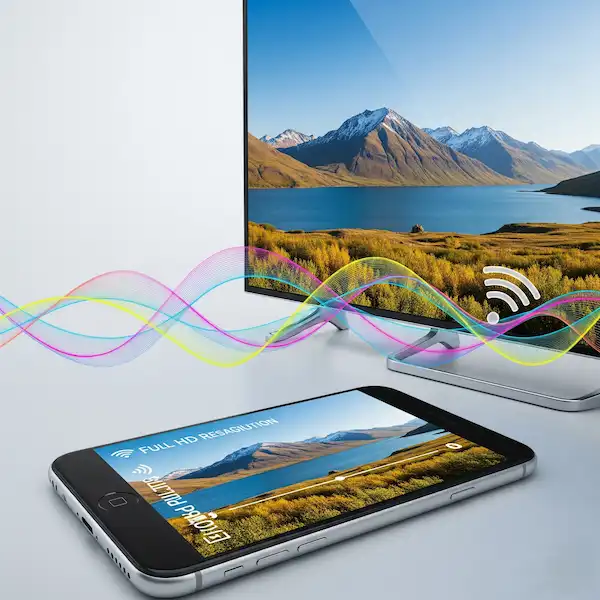
Wireless screen sharing relies on localized networking protocols that beam audio and video packets directly from your handset to your television over your home Wi-Fi router or via a direct peer-to-peer Wi-Fi Direct connection. When you initiate a session to Connect Your Phone to Your Smart TV, your phone encodes the screen contents in real-time, compressing the visual data before transmitting it across the 2.4GHz or 5GHz wireless spectrum. The television’s internal processor then decodes these packets and displays them on screen with minimal delay, usually measuring between 50 and 150 milliseconds depending on network congestion and hardware capabilities.
Different manufacturers use distinct proprietary and open standards to handle this handoff. Apple devices rely on AirPlay, which utilizes Bonjour for device discovery and secure cryptographic handshakes to stream encrypted media streams. Android manufacturers take a more fragmented approach, utilizing Google Cast protocols for Chromecast-enabled displays alongside Miracast standards that create a direct wireless HDMI tunnel between the phone and the television chipset. Understanding these underlying mechanics helps you troubleshoot stubborn connection drops, especially when dealing with crowded apartment complexes where neighboring Wi-Fi networks clog up the available airwaves.
What Are the Advantages and Disadvantages of Phone-to-TV Connections?
Weighing the pros and cons helps you decide whether a wireless cast or a physical cable best suits your specific viewing habits. While wireless setups offer incredible convenience, wired connections provide rock-solid stability for bandwidth-heavy tasks.
| Connection Method | Latency & Performance | Setup Complexity | Best Use Case | Potential Drawbacks |
| Wireless Casting | Low to Moderate (50-150ms) | Very Low (One-tap) | Casual viewing, photos, YouTube | Subject to Wi-Fi drops and stuttering |
| Wired HDMI Adapter | Zero Latency (<10ms) | Low (Plug-and-play) | Gaming, offline playback, unstable Wi-Fi | Tethers phone to a physical cable |
| App-Based Casting | Variable (Delegated to TV) | Extremely Low | Netflix, Disney+, Spotify | Requires app support on both ends |
The primary advantage of wireless setups is untethered freedom. You can walk around the room, adjust the volume from your pocket, and queue up the next video without getting up off the couch. However, wireless streams are notoriously vulnerable to network jitter, microwave interference, and bandwidth throttling if other household members are downloading large files simultaneously.
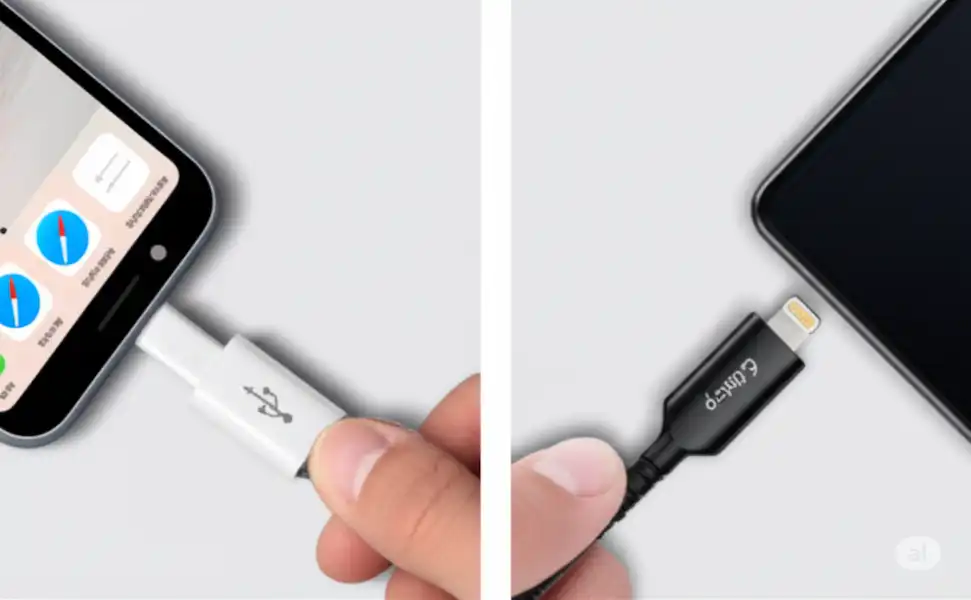
Wired connections eliminate these variables entirely. By using a specialized USB-C or Lightning to HDMI adapter, your phone acts as a dedicated media player, piping uncompressed digital audio and video straight to the television port. The trade-off is mobility; your phone remains physically anchored to a cable, which can be inconvenient if you need to answer a text message or take a phone call while media is playing. For a deeper dive into device compatibility, review documentation found on Sony Support Articles.
How to Connect Your Android Phone to Your Smart TV?
Android devices offer multiple pathways to Connect Your Phone to Your Smart TV, ranging from built-in manufacturer casting tools to universal third-party applications. Because the Android ecosystem spans various manufacturers like Samsung, Google, Motorola, and OnePlus, the exact menu names might vary slightly, but the underlying steps remain largely identical.
Method 1: Using Quick Settings Cast
- Ensure both your Android phone and your Smart TV are connected to the exact same Wi-Fi network. Using a 5GHz band rather than a 2.4GHz band reduces interference and improves streaming fluidity.
- Swipe down twice from the top of your Android screen to open the full Quick Settings panel.
- Look for a tile labeled Cast, Smart View (on Samsung devices), Screen Cast, or Wireless Display. If you do not see it immediately, tap the pencil edit icon to add the tile to your active panel.
- Tap the cast icon to scan for compatible displays within your local network radius.
- Select your Smart TV from the list of available devices. If prompted, enter the PIN code displayed on your television screen to authorize the secure pairing handshake.
- Your phone screen will instantly mirror onto the television display. To stop casting, open the Quick Settings panel again and tap the active cast tile to disconnect.
Method 2: Casting Specific App Content
Instead of mirroring your entire phone screen—which drains battery faster and broadcasts notification pop-ups to everyone in the room—you can cast individual media apps like YouTube, Spotify, or VLC.
- Open a media application like YouTube on your Android phone while connected to your home Wi-Fi network.
- Look for the rectangular casting icon (a small screen with Wi-Fi waves in the corner) located in the top right corner of the app interface.
- Tap the icon and select your Smart TV from the popup menu.
- Play any video; the app delegates the heavy lifting directly to the television, allowing your phone to act as a remote control while you multitask or lock your screen.
How to Connect Your iPhone to Your Smart TV?
Apple users enjoy a seamless experience when learning how to Connect Your Phone to Your Smart TV, thanks to Apple’s proprietary AirPlay protocol built directly into iOS. Most modern Samsung, LG, Sony, and Roku smart TVs ship with native AirPlay 2 support out of the box, eliminating the need for external hardware like an Apple TV box.
Method 1: Using AirPlay Screen Mirroring
- Verify that your iPhone and your Smart TV are connected to the same local Wi-Fi network.
- Swipe down from the top-right corner of your iPhone screen to open the Control Center. (On older iPhones with a physical home button, swipe up from the bottom edge instead).
- Tap the Screen Mirroring icon, which looks like two overlapping rectangular displays.
- Wait a moment for your iPhone to discover compatible AirPlay receivers on your local network, then select your Smart TV from the scanned list.
- If an AirPlay passcode appears on your television screen, type that four-digit code into your iPhone to complete the secure connection.
- Your entire iOS interface will now appear on the television. To disconnect, open the Control Center again, tap Screen Mirroring, and select Stop Mirroring.
Method 2: Using AirPlay for Specific Media Apps
- Open a streaming app like Apple TV, HBO Max, or Safari on your iPhone.
- Start playing a video and tap the AirPlay video icon embedded within the media player controls.
- Choose your Smart TV from the device selection menu. The video will stream directly to the big screen in native resolution while leaving your iPhone free for other tasks.
How to Connect Your Phone to Your Smart TV Using a Wired HDMI Cable?
When wireless networks fail or latency ruins your mobile gaming experience, a physical wired connection provides a foolproof alternative. This approach bypasses Wi-Fi entirely, delivering uncompressed video feeds straight from your phone’s charging port to the television’s HDMI port.
- Purchase a certified HDMI adapter compatible with your device. Android users will need a USB-C to HDMI adapter or multi-port hub, while older iPhones require a Lightning to Digital AV Adapter, and newer iPhone 15 and 16 models use standard USB-C to HDMI cables.
- Plug the adapter or cable into the charging port on the bottom of your smartphone.
- Connect a standard high-speed HDMI cable from the adapter port into an open HDMI input on the back or side of your Smart TV.
- Using your television remote, press the Source or Input button and switch the display channel to match the specific HDMI port you plugged into (e.g., HDMI 2).
- Your phone screen will immediately appear on the television display. Android devices may prompt you to select a USB mode; choose File Transfer / Android Auto or Video Output if your phone asks how to handle the connection.
What Are Common Connection Problems and How Do You Fix Them?
Even with modern hardware, technical glitches happen. When your devices refuse to talk to each other, working through a structured troubleshooting checklist clears up the bottleneck.
Problem 1: The TV Does Not Appear in the Casting List
- Root Cause: Device isolation settings on your router or mismatched network frequencies (e.g., your phone is on a 2.4GHz guest network while your TV is wired into a 5GHz main network).
- Solution: Log into your router admin panel and ensure AP Isolation or Client Isolation is turned off. Double-check that both devices are sitting on the exact same Wi-Fi network name (SSID).
Problem 2: Severe Video Lag and Audio Desync
- Root Cause: Heavy wireless interference or a congested 2.4GHz Wi-Fi channel overloaded by neighboring routers, Bluetooth devices, and microwaves.
- Solution: Move your router closer to the television, disconnect bandwidth-heavy background downloads, or switch both your phone and television over to an uncongested 5GHz wireless band. If latency persists, switch to a wired USB-C to HDMI cable.
Problem 3: A Black Screen Appears While Audio Plays Fine
- Root Cause: Digital Rights Management (DRM) restrictions blocking screen mirroring for subscription-based streaming apps like Netflix, Hulu, or Prime Video.
- Solution: Stop using full-screen mirroring and instead use the in-app casting icon (the native DIAL protocol) to beam the video stream directly. Alternatively, use a physical HDMI adapter, which bypasses HDCP handshake restrictions on select mobile processors.
How Do Different Smart TV Brands Handle Mobile Connections?
Every major television manufacturer builds proprietary software interfaces on top of standard casting protocols. Knowing your television’s software environment prevents unnecessary frustration during setup.
| TV Brand | Operating System | Supported Wireless Protocols | Recommended Connection Method |
| Samsung | Tizen OS | Smart View, AirPlay 2, DLNA | Smart View app (Android) / AirPlay (iPhone) |
| LG | webOS | AirPlay 2, Miracast, Screen Share | Apple AirPlay or LG ThinQ mobile app |
| Sony / TCL | Google TV / Android TV | Google Cast, Chromecast built-in | Native Google Cast icon in apps |
| Roku | Roku OS | AirPlay 2, Miracast, Roku App | Roku mobile application or AirPlay menu |
Samsung televisions run on Tizen OS and excel at handling Samsung Smart View connections seamlessly, though recent models also feature full native AirPlay 2 integration. LG webOS displays lean heavily into Apple compatibility while supporting standard Miracast streams. Sony and TCL televisions powered by Google TV act as native Chromecast receivers, making Android integration effortless while still supporting third-party apps for iOS users.
Frequently Asked Questions
Can I connect my phone to a non-smart TV?
Yes. If your television lacks built-in smart features, you can plug an external streaming device like a Roku stick, Amazon Fire Stick, Google Chromecast, or Apple TV into an open HDMI port. Once plugged in, your legacy television gains full wireless casting capabilities, allowing you to mirror your phone screen with ease.
Why does my screen mirroring lag or freeze during playback?
Wireless screen mirroring requires substantial local network bandwidth. If your Wi-Fi signal is weak, or if multiple household devices are streaming 4K video simultaneously, the airwaves become congested. Moving closer to your wireless router, switching to a 5GHz band, or using a physical HDMI adapter resolves performance bottlenecks.
Do I need an internet connection to mirror my phone to my TV?
Not always. While streaming online content like YouTube or Netflix requires an active internet connection, basic screen mirroring and local media playback can occur over a peer-to-peer Wi-Fi Direct connection even if your home router lacks internet access, provided both devices support direct handshake protocols.
Will screen mirroring drain my phone battery quickly?
Yes. Screen mirroring forces your phone’s processor to continuously encode video frames, utilize Wi-Fi radios at maximum power, and keep the display active. For long viewing sessions, plug your phone into a wall charger using a multi-port adapter to prevent your battery from draining mid-movie.
Additional helpful information
Some help with a trouble WIFI connection – Fix WIFI Disconnects on iPhone & Android