Key Takeaways
- Choosing the right method depends heavily on your operating system pairing (Android to Windows versus iPhone to Mac).
- Microsoft Phone Link provides a seamless, native bridge for notifications, text messaging, and app shortcuts without requiring complex configuration.
- Scrcpy remains the gold standard for power users seeking zero-lag Android mirroring and complete mouse-and-keyboard control via USB or Wi-Fi.
- Apple hardware users benefit from native iPhone Mirroring on macOS, while Windows users face stricter security limitations requiring third-party workarounds for full control.
- Network bandwidth, Wi-Fi frequency bands, and USB debugging protocols dictate whether your session suffers from stuttering input lag or runs smoothly.
Mastering How to Remotely Connect Smartphone to PC
A critical note before diving in: Tech marketing materials love to claim that bridging mobile devices to desktop monitors is completely seamless, but real-world hardware encryption, varying Wi-Fi packet drops, and vendor-specific restrictions often create frustrating roadblocks that require actual troubleshooting.
The modern desk setup often feels split down an invisible divide. Half your day happens on a high-powered desktop monitor with a mechanical keyboard, while your most critical notifications, two-factor authentication codes, and mobile-first apps live exclusively on a handheld screen resting next to your mousepad. Constantly picking up your phone breaks your workflow, scatters your attention, and wastes precious seconds. Learning how to Remotely Connect Smartphone to PC bridges that physical gap, turning your computer into a centralized command center where notifications are handled, messages are typed out at full typing speed, and mobile apps run side-by-side with your desktop software.
Whether you are trying to debug a mobile web application, monitor incoming texts during a deep work session, or cast media without messing with cables, knowing how to Remotely Connect Smartphone to PC completely transforms your daily productivity. Let us examine the actual mechanisms, performance differences, and step-by-step procedures required to achieve a rock-solid connection when you Remotely Connect Smartphone to PC for your daily tasks.
How do I choose the right tool to Remotely Connect Smartphone to PC?
Selecting the ideal software to Remotely Connect Smartphone to PC comes down to balancing input latency, setup complexity, and your specific hardware ecosystem. Every tool handles data transmission differently, ranging from lightweight cloud-relayed notification servers to direct, low-level USB debugging tunnels that bypass network congestion entirely.
When evaluating how to Remotely Connect Smartphone to PC, you must weigh whether you need a casual notification feed or immediate, frame-accurate screen mirroring for gaming or development. The following breakdown compares the primary solutions available on the market today.
| Solution | Primary OS Compatibility | Setup Complexity | Latency Performance | Best Use Case |
| Microsoft Phone Link | Windows 10/11 & Android/iOS | Low (QR Code / Microsoft Account) | Moderate (Cloud/Bluetooth relay) | Texting, calls, checking notifications, light app shortcuts |
| Scrcpy | Windows, macOS, Linux & Android | Medium (Enabling Developer Options) | Ultra-Low (Near zero-lag USB/Wi-Fi tunnel) | Gaming, mobile development, power-user multitasking |
| Apple iPhone Mirroring | macOS & iOS | Low (Native iCloud Ecosystem) | Low (Direct hardware-accelerated stream) | Controlling a locked iPhone directly from a Mac desktop |
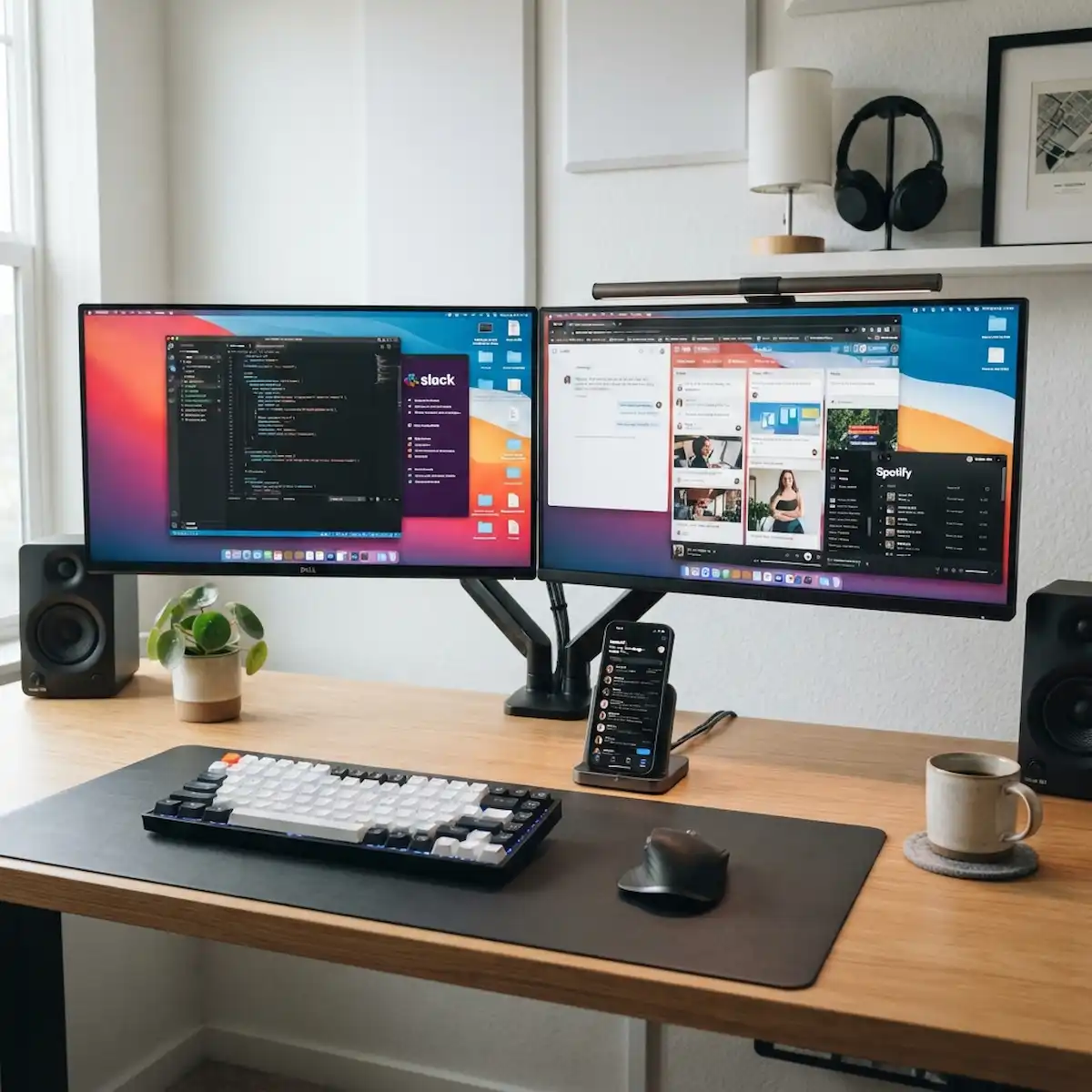
Image Suggestion for this section: A clean, minimalist 1200x1200px photo of a dual-monitor desk setup showing a smartphone docked neatly next to a mechanical keyboard displaying a synced messaging app.
What is the cleanest way to Remotely Connect Smartphone to PC using native software?
If your daily goal is to handle incoming text messages, answer phone calls, view your recent photo gallery, and launch individual mobile applications without digging into your pocket, the official Microsoft Phone Link application offers the most frictionless experience. It operates as a native bridge built right into modern Windows environments, requiring very little technical overhead to establish a secure connection when you Remotely Connect Smartphone to PC.
To successfully execute how to Remotely Connect Smartphone to PC using this native Microsoft utility, follow these structured steps:
- Prepare Your Windows Environment: On your PC running Windows 10 or Windows 11, click your Start menu, type Phone Link, and launch the built-in application. Select your phone operating system (Android) to begin the pairing wizard.
- Prepare Your Mobile Device: On your phone, navigate to your app store or pre-installed system settings to locate and open the Link to Windows application. (Many modern Samsung, OnePlus, and HONOR devices have this utility embedded directly into the quick-settings pull-down menu).
- Establish Secure Pairing: Sign in using the exact same Microsoft account on both your desktop and your mobile device. Your PC screen will display a unique QR code. Use the Link to Windows app on your phone to scan that code, then authorize all security permission prompts regarding contacts, notifications, and file storage.
- Finalize the Bridge: Once synchronization completes, you can freely read notification banners, type replies using your physical desktop keyboard, and open supported mobile apps in standalone desktop windows.
While this approach solves casual multitasking brilliantly, users looking for high frame rates or zero input delay often find that cloud-relayed connections introduce noticeable stutter during fast-paced tasks. When planning out how to Remotely Connect Smartphone to PC for messaging, Phone Link remains the primary recommendation.
How can I get zero-lag performance when I Remotely Connect Smartphone to PC for power user tasks?
When your workflow demands instantaneous touch response, zero compression artifacts, and full multi-touch input mapping across your entire mobile interface, consumer bridge apps simply will not cut it. This is where open-source utilities step in to redefine how to Remotely Connect Smartphone to PC.
The industry gold standard for Android power users is scrcpy (Screen Copy), a lightweight utility that streams your device screen and audio via USB or local Wi-Fi while consuming minimal CPU resources. Setting it up requires unlocking hidden developer privileges on your phone, but the performance payoff is unmatched when you Remotely Connect Smartphone to PC.
Here is the exact step-by-step process to set up a high-performance terminal mirroring session:
- Unlock Developer Settings: On your Android device, go to Settings, select About Phone, and tap the Build Number entry exactly 7 times until a toast notification confirms that you are now a developer.
- Enable USB Debugging: Return to your main Settings menu, open the newly unlocked System or Developer Options panel, and toggle USB Debugging into the on position.
- Download the Tool: Navigate to the official Scrcpy GitHub Repository and download the latest Windows release zip archive. Extract the contents directly into a dedicated folder on your local drive, such as C:\Scrcpy.
- Connect via Physical Cable: Plug your phone into your computer using a high-quality data transfer USB cable.
- Launch the Stream: Open your extracted scrcpy folder, launch the scrcpy.exe executable file, and look at your phone screen to check the incoming RSA fingerprint prompt, making sure to check always allow from this computer.
For power users who want to save battery life and maintain visual privacy while working at their desks, you can open your command prompt inside the folder and type the command scrcpy –turn-screen-off. This allows you to control your phone entirely from your PC monitor while your physical phone display remains completely dark. Utilizing scrcpy changes how to Remotely Connect Smartphone to PC forever by eliminating network lag.
How does Apple handle native device mirroring between an iPhone and a computer?
Apple approaches hardware integration through a tightly controlled ecosystem model, which drastically alters how to Remotely Connect Smartphone to PC or Mac depending on whether you are using Windows or macOS.
For Mac users running modern operating systems, Apple provides native iPhone Mirroring. By clicking the dedicated app icon in the macOS dock, you can instantly unlock, view, and control a locked iPhone directly on your desktop display using your trackpad and keyboard, without even taking the phone out of your bag. Audio routes smoothly, and apps function seamlessly within desktop windows.
Conversely, Windows PC users face structural hurdles. Because of strict iOS security protocols and sandbox encryption, full interactive cursor control from a Windows PC into an iPhone is not natively supported. Windows users must rely on Phone Link for iOS to manage basic text logs and calls, or utilize third-party airplay casting receivers if they only require a view-only display presentation during meetings. Understanding these restrictions prevents frustration when learning how to Remotely Connect Smartphone to PC across mixed-brand environments.
What are the primary business and creative use cases when you Remotely Connect Smartphone to PC?
Understanding the technical setup is only half the battle; knowing how to Remotely Connect Smartphone to PC to solve daily friction points is where real productivity gains happen. Different professions leverage these connection bridges in distinct ways to optimize their routines:
- Software Development and QA Testing: Mobile app developers use direct USB debugging mirrors to test responsive layouts, tap targets, and touch gestures across multiple hardware screen resolutions without constantly picking up a physical device.
- Content Creation and Social Media Management: Social media managers monitor live mobile feeds, draft posts using desktop keyboards, and drag-and-drop media assets directly from computer folders into mobile apps.
- Secure Two-Factor Authentication Management: Security-conscious professionals keep their authentication codes visible on a dedicated side window, eliminating the need to unlock a handheld phone dozens of times a day during high-security logins.
When teams adopt these workflows, learning how to Remotely Connect Smartphone to PC becomes an essential operational standard.
How do I troubleshoot common latency and connection drops when I Remotely Connect Smartphone to PC?
Even the most robust software setups occasionally suffer from stuttering video streams, broken audio routing, or sudden disconnection errors. When you want to troubleshoot how to Remotely Connect Smartphone to PC, you should check several common failure points before abandoning your setup:
- Wi-Fi Band Congestion: If you are mirroring wirelessly, ensure both your PC and your phone are connected to the exact same 5 GHz Wi-Fi network band rather than a crowded 2.4 GHz frequency that suffers from household interference.
- Faulty USB Cables and Ports: Cheap charging cables often lack the data transfer lanes necessary for stable video streaming. Always plug your phone directly into a high-speed USB 3.0 or USB-C port on your computer’s motherboard, bypassing loose external USB hubs.
- Outdated ADB Drivers: For advanced Android tools, missing or corrupted Android Debug Bridge (ADB) drivers can prevent your computer from recognizing device handshakes. Reinstalling official manufacturer USB drivers usually resolves authorization loops instantly.
Mastering these troubleshooting techniques ensures that whenever you choose to Remotely Connect Smartphone to PC, the connection remains a reliable part of your technical infrastructure.
Frequently Asked Questions
Can I Remotely Connect Smartphone to PC without installing any third-party software?
Yes, if you use a Windows PC and an Android phone, Microsoft Phone Link is built natively into Windows 10 and 11. Similarly, Mac users can use native iPhone Mirroring without downloading external utilities.
Does screen mirroring drain my phone battery quickly?
Wireless streaming and keeping your phone display active while mirrored will consume battery power over time. Using wired connections like USB debugging or executing commands to keep the phone screen turned off helps preserve battery longevity during long work sessions.
Is it safe to enable USB debugging on my Android device?
USB debugging is safe for daily use as long as you only authorize trusted computers. Never accept RSA fingerprint prompts from unknown PCs or public charging stations to protect your personal data from unauthorized access.
Can I play mobile games smoothly using a PC mirror?
Casual games work fine on native apps, but high-frame-rate competitive gaming requires low-latency tools like scrcpy running over a wired USB connection to prevent noticeable input delay and frame drops.
Additional Helpful Information
Learn how to connect your smartphone to your TV – Connect Your Phone to Your Smart TV: iPhone & Android