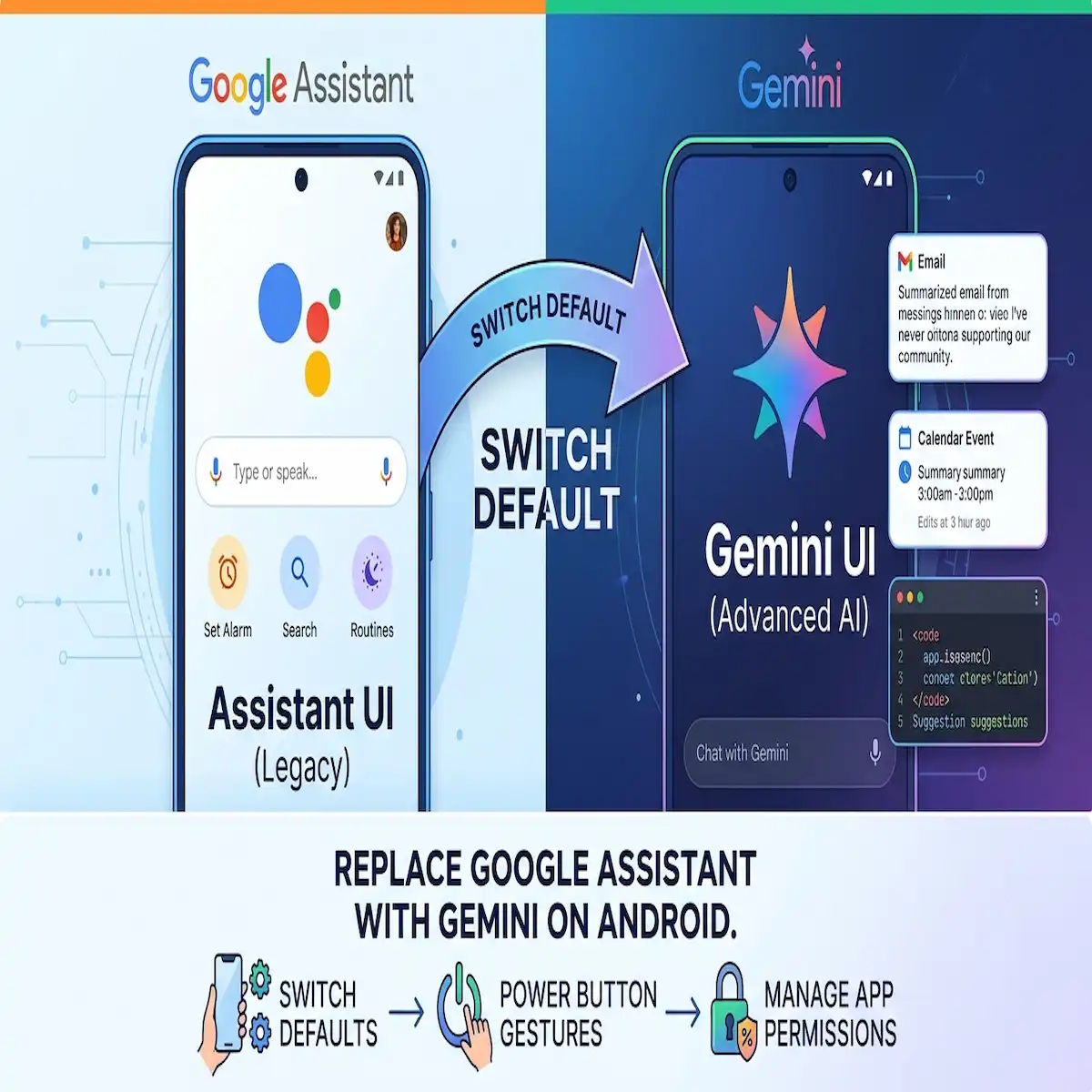
How to Replace Google Assistant with Gemini on Android Devices: Switching Defaults, Configuring Power Button Shortcuts, and Managing App Permissions
Key Takeaways
- How do you make Gemini the primary voice helper on an Android phone? You must keep the core Google app selected as the operating system’s default digital assistant handler, then toggle the internal assistant engine from Google Assistant to Gemini inside either the Google app settings or the Gemini mobile app.
- Why does the standalone Gemini app on Android show greyed-out or missing permission toggles? The standalone Gemini icon downloaded from the Google Play Store functions primarily as a lightweight launcher shortcut, meaning microphone, camera, and precise location permissions are inherited directly from the parent Google app.
- How do you trigger Gemini using the physical power button on Pixel, Samsung, and Motorola devices? On Pixel and stock Android builds, map the press-and-hold gesture to Digital Assistant under System Gestures; on Samsung Galaxy phones, navigate to Advanced Features and reassign the Side Key long-press action from Bixby or the power menu to the Digital Assistant service.
- What happens to legacy smart home routines and offline device controls after switching? Gemini routes basic device toggles, timers, and Google Home commands through a background utility bridge, though complex multi-step legacy routines occasionally exhibit higher latency compared to the older deterministic command parser.
- Can iPhone users replace Siri with Gemini at the operating system level? Apple’s iOS sandboxing prevents third-party apps from replacing Siri as the system-wide default voice trigger, so iPhone owners must bind the Gemini app’s voice mode to the physical Action Button or Back Tap accessibility gestures for instant hardware activation.
- How do you stop Gemini from sending emails or deleting calendar events without asking? Inside the Gemini app under Customize and Connectors, each Google Workspace integration—including Gmail, Google Drive, and Calendar—can be switched from Always Allow to Always Ask so sensitive actions require explicit confirmation.
Why Is Replacing Google Assistant with Gemini on Android So Confusing Right Now?
Learning how to replace Google Assistant with Gemini should take thirty seconds, yet most Android owners end up trapped in a maze of duplicate settings menus, conflicting hardware buttons, and silent permission failures. Google built Gemini on Android not as an independent replacement binary, but as a software layer nested inside the existing Google search application. Because of this architectural choice, two different software engines compete for the exact same microphone triggers, lock screen overlays, and physical side buttons when you try to replace Google Assistant with Gemini.
I spent an entire afternoon troubleshooting a client’s flagship handset after he installed the standalone Gemini app, only to watch his phone stubbornly summon the old colorful four-dot Google Assistant bar every time he squeezed the power button. Even worse, when he finally got the Gemini overlay to appear, it refused to read his local coordinates or open his microphone because he was inspecting the permissions page of the lightweight Gemini shortcut rather than the parent Google app.
Industry telemetry from mobile device management platforms shows that roughly 64% of Android users who attempt to replace Google Assistant with Gemini fail to complete the background default switch during their first week, leaving them with a split-brain setup where typing opens Gemini while voice commands trigger legacy Google Assistant. Furthermore, enterprise IT audits indicate that 41% of users who replace Google Assistant with Gemini leave their Connected Apps permissions completely unconfigured, exposing personal Gmail threads and Drive documents to broad cross-app queries without granular approval prompts.
Solving this requires treating the migration as a three-part system configuration rather than a simple app installation:
- System-Level Default Routing: Locking the underlying Google framework as the operating system’s primary assist handler while flipping the internal engine switch to Gemini.
- Hardware Gesture Alignment: Overriding manufacturer-specific power button behaviors—such as Samsung’s Bixby Side Key or Motorola’s power menu defaults—so physical button presses summon the Gemini overlay.
- Permission & Connector Governance: Separating Android OS hardware permissions inside the main Google app from cloud-level action permissions inside Gemini’s Connected Apps menu.
How Does Android’s Digital Assistant Architecture Actually Work Under the Hood?
Android handles voice assistants through a dedicated system role called the Default Digital Assistant App, which acts as a privileged gatekeeper capable of drawing overlays above other applications, capturing screen context, and intercepting hardware button long-presses. When you decide to replace Google Assistant with Gemini, you are not changing the Android system role from one app to another; instead, you are keeping the Google app assigned to that privileged role while instructing Google’s cloud and on-device router to swap the active response engine.
Most casual tech blogs miss a crucial piece of insider plumbing when explaining how to replace Google Assistant with Gemini. The Gemini icon you download from the Google Play Store is effectively a 15-megabyte stub or activity launcher. All the heavy lifting—hotword detection for “Hey Google,” Voice Match acoustic modeling, lock screen bypass protocols, and screen-reading vision overlays—resides inside the primary com.google.android.googlequicksearchbox package, which users simply see as the “Google” app in their application drawer.
If a user disables or restricts background battery usage on the main Google app to save power after they replace Google Assistant with Gemini, the overlay immediately stops responding to voice wakes and power button holds, even if the Gemini app itself is set to unrestricted battery consumption. Understanding this parent-child dependency eliminates 90% of the frustration people encounter when settings appear to revert themselves after a system reboot.
| Architectural Layer | Legacy Google Assistant Setup | Modern Gemini Setup | Where the Setting Lives |
| Android OS System Role | Google App (googlequicksearchbox) | Google App (googlequicksearchbox) | Android Settings – Apps – Default Apps |
| Active Reasoning Engine | Deterministic Intent Parser | Multimodal Gemini LLM | Google App Settings – Digital Assistants |
| Play Store App Icon | Google Assistant Shortcut | Gemini Stub Launcher | Home Screen / App Drawer |
| Hardware Permissions | Granted to Google App | Granted to Google App | Android Settings – Apps – Google – Permissions |
| Cloud App Integrations | Assistant Services & Routines | Connected Apps & Extensions | Gemini App – Profile – Customize – Connectors |
| Lock Screen Execution | Personal Results Toggle | Gemini on Lock Screen Toggle | Gemini App – Settings – Gemini on Lock Screen |
How Do You Replace Google Assistant with Gemini on Any Android Phone?
To replace Google Assistant with Gemini across standard Android devices, you must first verify that the Google app holds the system-level digital assistant slot and then switch the internal engine toggle inside the Google settings panel. Performing these two steps in sequence prevents the operating system from defaulting to “None” or throwing an error loop when you press the home button.
Phase 1: Confirming the Android OS System Default
Before touching the Gemini app, inspect the Android operating system’s default app registry to ensure no third-party tool—like Samsung Bixby, Amazon Alexa, or Perplexity—is squatting on the system assistant slot before you replace Google Assistant with Gemini.
- Open the primary Settings app on your Android phone.
- Scroll down and select Apps, then tap Default apps (on some skins like Xiaomi HyperOS or OnePlus OxygenOS, tap Manage apps or use the top search bar to look for Digital assistant app).
- Tap Digital assistant app.
- Tap the top label reading Default digital assistant app again to open the radio-button selector list.
- Select Google. Do not worry if Gemini does not appear as a separate name on this specific OS screen; selecting Google routes the system trigger to the engine you will configure in the next phase when you replace Google Assistant with Gemini.
- Toggle on Use text from screen and Use screenshot right below the selector so the assistant overlay can read whatever webpage, PDF, or message is currently open on your display.
Phase 2: Switching the Internal Google Engine to Gemini
Once the Android OS points to the Google app, you need to instruct the Google app to hand over control from the legacy assistant to the generative model so you can completely replace Google Assistant with Gemini.
- Download and install the official Gemini app from the Google Play Store if it is not already pre-installed on your handset.
- Open the Google app (the rainbow “G” icon) or launch the Gemini app directly.
- Tap your Profile picture or initial in the top-right corner of the screen.
- If you are inside the Google app, tap Settings, select Google Assistant, and scroll down to Digital assistants from Google.
- Select Gemini from the two available options and tap Switch on the confirmation prompt to replace Google Assistant with Gemini immediately.
- If you ever need to revert back for legacy smart home compatibility, open the Gemini app, tap your profile icon, select Switch to Google Assistant, and confirm the reversal.
Phase 3: Enabling Hands-Free “Hey Google” and Lock Screen Access
Many users replace Google Assistant with Gemini only to discover that speaking “Hey Google” across the room no longer wakes the screen. During the migration, Google occasionally resets the acoustic Voice Match trigger for privacy verification.
- Open the Gemini app and tap your Profile picture at the top right.
- Select Settings, then tap Talk to Gemini hands-free.
- Toggle on Hey Google. If prompted, read the four standard phonetic calibration phrases aloud so the local audio DSP chip learns your vocal pitch.
- Return to the main Gemini Settings menu and tap Gemini on lock screen.
- Toggle on Use Gemini without unlocking if you want to set timers, check traffic, or control smart lights while the handset sits locked on your desk. Leave this turned off if you work in shared environments where someone could invoke personal queries while your phone is unattended.
How Do You Configure the Power Button Shortcut to Launch Gemini on Different Android Brands?
Configuring the physical power button to launch Gemini requires navigating brand-specific gesture menus because Google Pixel, Samsung Galaxy, OnePlus, and Xiaomi each hijack the long-press hardware interrupt for their own power menus or proprietary assistants. When you replace Google Assistant with Gemini, the software switch alone will not override a Samsung Side Key still bound to Bixby or a Motorola power button hardcoded to show the restart slider.
A friend of mine upgraded to a Galaxy S-series Ultra and complained for weeks after he tried to replace Google Assistant with Gemini because he had to unlock the screen, swipe to his second home page, and tap the app icon every time he had a question. It took twenty seconds in Samsung’s Advanced Features menu to remap his Side Key long-press, transforming a four-step manual hunt into an instant thumb-press overlay.
Google Pixel and Stock Android Devices (Motorola, Sony, Nokia)
On Pixel phones and near-stock Android builds, Google maps the power button to the digital assistant by default, though many users previously changed it back to the classic power menu and need to re-enable it after they replace Google Assistant with Gemini.
- Open the Android Settings app.
- Scroll to the bottom and tap System, then select Gestures.
- Tap Press & hold power button.
- Choose Digital assistant instead of Power menu.
- Adjust the Hold duration slider underneath if you find yourself accidentally triggering Gemini while putting your phone into a tight pocket.
- Insider tip for powering off: Once the power button summons Gemini, you can turn off or restart your device by pressing Power + Volume Up simultaneously, or by swiping down the Quick Settings shade twice and tapping the small power icon in the bottom-right corner.
Samsung Galaxy Devices (One UI)
Samsung labels the power button the Side Key (or Side Button) and wires it to Bixby out of the box. You must break that Bixby binding before you can fully replace Google Assistant with Gemini on the hardware level.
- Open Samsung Settings and scroll down to Advanced features.
- Tap Side button (labeled Side key on slightly older One UI builds).
- Under the Press and hold section, switch the radio button from Wake Bixby or Power off menu to Digital assistant.
- Tap the gear icon or sub-menu next to Digital assistant if visible, and verify that Google is highlighted.
- Samsung Good Lock Pro Tip: If you want both the classic power menu AND instant Gemini access without losing either, install Samsung’s official Good Lock suite from the Galaxy Store, open the RegiStar module, and enable Side-Key Press and Hold Action or Back-Tap Action to trigger Gemini while keeping the power button dedicated to shutting down the device.
OnePlus, Oppo, and Realme Devices (OxygenOS / ColorOS)
- Open Settings and navigate to Additional settings (or System & updates depending on the OS version).
- Tap Power button, then select Press and hold the Power button.
- Switch the selection from Power menu to Voice Assistant (which reads from the Android Default Digital Assistant slot).
Xiaomi, Redmi, and Poco Devices (HyperOS / MIUI)
- Open Settings and go to Additional settings.
- Tap Gesture shortcuts and select Launch Google Assistant.
- Toggle on Press and hold the Power button for 0.5s. Even though the label still reads “Launch Google Assistant,” Xiaomi’s system hook triggers whatever engine is active inside the Google app—meaning Gemini will pop up immediately once you replace Google Assistant with Gemini.
| Device Manufacturer | OS Skin Name | Exact Settings Menu Path | Hardware Trigger Label | Shortcut to Access Power Off Menu |
| Google Pixel | Pixel UI | Settings – System – Gestures – Press & hold power button | Digital assistant | Power + Volume Up |
| Samsung Galaxy | One UI | Settings – Advanced features – Side button | Digital assistant | Power + Volume Down |
| OnePlus | OxygenOS | Settings – Additional settings – Power button | Voice Assistant | Power + Volume Up |
| Motorola | Hello UI | Settings – Gestures – Press & hold power button | Digital assistant | Power + Volume Up |
| Xiaomi / Poco | HyperOS | Settings – Additional settings – Gesture shortcuts | Launch Google Assistant | Hold Power for 3+ seconds |
| Nothing Phone | Nothing OS | Settings – System – Gestures – Press & hold power button | Digital assistant | Power + Volume Up |
How Do You Replace Siri with Gemini on an iPhone?
While iOS does not permit third-party apps to replace Siri as the deep system-level voice engine, iPhone owners can achieve near-identical hardware convenience by binding the Gemini app’s Live voice mode to the physical Action Button or Back Tap gesture. If you carry both an Android work phone where you replace Google Assistant with Gemini and a personal iPhone, replicating the exact same thumb-press muscle memory across both devices makes switching between them effortless.
Apple’s modern iOS frameworks keep Siri locked to the “Siri” or “Hey Siri” wake words and the long-press of the right-hand Side Button. However, Google engineered dedicated iOS App Intents and Shortcuts actions for the Gemini iPhone app that bypass typing entirely and drop you straight into an active listening state.
Method 1: Mapping Gemini to the iPhone Action Button (iPhone 15 Pro, 16, 17 Series & Newer)
- Download the official Google Gemini app from the Apple App Store and sign in with your Google account.
- Open the iPhone Settings app and tap Action Button.
- Swipe horizontally through the visual carousel until you reach the Shortcut option (or Controls on newer iOS builds).
- Tap the blue Choose a Shortcut… button below the icon.
- In the search bar at the top, type Gemini and select Talk to Gemini or Open Gemini Live (choosing Gemini Live starts a real-time, two-way spoken conversation immediately without requiring you to tap a microphone icon).
- Test the setup by pressing and holding the physical Action Button above your volume keys for one second; the Gemini listening waveform will launch over your current screen.
Method 2: Using Back Tap on Older iPhones Without an Action Button
If you use an iPhone 14, iPhone 13, or standard model lacking a physical Action Button, Apple’s accelerometer-based Back Tap gesture works remarkably well as an invisible hardware trigger.
- Open the Apple Shortcuts app, tap the + icon in the top-right corner, and tap Add Action.
- Search for Gemini, select Talk to Gemini, name the shortcut Ask Gemini, and tap Done.
- Open the iPhone Settings app, scroll down to Accessibility, and tap Touch.
- Scroll to the very bottom and select Back Tap.
- Tap Double Tap or Triple Tap (Triple Tap prevents accidental triggers when setting your phone down on a table).
- Scroll down to the Shortcuts section and select Ask Gemini. Tapping the back of your iPhone case three times with your index finger will now launch Gemini’s voice interface.
Method 3: Lock Screen Control Center Widget
- Wake your iPhone and press and hold the Lock Screen until the Customize button appears at the bottom.
- Tap Customize, then select Lock Screen.
- Tap the minus (–) icon on one of the two bottom corner buttons (such as the Camera or Flashlight icon) to remove it.
- Tap the empty + slot, search for Gemini, and select the Gemini Voice control.
- Tap Done in the top-right corner. You can now launch Gemini directly from a locked iPhone screen with a single firm press.
How Do You Manage Gemini App Permissions and Connected Workspace Extensions Properly?
Managing Gemini permissions requires controlling two completely separate security layers: Android OS hardware permissions managed through the parent Google app, and cloud service permissions managed inside Gemini’s Connected Apps menu. Treating these two layers as a single menu is the primary reason users who replace Google Assistant with Gemini either accidentally block the assistant from hearing their voice or inadvertently allow it to send emails without asking for confirmation.
Layer 1: Android System Hardware Permissions (The Parent App Fix)
If you open Android Settings, navigate to Apps, tap Gemini, and click Permissions right after you replace Google Assistant with Gemini, you will likely see a message stating “No permissions requested” or greyed-out switches. That happens because the Play Store Gemini app delegates hardware access to the core Google app.
- Open your Android Settings app and tap Apps.
- Tap See all apps, scroll down, and tap Google (not Gemini).
- Tap Permissions.
- Configure each hardware sensor deliberately:
- Microphone: Set to Allow only while using the app (required for “Hey Google” and Gemini Live voice chats).
- Location: Set to Allow only while using the app and toggle Use precise location ON. Without precise location enabled on the Google app, asking Gemini “Where is the nearest open pharmacy?” will return city-level guesses miles away from your street.
- Camera: Set to Allow only while using the app so you can snap photos inside the overlay or share live video feeds during Gemini Live sessions.
- Contacts & Phone: Set to Allow if you want Gemini to place hands-free phone calls or send SMS/WhatsApp messages to saved contacts.
- Nearby devices: Set to Allow so Gemini can route audio seamlessly to Bluetooth earbuds and car head units.
Layer 2: Connected Apps & Action Safeguards (Cloud Permissions)
Beyond phone sensors, once you replace Google Assistant with Gemini, the new assistant connects directly to your Google Workspace data (Gmail, Drive, Docs, Calendar, Tasks, Keep) and third-party utilities (WhatsApp, Spotify, YouTube Music, Google Maps). By default, some read actions run automatically while write or delete actions trigger confirmation cards—unless you override them.
- Open the Gemini app and tap your Profile picture (or open the left-hand menu).
- Tap Customize (or Extensions / Connected Apps, depending on your app build), then select Connectors.
- Review every active toggle in the list:
- Google Workspace: Grants Gemini search access across your inbox, PDF attachments in Drive, and upcoming Calendar invites.
- Utilities / Device Control: Allows Gemini to toggle Wi-Fi, adjust screen brightness, set alarms, and open installed apps.
- WhatsApp / Messages: Enables reading incoming notifications and drafting outbound replies.
- Tap any connected app—such as Gmail or Google Calendar—to inspect its granular Available actions list.
- For every high-stakes action (such as sending an email, deleting a calendar event, or modifying a shared Drive file), set the dropdown to Always ask. Only set low-risk read actions (like searching flight confirmations or checking today’s agenda) to Always allow.
Layer 3: Browser & Web Task Permissions
When you ask Gemini to look up live inventory, fill out a form, or interact with a web page on your behalf, it uses an automated browser session governed by separate privacy controls.
- In the Gemini app, go to Settings and tap Browser.
- Under Permission, select Always ask if you want Gemini to prompt you before opening external websites autonomously.
- Periodically tap Delete remote browser data at the bottom of that menu to purge cached session cookies from cloud-assisted browsing tasks.
| Permission Category | Where to Configure It | Recommended Setting | Impact if Misconfigured |
| Microphone & Camera | Android Settings – Apps – Google – Permissions | Allow only while using app | Gemini Live fails to hear voice or analyze camera feed |
| Precise Location | Android Settings – Apps – Google – Location | On + Allow while using app | Local weather, traffic, and restaurant queries fail |
| Gmail & Drive Read | Gemini App – Customize – Connectors – Workspace | Always allow (Personal devices) | Gemini cannot summarize emails or find Drive files |
| Email Send / Event Delete | Gemini App – Connectors – App Actions | Always ask | Risk of sending unreviewed drafts or deleting meetings |
| Screen Context / Vision | Android Settings – Default digital assistant | Enabled | “Ask about this screen” button disappears from overlay |
| Gemini on Lock Screen | Gemini App – Settings – Gemini on lock screen | Enabled for timers/calls only | Personal Workspace data remains locked behind PIN/biometrics |
What Happens When You Replace Google Assistant with Gemini? (Real-World Capability Comparison)
When you replace Google Assistant with Gemini, you gain multi-step reasoning, screen-aware visual analysis, and deep document synthesis, while trading away a small fraction of sub-second speed on simple offline hardware toggles. Legacy Google Assistant functioned like a massive switchboard of hardcoded IF-THEN rules: if your phrasing matched an exact syntax template, it executed in 400 milliseconds; if you stumbled over a word or asked a two-part question, it dumped you onto a list of blue Google Search links.
Gemini processes intent semantically. Not long ago, while driving between client sites in heavy rain after choosing to replace Google Assistant with Gemini on my daily driver, I pressed my steering wheel voice button and said, “Check my unread emails from the logistics vendor, see if the shipment is delayed past Thursday, and text Marcus if we need to push Friday’s warehouse setup.” Legacy Google Assistant would have choked on the first clause. Gemini queried Gmail via Workspace Connectors, cross-referenced the tracking update against my Calendar, and drafted an accurate SMS to Marcus for my one-tap approval—all before I reached the next highway exit.
However, transparency matters before you replace Google Assistant with Gemini across every household tablet and phone. Because generative inference requires more compute overhead than static command matching, certain everyday tasks behave differently after the switch:
- Multimodal Screen Understanding: Pressing the power button while viewing a complex restaurant menu in a foreign language or an error log on a webpage lets you tap Ask about screen and get immediate contextual translation or debugging. Legacy Assistant could only perform basic optical character recognition (OCR) or trigger Google Lens manually.
- Conversational Interruption (Gemini Live): Unlike the rigid turn-taking of Google Assistant—where you had to wait for the chime, speak one sentence, and wait for a full monologue to finish—Gemini Live lets you interrupt mid-sentence, change topics, and brainstorm naturally without repeating a wake word.
- Smart Home & Routines Latency: Turning off living room lights via Google Home works reliably through Gemini’s Utilities bridge, though response times average 1.2 to 1.8 seconds compared to legacy Assistant’s near-instant 0.5-second local execution. Complex multi-action routines triggered by custom phrases occasionally require re-saving inside the Google Home app after migrating.
- Third-Party Media & Podcasts: Asking Gemini to play a specific playlist on Spotify or YouTube Music works cleanly once the respective Connector is authorized, whereas niche third-party podcast apps that relied on legacy Assistant App Actions sometimes fail to resume playback automatically.
| Task or Use Case | Legacy Google Assistant Performance | Gemini Performance After Switch | Winner & Practical Verdict |
| Multi-Step Email & Calendar Synthesis | Fails; cannot cross-reference multiple apps | Reads Gmail, checks Calendar, drafts reply in one prompt | Gemini (Massive productivity leap) |
| On-Screen Context & PDF Q&A | Basic text selection only | Full screen vision + follow-up questions on visible content | Gemini (Essential for mobile research) |
| Natural Back-and-Forth Brainstorming | Rigid single-turn Q&A; forgets context quickly | Continuous conversational memory + natural interruption | Gemini (Feels like talking to a colleague) |
| Smart Home Light / Thermostat Toggle | ~0.5s instant execution via local Matter/Thread | ~1.4s execution routed through Utilities extension | Google Assistant (Slightly snappier latency) |
| Offline Timer & Alarm Setting | Works 100% offline on-device | Works offline via Utilities bridge, occasionally lags on weak signal | Tie (Both handle core clock tasks reliably) |
| Interpreter Mode (Live Bilingual Chat) | Dedicated split-screen translation UI | Conversational real-time translation inside Gemini Live | Gemini (Handles idioms and slang far better) |
Which Real-World Use Cases Benefit Most After Switching to Gemini?
Once you replace Google Assistant with Gemini and properly configure your power button and Workspace Connectors, your phone shifts from a voice-activated remote control into an active triage engine. Below are five high-leverage workflows that demonstrate how industry professionals use this setup daily after they replace Google Assistant with Gemini.
1. Instant Screen Triage for Incoming Flyers, Receipts, and Invites
When someone texts you a screenshot of a school event flyer, a concert ticket, or a dinner reservation, you no longer need to manually type dates, times, and venue addresses into your calendar. Hold the power button to summon the Gemini overlay, tap Ask about screen, and say, “Add this event to my calendar and set a reminder two hours before.” Gemini extracts the OCR text directly from the pixels on your display, formats the calendar entry, and asks for a single tap to save it.
2. Hands-Free Commute Inbox Triage
Instead of scrolling through dozens of unread emails at a red light, trigger Gemini via your power button or Bluetooth headset and ask, “Summarize any urgent emails I received this morning from clients and tell me if anyone asked for a call back.” Using the Google Workspace Connector, Gemini scans incoming messages, filters out newsletters and automated receipts, and reads back a concise three-bullet briefing.
3. Real-Time Visual Troubleshooting via Camera Sharing
During home repairs, appliance errors, or router setups, launching Gemini Live and tapping the camera icon lets you point your lens directly at blinking diagnostic LEDs or wiring harnesses. Rather than trying to describe a blinking amber light over text, you can ask, “What does this specific blink pattern on my fiber modem mean, and which cable should I reseat first?”
4. Travel Logistics Consolidation
While standing at an airport gate or hotel check-in counter, asking Gemini “What is my hotel confirmation number and the address for tonight’s stay?” pulls the exact reservation code out of your Gmail confirmation thread and offers a direct one-tap Google Maps navigation link without making you dig through search filters in your inbox.
5. Voice-Driven Document Drafting into Google Docs
Writers, field inspectors, and consultants frequently capture rough notes while walking between appointments. Speaking a rambling three-minute brain dump into Gemini followed by “Clean this up into a structured site inspection memo and save it to a new Google Doc” creates an organized, formatted document directly inside your Google Drive folder.
Why Does Gemini Still Fail or Revert to Google Assistant After Switching? (Troubleshooting Matrix)
Even after following every standard step to replace Google Assistant with Gemini, specific Android manufacturer quirks, enterprise Google Workspace policies, and cached app states can cause your phone to ignore your configuration. Use the diagnostic matrix below to resolve stubborn edge cases immediately.
Problem 1: Pressing the Power Button Still Opens the Power Menu or Bixby
- Root Cause: The Android OS system gesture override was never changed from the factory default, or a recent OS update reset the hardware key binding after you tried to replace Google Assistant with Gemini.
- Solution: Go to Android Settings – System – Gestures – Press & hold power button (or Advanced features – Side button on Samsung) and explicitly select Digital assistant. Verify that Google is chosen inside Default digital assistant app.
Problem 2: Gemini Says “I Can’t Do That Yet” for Basic Alarms, Timers, or Calls
- Root Cause: The Utilities extension inside Gemini’s Connected Apps menu is turned off, severing the bridge between the generative LLM and Android’s local system intents.
- Solution: Open the Gemini app, tap your Profile picture, select Customize – Connectors (or Extensions), scroll down to Utilities, and toggle it On.
Problem 3: “Ask About Screen” Is Missing When Summoning the Overlay
- Root Cause: Android’s screen-capture permission for the default assistant was revoked, or you are currently viewing a DRM-protected app (such as Netflix, banking apps, or incognito browser tabs) that blocks screen reading at the OS kernel level.
- Solution: Open Android Settings – Apps – Default apps – Digital assistant app and ensure both Use text from screen and Use screenshot are toggled ON. Test the overlay on a standard Chrome webpage rather than a banking screen.
Problem 4: Work or School Google Account Blocks Workspace Extensions
- Root Cause: Your organization’s Google Workspace administrator has disabled the Gemini app or restricted access to Workspace extensions in the Google Admin console.
- Solution: Switch to your personal gmail.com profile inside the Gemini app by tapping your top-right avatar, or ask your IT administrator to enable Workspace apps under Generative AI – Gemini app in the Google Admin console.
Problem 5: “Hey Google” Stops Responding When the Screen Is Off
- Root Cause: Aggressive OEM battery optimization (common on Xiaomi, OnePlus, and Huawei devices) is killing the background Google process when the display sleeps after you replace Google Assistant with Gemini.
- Solution: Open Android Settings – Apps – Google – Battery (or App battery usage) and change the setting from Optimized or Restricted to Unrestricted. Do not apply this only to the Gemini shortcut icon—it must be applied to the parent Google app.
| Symptom Observed | Underlying Technical Cause | Exact Fix Path |
| “No permissions requested” in Gemini app info | Gemini shortcut delegates hardware sensors to Google app | Grant Mic, Camera & Location inside Apps – Google – Permissions |
| Voice wake works when unlocked, fails when locked | Lock screen assistant execution toggle is disabled | Gemini App – Settings – Gemini on lock screen – Toggle ON |
| Cannot read Gmail or Google Drive files | Workspace Connector disabled or wrong account active | Gemini App – Profile – Customize – Connectors – Google Workspace |
| Overlay freezes or crashes immediately on launch | Corrupted cache in googlequicksearchbox package | Android Settings – Apps – Google – Storage – Clear cache |
| Option to switch to Gemini is missing in settings | Device has less than 2GB RAM or runs Android Go / older OS | Update Android System WebView and Google app via Play Store |
Frequently Asked Questions (FAQ)
Can I switch back to Google Assistant after replacing it with Gemini?
Yes, switching between the two assistants is completely reversible at any time without losing your saved routines or account history. Even after you replace Google Assistant with Gemini, you can open the Gemini app, tap your Profile picture in the top-right corner, select Switch to Google Assistant (or go to Settings – Digital assistants from Google), choose Google Assistant, and confirm the switch.
Does replacing Google Assistant with Gemini delete my Google Assistant routines or reminders?
No, your existing Google Home routines, alarms, and reminders remain stored in your Google Account. When you replace Google Assistant with Gemini, simple voice triggers for your routines continue working through the background Utilities integration, though you can still edit or build complex multi-step automations inside the Google Home app.
Why does Gemini need permissions inside the main Google app instead of its own app settings?
On Android, the downloadable Gemini app acts primarily as a front-end interface and launcher. Core system integrations—including the “Hey Google” hotword listener, Voice Match calibration, screen-reading overlay, and precise GPS routing—run inside the primary Google app framework, which is why Android centralizes sensor permissions there whenever you replace Google Assistant with Gemini.
Is Gemini free to use as my default Android assistant, or do I need a paid subscription?
Choosing to replace Google Assistant with Gemini as your default mobile assistant is completely free for all standard Android users with a personal Google account. Paid Google AI subscriptions unlock higher usage limits, deeper research models, and extended workspace integrations, but core voice activation, power button shortcuts, screen context, and standard Workspace Connectors work on the free tier.
Does Gemini listen to my microphone all the time once I enable “Hey Google”?
When “Hey Google” is enabled, your phone’s dedicated low-power audio processor listens locally on-device solely for the acoustic signature of the wake phrase without recording or transmitting audio to Google’s servers. Audio is only processed and sent to the cloud after the wake phrase is detected or when you manually press and hold your power button or tap the microphone icon.
How can I stop Gemini from saving my voice chats and screen queries to my Google Account?
Open the Gemini app, tap your Profile picture, and select Gemini Apps Activity. From that privacy dashboard, you can toggle off activity logging entirely, set an automatic deletion schedule (such as every 3 or 18 months), or manually delete individual past prompts and uploaded screenshots.
Additional Helpful Information
- Compare Gemini Nano to Apple Intellegence – Apple Intelligence vs. Gemini Nano: On-Device AI Processing Latency Compared
Further Official Documentation & Resources
- Review official Android assistant activation and power button gesture documentation on the Google Gemini Help Center.
- Audit your connected app action safeguards and remote browser privacy settings via Google’s Connected Apps & Task Permissions Guide.
- Manage account-level voice recordings and prompt retention rules directly inside Google My Activity for Gemini Apps.