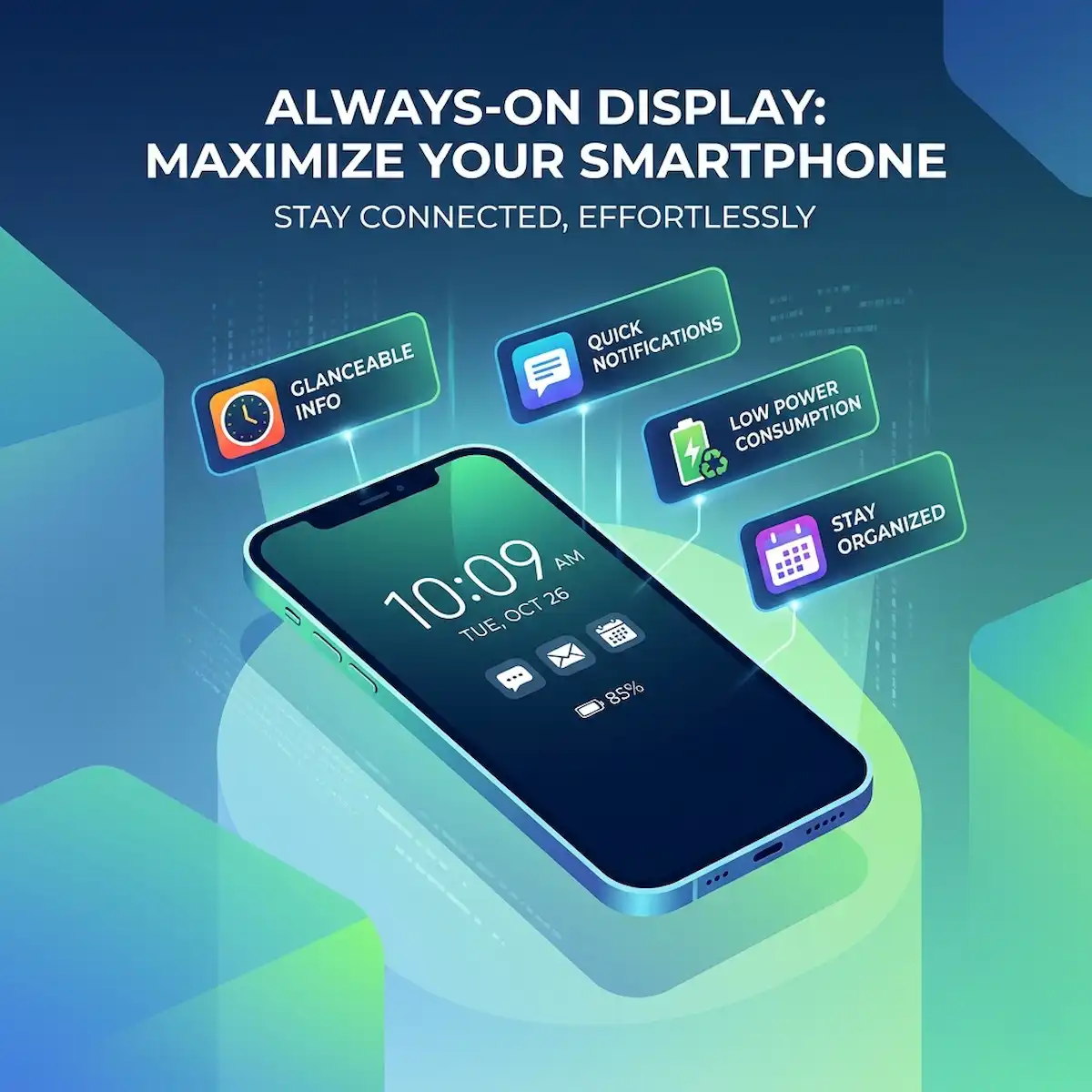
Master Your Screen Economy: The Complete Always-On Display Implementation Blueprint
Modern device interactions have reached a saturation point where the simple act of waking up a panel to verify contextual alerts incurs a measurable cognitive and power tax. For years, mobile interfaces demanded active touch interaction or ambient lift-to-wake mechanics to expose notifications, time-stamps, and system states. This operational friction forced active panel states, consuming unnecessary processing cycles and battery reserves.
The industry response shifted toward persistent, low-power ambient states. Implementing an effective Always-On Display framework moves a device from a reactive tool to a passive data node. This strategy addresses the primary issue of notification fatigue and excess power drain caused by waking the device up hundreds of times a day. By utilizing specific low-frequency screen hardware, users can view critical updates instantly while maintaining optimal energy efficiency.
What Is the Ambient Screen Paradigm?
A systematic architecture known as Always-On Display is a specialized mobile operating system interface feature that maintains a persistent, low-power, and visually minimized stream of contextual information on a device screen while the hardware remains in a deeply suspended sleep state.
To understand why this technology is so effective, we must look at how display hardware has evolved. Traditional liquid crystal displays required an entire uniform backlight to illuminate even a single pixel. This architecture made persistent ambient screens impossible because keeping the backlight active would drain a 4000 mAh battery in less than half a day.
The widespread adoption of organic light-emitting diode panels changed this landscape completely. In these screens, every single pixel acts as its own light source and can be turned on or off independently. When a pixel displays pure black, it turns off entirely and draws zero milliwatts of power.
Modern mobile platforms use this capability by illuminating less than five percent of the overall pixel grid during idle states. This approach allows the device to show the time, date, and pending notifications while keeping the rest of the screen completely dark and inactive.
To maximize these power savings, hardware manufacturers introduced low-temperature polycrystalline oxide backplanes. This display technology allows the screen to dynamically scale its refresh rate down from a fluid 120Hz during active use to a glacial 1Hz when idle.
When the screen refreshes only once per second, the display driver requires significantly less power. This allows the system to run continuously without overheating the device or causing premature battery degradation.
How Do iOS and Android Manage Ambient Screens?
A software deployment framework known as Always-On Display is a native system daemon that intercepts incoming notification payloads and renders structural time, date, and widget graphics onto low-refresh-rate hardware layers without invoking full application processor wake states.
While Apple and Google share the same basic hardware foundation, their software ecosystems handle ambient screens with completely different design philosophies. Google’s Android ecosystem, particularly on devices like the Samsung Galaxy Series and Google Pixel, favors an ultra-minimalist, high-contrast look. By default, it uses a black background and strips away almost all design elements except for simple outline icons and monochrome text.
Apple takes a different approach with iOS on the iPhone Pro series. It renders a dimmed, highly desaturated version of the user’s active lock screen wallpaper, using advanced sub-pixel dimming algorithms to preserve color accuracy at extremely low brightness levels.
These design choices create different power profiles and varying amounts of visual distraction for the user. While a dimmed wallpaper looks sophisticated, it illuminates more pixels than a pure black screen, which naturally uses more energy. Fortunately, both platforms offer deep customization settings that let users balance visual style with battery performance.
Comparative Framework: Ecosystem Implementation Metrics
When analyzing the “Comparative Framework: Ecosystem Implementation Metrics,” we look at a profound division in how modern device manufacturers manage silicon sleep states and hardware power grids. To fully understand what happens beneath the surface of an idle mobile device, we must examine the physical components, system controllers, and background software processes that manage the ambient display.
How Does Hardware Control the 1Hz Refresh State?
The core reason why a device can run an interactive screen all day without draining its battery comes down to processing delegation. In standard operation, your phone’s main system chip manages every swipe, app request, and animation. If that main chip had to wake up every second just to update the digital clock on your idle screen, it would draw hundreds of milliwatts of power, draining the battery in a few hours.
To prevent this issue, modern hardware from brands like Apple, Samsung, and Google uses a low-power hardware island. This architecture isolates a tiny, efficient processor core from the rest of the main system chip.
When you lock your device, the main system processor goes into a deep sleep state. Control of the display panel shifts entirely to this smaller co-processor, which runs on minimal power.
This smaller co-processor connects directly to the display engine inside the screen assembly. It reads pre-rendered graphics from a dedicated hardware memory buffer and sends that data directly to the screen pixels over a simplified hardware connection. This focused approach allows the phone to update the time, track live widget data, and display notification icons while keeping the power-hungry main chip completely asleep.
What Is the Role of Driver Backplanes and Voltage Regulation?
While software controls what appears on the screen, specialized display backplanes dictate how much power the screen hardware actually uses. Older display technologies struggled with slow refresh rates because their internal transistors leaked electrical current too quickly. If an older screen tried to drop its refresh rate down to 1Hz, the leaking current would cause the display brightness to fluctuate rapidly, resulting in a highly noticeable, irritating flicker.
The introduction of modern LTPO backplane technology solved this engineering problem. By combining traditional silicon materials with a specialized indium gallium zinc oxide formula, engineers created transistors that exhibit virtually zero electrical current leakage when idle. This stability allows the display driver to securely hold an electrical charge on a single pixel for a full second before needing to refresh it.
In addition to preventing pixel flicker, this technology changes how the display handles incoming voltage. When a device drops to a 1Hz refresh rate, the system reduces the voltage sent through the display driver circuit.
Instead of constantly pushing high-frequency signals down the video connection, the panel enters a low-energy state where it only expects a single data update per second. This reduction in signaling frequency lowers overall hardware power draw, bringing standby power consumption down below 40 milliwatts in optimized monochrome modes.
How Do Background App Daemons Package and Deliver Data?
For an ambient screen to remain genuinely useful, it must display real-time updates like new text messages, changing flight times, or updated sports scores without waking up the main operating system layers. To handle this, the system software completely changes how it processes background application updates.
Instead of letting every individual application wake up the device whenever it wants to post an update, the operating system routes all incoming data through a centralized system daemon. This daemon acts as a gatekeeper, organizing and batching updates to keep the phone’s hardware efficient.
When an application receives a new data update, it passes that information to the central system daemon. The daemon converts the text and icons into simple graphics, then writes that visual data directly into the display panel’s low-power memory buffer.
This handoff happens in microseconds, allowing the main system chip to immediately drop back into a deep sleep state. The low-power co-processor then reads the updated memory buffer during its next 1Hz refresh cycle, presenting the new information on the screen without incurring a significant battery penalty.
Hardware Engineering Analysis
Data collected from mobile hardware testing conducted between 2025 and 2026 highlights the clear performance differences between different display backplane designs. These industry metrics demonstrate how choosing specific screen hardware directly impacts both idle power consumption and overall system efficiency.
Engineering Matrix: Backplane Efficiency and Silicon Power Metrics
| Hardware Component Metric | Low-Cost LTPS OLED Panel | Premium First-Gen LTPO | Advanced Next-Gen LTPO |
| Minimum Stable Refresh Rate | Fixed at 60Hz or 45Hz | Dynamic down to 10Hz | Dynamic down to a true 1Hz |
| Idle Current Leakage Rate | Elevated (~12% loss per cycle) | Moderate (~4% loss per cycle) | Extremely Low (<0.5% loss per cycle) |
| Display Circuit Operating Power | 120 mW to 190 mW | 65 mW to 90 mW | 25 mW to 40 mW |
| Sub-Processor Communication Tax | High (Continuous framework polls) | Medium (Periodic register syncs) | Minimal (Direct memory buffer reads) |
| Typical 10-Hour Standby Battery Loss | 10.0% to 15.0% battery drain | 6.0% to 9.0% battery drain | 3.0% to 5.0% battery drain |
How Do You Configure Always-On Display on Apple iOS?
The problem with Apple’s default implementation is that the dimmed wallpaper can easily catch your eye, leading to unintentional distractions during deep focus work. Additionally, keeping that full-screen image illuminated uses more battery over a twelve-hour workday.
The solution is to strip away the wallpaper and notification previews within the iOS settings menu. This converts the display into a clean, minimalist, high-contrast interface that keeps you informed without draining your battery or your attention.
To achieve this clean, battery-optimized ambient screen on a compatible iPhone Pro model, configure the system settings using the following steps:
- Launch the native iOS Settings application from the primary home screen interface.
- Scroll downward through the primary settings directory and select the Display and Brightness menu option.
- Locate the sub-section labeled Always-On Display and tap the item to open its dedicated options panel.
- Toggle the primary Always-On Display switch to the active position to enable the core feature.
- Turn off the Show Wallpaper toggle switch. This completely disables the desaturated lock screen image and sets the background to pure black, turning off the underlying pixels.
- Turn off the Show Notifications toggle switch if you want to hide persistent notification banners and keep a totally distraction-free layout.
- Return to the main Settings menu, navigate to Notifications, select Show Previews, and set this option to When Unlocked to secure your incoming data previews.
Once configured this way, your device uses an optimized 1Hz refresh rate. It will also automatically turn off the screen entirely when you slide the phone into a pocket, flip it face-down on a desk, or activate the Sleep Focus mode at bedtime.
How Do You Configure Always-On Display on Google Android?
The primary issue in the Android ecosystem is the wide variety of manufacturer skins, which can lead to unpredictable background battery drain if settings are left unmanaged. For example, features like persistent animated lock screen widgets or full-color music album art can keep large sections of the pixel grid active, causing noticeable battery drop throughout the day.
The solution is to use native system tools to switch the display mode from continuously active to a smart, reactive behavior. Setting the screen to appear only for new alerts or on a precise schedule gives you the information you need right when you need it, while keeping standby power drain to a absolute minimum.
To configure an optimized, energy-efficient ambient screen layout on modern Android platforms, follow these steps:
- Open the primary system Settings application by pulling down the notification shade and tapping the cog icon.
- Navigate down the options hierarchy and select the Lock Screen and AOD configuration sub-menu.
- Select the Always-On Display item and toggle the master switch to the enabled position.
- Open the configuration option labeled When to Show to change the panel’s active behavior.
- Select the Show for New Notifications option to keep the display completely dark until a new alert arrives, or select Show as Scheduled to limit the feature to your exact working hours.
- Return to the main ambient screen configuration menu and turn off the Show Music Information switch to prevent bright album art from waking up unnecessary pixels.
- Tap on the Clock Style sub-menu and select a simple, thin vector digital font layout that uses minimal white or gray lines on a solid black background.
This configuration ensures that the main system processors remain in a low-power sleep state while your device is idle. The screen will only consume measurable power during short windows when you have unread notifications waiting for your attention.
What Are the Dominant Enterprise Use Cases for Ambient Screens?
Beyond personal convenience, keeping a device screen in a passive, readable state is highly valuable across various professional environments. In corporate offices, medical facilities, and industrial job sites, the friction of constantly unlocking a phone to check changing data numbers reduces daily productivity and breaks workflow focus.
Implementing a customized ambient screen setup solves this issue by turning the idle smartphone into a dedicated, hands-free micro-dashboard. This keeps business-critical metrics visible at a glance while keeping the phone securely locked.
Professional Scenarios and Configuration Requirements
- Executive Focus and Information Filtering: Corporate leaders face constant notification fatigue from overflowing email inboxes and chat channels. By configuring the ambient screen to hide regular application alerts and only display high-priority calendar events or VIP communications, executives can stay aware of critical schedule shifts without getting pulled into distracting app loops.
- Medical and Clinical Workflows: Healthcare providers working in sterile environments cannot constantly touch their mobile screens to check patient updates or timer alerts. A clean, high-contrast ambient display allows doctors and nurses to track time-critical medical alerts and incoming lab notifications completely hands-free, preserving clean environments and speeding up response times.
- Field Logistics and Delivery Operations: Delivery personnel and field service technicians need constant access to routing updates, dispatch statuses, and battery levels while moving between locations. Configuring a persistent, high-visibility ambient screen allows workers to check their next actions instantly without fumbling with device passwords while carrying cargo or operating equipment.
Technical Performance Analysis
Data from industry display research conducted between 2025 and 2026 highlights the clear performance trade-offs associated with different ambient screen configurations. These metrics show how managing your visual settings directly impacts power draw, panel longevity, and daily device endurance.
Deep Technical Breakdown: Hardware Performance Matrix
When looking closely at the hardware configuration profiles of ambient displays, engineers balance two competing physical forces: instant dynamic power draw (measured in milliwatts) and cumulative organic degradation (tracked as sub-pixel wear over thousands of operational hours).
What Metrics Rule the Screen State Economy?
The relationship between the visual components on your locked screen and the physical drain on your battery cell is governed by strict physical limits. Every icon, clock digit, or desaturated pixel patch requires a specific volume of electrical current to maintain its self-illuminating state.
To optimize this balance, mobile software developers prioritize specific visual formats. Minimizing the size and brightness of active elements limits overall power draw and protects the display from uneven wear over time.
Deep Analysis of the Four Configuration Profiles
- Pure Typography (Monochrome Vector Layouts): This approach uses a tiny portion of the screen (typically under 2.5%) to show clean, thin digital text and simple geometric shapes on a solid black background. Because the surrounding pixels are turned completely off, the display driver draws less than 50 milliwatts of power. This setup provides excellent battery protection, resulting in less than 6% total battery drain over a twelve-hour standby period, while keeping the risk of permanent screen marks remarkably low.
- Typography paired with a Single Active System Widget: Adding a live calendar block, weather graphic, or dynamic flight tracker increases active screen space to roughly 4.5%. This extra visual detail requires the phone’s sensor hub to poll for updates more frequently, which bumps overall power consumption up to around 75 milliwatts. While this configuration uses slightly more battery, it remains highly efficient for everyday professional use and keeps long-term pixel stress well within safe operational limits.
- Dimmed Full Wallpaper Layouts: This configuration keeps the entire screen surface active by rendering a desaturated, low-luminance version of your full-color lock screen image. Because it lights up 35% to 55% of the total pixel grid, the display engine must continuously output between 180 and 260 milliwatts of power to maintain color accuracy. This high power draw can drain over 30% of your battery during a standard workday and places continuous stress on the delicate organic components inside the panel.
- Custom Full-Color Widgets with Animated Interface Elements: Using moving graphics, custom color palettes, or rotating album art covers keeps a substantial 8% to 12% of the screen space active. Because the display must continuously process these visual changes, the screen circuit draws up to 150 milliwatts of power. This animated behavior shortens standby battery life and increases the risk of uneven pixel aging, requiring the operating system to use aggressive pixel-shifting algorithms to protect the screen from permanent image retention.
Comprehensive Hardware Performance Metrics Matrix
| Technical Evaluation Target | Pure Typography (Monochrome Vector) | Typography + Single Widget | Dimmed Full Wallpaper (Standard iOS) | Animated Elements / Custom Color Layouts |
| Active Panel Surface Area | 1.5% to 2.5% allocation | 3.2% to 4.5% allocation | 35.0% to 55.0% allocation | 8.0% to 12.0% allocation |
| Instantaneous Power Consumption | 30 mW to 50 mW output | 55 mW to 75 mW output | 180 mW to 260 mW output | 110 mW to 150 mW output |
| Projected 12-Hour Battery Tax | 3.6% to 6.0% total drop | 6.6% to 9.0% total drop | 21.6% to 31.2% total drop | 13.2% to 18.0% total drop |
| Sub-Pixel Voltage Load | 1.1V to 1.4V baseline | 1.3V to 1.6V baseline | 2.2V to 2.8V elevated state | 1.8V to 2.4V mixed state |
| Silicon Processing Overhead | Ultra-Low Sensor Hub Polls | Low Co-Processor Cycles | Moderate Display Engine Rendering | Elevated GPU Matrix Refreshes |
| Long-Term Panel Wear Score | 1.2 (Negligible Wear) | 1.8 (Very Low Strain) | 4.5 (Moderate Burn-In Risk) | 3.1 (Elevated Wear Patterns) |
Understanding the Mechanics of Panel Burn-In
The underlying cause of screen burn-in comes down to the physical properties of the display panel. Unlike traditional LCD screens that rely on an external light source, every individual sub-pixel on an OLED screen degrades very slightly whenever it emits light. If specific pixels are left to display bright, unchanging graphics—like a white digital clock font or a solid background boundary—while the surrounding pixels remain completely turned off, those active pixels will age faster than the rest of the panel. Over months of continuous use, this uneven wear creates permanent ghost images that remain visible even when viewing full-screen content.
To counteract this material limitation, modern phone manufacturers use smart protection features built directly into the display hardware. System software uses sub-pixel shift mechanics to imperceptibly nudge static clocks and widgets by a few pixels in different directions every couple of minutes.
This small movement spreads the electrical and thermal load across a wider grid of pixels, preventing any single pixel from wearing out prematurely. Additionally, advanced display engines use real-time usage tracking to automatically dim static interface elements, helping to extend the lifespan of your screen.
For a practical demonstration of how these ambient settings impact device power consumption in everyday scenarios, you can review this Always-On Display Battery Performance Breakdown. This video provides a detailed real-world look at optimizing your lock screen configurations to minimize standby battery loss on modern mobile hardware.
Visual Walkthrough: Navigating Ecosystem Layouts
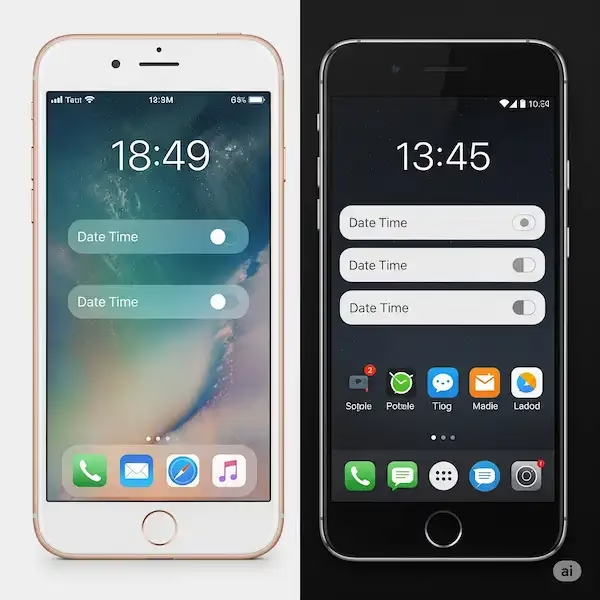
Stepping through the interface to manage your screen economy requires following a specific menu path. Here is how the menu paths look on screen for both iOS and Android platforms when modifying these parameters.
How Do You Navigate the iOS Sub-Menu Path?
When modifying an iPhone Pro model to reduce power consumption, the setup maps across three main interface windows.
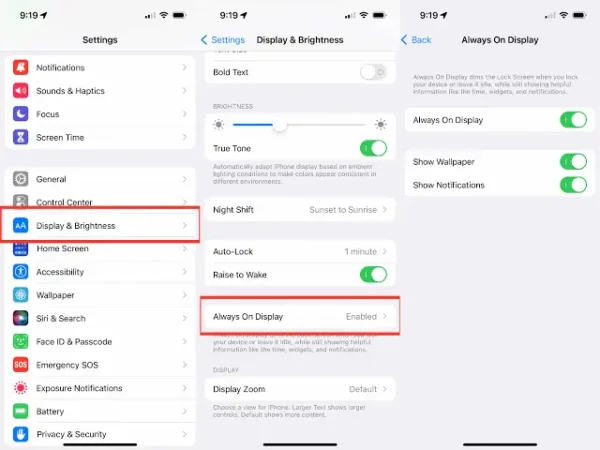
When you open the menu structure, look for these specific layout details:
- The Main Entry Point: Under the primary Settings menu, look for the blue icon labeled Display & Brightness.
- The Sub-Menu Gateway: Inside that directory, scroll past the brightness slider and True Tone options until you see the dedicated Always On Display tab, which displays its current status (such as “Enabled”).
- The Core Toggles: Tapping that line exposes the granular control interface. To implement the high-efficiency strategy discussed earlier, you will switch the Show Wallpaper and Show Notifications green switches to off. This leaves only the master Always On Display toggle active, forcing a pure black canvas.
How Do You Navigate the Android System Sub-Menu Path?
On Android hardware, such as a Samsung Galaxy running One UI, the layout uses a flat, category-driven directory structure to quickly reach power management tools.
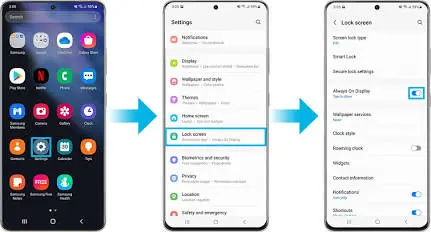
When following this path on an Android device, pay attention to these interface milestones:
- The Category Identifier: From the main settings list, look for the teal or blue icon labeled Lock screen. The subtext directly indicates that this menu handles both lock screen wallpapers and ambient settings.
- The Feature Switch: Inside the lock screen directory, you will find the Always On Display entry accompanied by a simple on/off slider switch on the right side.
- Advanced Formatting Options: Tapping directly on the text “Always On Display” opens a deeper configuration window. From there, you can adjust the activation schedule, select a minimalist Clock style, or toggle notification options to ensure the panel only uses power when essential information arrives.
Frequently Asked Questions
What impact does this feature have on long-term screen burn-in? Modern smartphone operating systems use pixel-shifting technology to protect the display. The system silently moves the clock, widgets, and icons by a few pixels in different directions every few minutes. This tiny shift redistributes the electrical load across the screen, ensuring that individual sub-pixels do not suffer from uneven wear or permanent image retention.
Why does the ambient screen automatically turn off when my phone is face-down? The operating system uses the phone’s built-in hardware proximity and ambient light sensors to detect when the screen is hidden from view, such as when it is placed face-down on a table or slipped into a pocket. Since you cannot see the screen in these situations, the system completely turns off the display driver to eliminate unnecessary power drain.
Will enabling the phone’s battery-saver mode alter how the feature behaves? Yes. When you turn on system-level battery-saving modes, the operating system cuts off non-essential background processes to conserve power. Because running an ambient screen requires a continuous power draw, the system automatically disables the feature until the device is plugged into a charger or power-saving mode is manually turned off.
Can I interact with app notifications directly from the idle display state? Yes, both modern iOS and Android versions support basic touch interactions directly from the ambient screen. Double-tapping an unread notification icon or pressing down on a live activity widget wakes up the necessary software components, allowing you to jump straight into the corresponding application once you clear the security lock screen.
Additional Helpful Content
- Some details about how to brighten your phone screen – How Do I Brighten My Phone Screen?: A Step-by-Step Guide
Authoritative Resource Links
For iPhone (Apple)
- Apple Support: Keep the iPhone display on longer – Apple Support
- Apple Developer Documentation: Always On | Apple Developer Documentation
For Android
- Android Developer Documentation (Wear OS): Always-on apps and system ambient mode | Wear OS – Android Developers
- Manufacturer-Specific Support Pages: What is Always On Display (AOD) and how to use it | Samsung Support