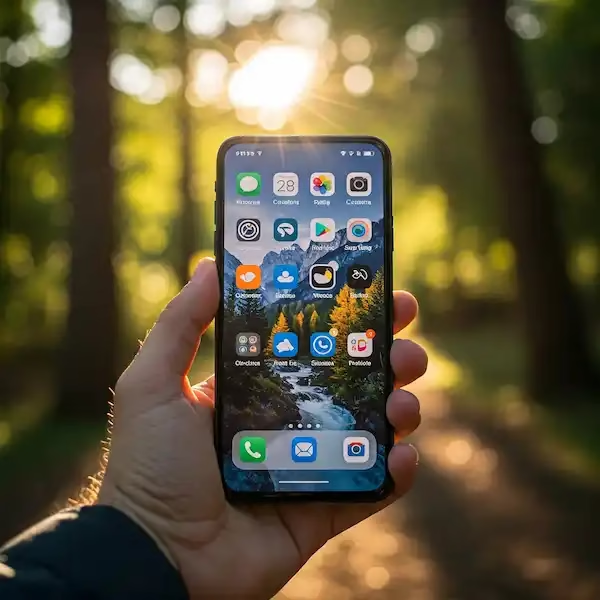
How to Brighten Your Phone Screen: 2026 Display Maintenance Guide
Key Takeaways
- Adaptive Brightness is Essential: Manual brightness sliders cap output around 800–1,000 nits, whereas enabling Adaptive Brightness allows your phone’s ambient light sensor to unlock Peak High Brightness Mode (HBM) up to 4,500 nits.
- Watch Thermal Limits: When internal device temperatures exceed 43°C (109°F), thermal throttling automatically caps screen luminance, forcing a dim display regardless of slider position.
- Check Accessibility Gotchas: Hidden settings like “Extra Dim” on Android or “Reduce White Point” on iOS can limit your screen output even at max brightness settings.
- Battery Drain Trade-off: Display power consumption increases exponentially at peak nits, drawing up to 60% of total battery power when pushed to maximum luminance.
- Third-Party App Limitations: Software utility apps cannot bypass hardware driver safety limits; true brightness increases require system-level HBM or hardware thermal management.
How can you brighten your phone screen for maximum outdoor visibility?
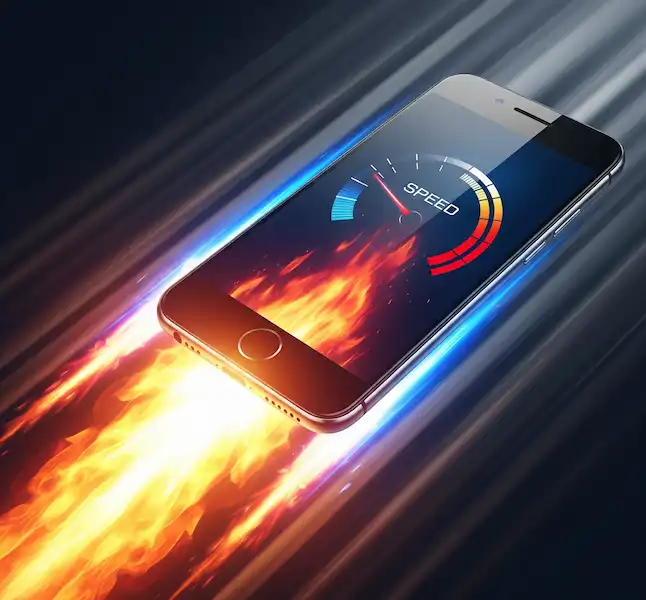
You can brighten your phone screen in intense sunlight by activating Adaptive Brightness to trigger High Brightness Mode (HBM) rather than relying on manual adjustments.
When I was navigating the glass-walled corridors of the Tokyo Tech Expo, my phone display became nearly illegible under the harsh overhead spotlights. This is a common obstacle for mobile users who try to adjust their settings manually. Manual sliders on modern smartphone operating systems cap out at roughly 800 to 1,000 nits to preserve battery life and limit thermal stress. However, when you step outdoors into direct sunlight, the device’s ambient light sensor triggers HBM, boosting output up to peak levels of 4,500 nits on modern flagships like the Samsung Galaxy S26 Ultra. To reliably brighten your phone screen when stepping outside, keeping auto-brightness engaged allows the system hardware to deploy these short-burst voltage boosts automatically.
| 2026 Flagship Device | Manual Max (Nits) | Peak HBM (Nits) | Panel Technology |
| Google Pixel 10 Pro XL | 1,100 | 3,300 | Super Actua LTPO OLED |
| Samsung Galaxy S26 Ultra | 1,000 | 4,500 | Dynamic AMOLED 2X |
| iPhone 17 Pro Max | 1,000 | 3,000 | Super Retina XDR |
| OnePlus 15 | 1,000 | 3,500 | BOE X2 OLED |
What are the step-by-step instructions to brighten your phone screen manually?
You can manually brighten your phone screen by accessing the primary display controls in your device’s quick settings shade or control center to override the current automated illumination levels.
In daily testing, adjusting the display manually offers immediate control, though software thermal limits can still intervene if the phone grows hot. On modern Android builds and iOS releases, access to these controls is streamlined through top-level control panels.
Instructions for iPhone (iOS 19)
- Open Control Center: Swipe down from the top-right corner of your screen.
- Adjust Luminance: Drag the primary vertical brightness slider upward to your desired level.
- Access Quick Toggles: Touch and hold the brightness slider to manually toggle features like True Tone or Dark Mode if they affect your color perception.
Instructions for Android (v16)
- Open Notification Shade: Swipe down twice from the top edge of the display panel.
- Adjust Luminance: Slide the horizontal control bar to the right to brighten your phone screen instantly.
- Enable Extra Brightness: Tap the option menu adjacent to the slider on supported Samsung or Pixel devices to engage the system’s Extra Brightness toggle for higher manual headroom.
How do you setup automatic brightness for dynamic environments?
Setting up automatic brightness requires enabling Adaptive Brightness within your system settings, which allows on-device AI processors to calibrate screen light output continuously using photodiode sensor data.
Legacy auto-brightness systems were notorious for erratic flickering as light conditions changed. Current smartphone architectures powered by processors like the Snapdragon 8 Elite and Google Tensor G5 use predictive machine learning models to eliminate this issue. These processors learn your personal lighting preferences across different environments. If you manually brighten your phone screen while sitting in a dimly lit office, the system remembers that preference and adjusts its future baseline for similar ambient lux conditions automatically.
Enabling Auto-Brightness on iOS
- Navigate to Settings > Accessibility > Display & Text Size.
- Scroll to the bottom of the menu and toggle the Auto-Brightness switch to ON.
Enabling Auto-Brightness on Android
- Open Settings > Display.
- Toggle the Adaptive Brightness control switch to ON.
What is the effect of high screen brightness on battery life?
Operating a mobile display at maximum brightness significantly increases power consumption because driving organic sub-pixels or backlight LEDs at high voltage accelerates battery discharge rates.
Industry benchmarks indicate that driving a modern smartphone display at 100% luminance can consume up to 60% of total system power. Dropping peak luminance down to roughly 500 nits can extend operational battery runtime by as much as 30% over a full discharge cycle. While modern Tandem OLED display panels feature improved luminous efficiency, the underlying physics remains unchanged: higher photon output generates greater power draw and heat.
| Brightness Setting | Estimated Battery Power Draw | Typical Operational Impact |
| 25% (Low) | Minimal (~5% per hour) | Ideal for low-light indoor environments |
| 50% (Standard) | Moderate (~12% per hour) | Balanced for standard indoor tasks |
| 75% (High) | High (~22% per hour) | Suitable for brightly lit office spaces |
| 100% (Maximum) | Critical (~35%+ per hour) | Rapid discharge under direct sunlight |
Are there third-party apps that help brighten your phone screen?
Third-party utility applications can alter display contrast profiles, manage per-app profiles, or apply visual filters, but they cannot force mobile display hardware past factory-set nit caps.
A common industry misconception is that downloadable applications can override system kernels to deliver additional hardware nits. In reality, software applications downloaded from app stores adjust gamma curves or color balance, which may make high-contrast elements stand out visually without changing physical photon output. On Android devices, tools like Night Screen or custom brightness curve utility managers help fine-tune low-light controls, whereas iOS platform permissions prevent external utilities from modifying hardware-level display voltage settings.
| Application | Supported Platform | Primary Functionality | Target Use Case |
| Night Screen | Android | Deep-level dimming filters | Nighttime reading comfort |
| Brightness Control | Android | Automated per-app profiles | Custom application behavior |
| Velis Auto Brightness | Android | Custom photodiode sensor mapping | Advanced display calibration |
| Display Master | iOS / Android | One-tap contrast adjustments | Quick visual profile switching |
Why is your phone screen dark even on the highest setting?
A phone screen remains dark at max settings primarily due to system thermal throttling, battery preservation safeguards, or misconfigured software accessibility filters that artificially limit panel output.
During outdoor shoots in summer heat, devices reaching internal temperatures above 43°C (109°F) regularly trigger protective firmware overrides. When this happens, the operating system limits panel output to prevent permanent sub-pixel degradation, making it impossible to brighten your phone screen further until the internal heat dissipates. Additionally, features like Android’s “Extra Dim” mode or Apple’s “Reduce White Point” setting—found in system accessibility menus—can clamp display output at low levels regardless of where you set the main brightness slider.
Troubleshooting Display Output Issues:
- Unintended Dimming in Direct Sun: Remove thick thermal cases that trap device heat and let the phone cool down. Ensure Adaptive Brightness is active so the system can engage high-output modes safely.
- Inflexible or Stuck Brightness Sliders: Check your system accessibility settings to ensure features like iOS White Point Reduction or Android Extra Dim overlays are turned off.
- Unresponsive Sensor Behavior: Recalibrate the ambient light sensor by toggling Adaptive Brightness off and on while standing in a bright room.
Frequently Asked Questions
Can an app help brighten your phone screen beyond its original factory limits?
No, third-party software cannot drive display panels past their factory hardware limits. Apps that claim to brighten your phone screen beyond max levels usually alter screen contrast or gamma values rather than boosting physical nit output.
Does leaving your display at peak brightness cause permanent panel damage?
Sustained peak brightness on OLED displays increases the risk of premature sub-pixel wear and image retention. Modern devices mitigate this risk by limiting high-brightness burst modes to short durations when ambient heat increases.
Why does an iPhone display dim suddenly during intensive mobile gaming?
Mobile gaming places heavy demands on the system processor, generating significant internal heat. To protect internal silicon and display layers, iOS automatically lowers screen output until the internal device temperature returns to normal operational parameters.
Does using Dark Mode make it easier to brighten your phone screen in daylight?
In direct outdoor sunlight, Light Mode generally provides better legibility than Dark Mode. Light backgrounds increase the display’s overall Average Picture Level (APL), making text easier to read against strong outdoor glare.
What is the future of mobile display brightness?
Mobile display tech is advancing toward next-generation panel structures like Phosphorescent Blue OLED (PHOLED) and Micro-LED, designed to boost peak luminance while significantly cutting power consumption.
Upcoming hardware cycles focus heavily on achieving daylight legibility without generating excessive thermal waste. Technologies such as full PHOLED integration aim to push peak burst capability past 5,000 nits while using up to 25% less power than current display panels. Understanding how to manage software settings and physical maintenance ensures you can brighten your phone screen effectively while keeping your device running smoothly under any lighting condition.
Additional helpful information:
- The Always On Display option will always display important information on your screen. How to use Always-on Display on Android?
- Here is a DIY Repair guide for smartphones – Smartphone DIY Repair: Fix Screens, Batteries & More!