External Phone Storage for Android and iPhone
I’ve been there. You’re at a concert or your kid’s graduation, you hit record on a 4K video, and that dreaded “Storage Almost Full” notification pops up like an uninvited guest. It’s frustrating because cloud storage isn’t always the answer—sometimes you’re in a dead zone, or you just don’t want to pay a monthly “data tax” to a giant corporation. This is why I started carrying external phone storage everywhere I go. It changed how I use my device.
Back in the day, expanding storage was as simple as popping in a microSD card. But as phone designs got sleeker (and manufacturers realized they could charge $100 more for an extra 128GB of internal space), those slots started disappearing from flagship models. Today, I rely on external SSDs and thumb drives to keep my digital life portable. Whether you’re a photographer, a heavy gamer, or someone who just refuses to delete old memes, finding the right external phone storage is the real-world solution to the storage crisis.
The Return of the SD Card: Micro-Storage Magic
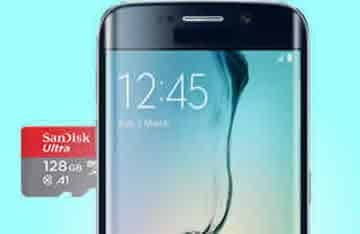
While many high-end phones dropped the SD slot, plenty of mid-range Androids and dedicated tablets still embrace them. Using an SD card is the most seamless form of external phone storage because it stays tucked inside the chassis.
However, not all cards are created equal. I’ve seen people buy a cheap 512GB card from a questionable online marketplace only to have it fail a month later. When you’re picking an SD card for external phone storage, look for the V30 or V60 rating. This ensures the card can handle the high bitrates of modern video. If you’re planning on moving app data to the card, look for the A2 rating, which signifies better “Application Performance” for faster loading times.
The Hardware Reality: What You Actually Need
For modern phones without a card slot, everything revolves around the port. If you have an iPhone 15 or 16, or any Android from the last five years, you’re looking at USB-C. If you’re rocking an older iPhone, you’re stuck with Lightning. Using external phone storage on these devices requires understanding your hardware’s limits.
- For Android: Most devices support USB On-The-Go (OTG). This is the secret sauce that allows your phone to act as a host for a drive.
- For iPhone: Since iOS 13, Apple’s Files app has been surprisingly capable. However, if you’re using a Lightning-based iPhone, you often need the “Lightning to USB 3 Camera Adapter” which has an extra port to plug in a power cable. Without that extra juice, your external phone storage might not even show up.
Third-Party Apps: The Insider’s Toolkit
While the built-in “My Files” (Samsung) or “Files” (Apple) apps are okay for basic tasks, they often choke on complex file structures or large media libraries. If you want to manage your external phone storage like a pro, you need better software.
For Android Power Users
- Solid Explorer: This is my daily driver. It has a dual-pane layout that makes dragging files from internal storage to an external SSD feel like using a computer. It makes managing external phone storage incredibly intuitive.
- USB OTG Helper: Sometimes, Android just won’t “see” a drive, especially if it’s formatted in a weird way. This app forces the mount. It’s an older tool, but it’s saved me more than once when a client handed me a “unreadable” piece of external phone storage.
- VLC Media Player: Not exactly a “file manager,” but essential. You can play 4K movies directly off your drive without copying them to your phone first.
For iPhone Power Users
- SanDisk App (formerly Memory Zone): If you use SanDisk’s iXpand drives, this app is mandatory. It automates backups. The second I plug in my external phone storage, it starts sucking up my latest photos so I can delete them from the phone immediately.
- FileBrowser – Document Manager: This is the “Swiss Army Knife” for iOS. It connects to drives, network-attached storage (NAS), and even your PC. It’s much more stable than the native Files app when moving 50GB+ of data.
Comparison: External Storage Solutions
| Feature | microSD Card | USB-C Flash Drive | Portable SSD |
| Portability | Highest (Internal) | High (Pocketable) | Medium (Requires Cable) |
| Speed | 10MB/s – 160MB/s | 100MB/s – 400MB/s | 500MB/s – 2000MB/s |
| Max Capacity | Up to 1.5TB | Up to 1TB | Up to 8TB+ |
| Durability | High (Protected) | Moderate | High (Ruggedized) |
| Best For | Semi-permanent storage | Quick file transfers | 4K Video editing |
Deep Dive: Managing SD Card Storage
If your phone does have an SD slot, you have two choices: Portable Storage or Internal/Adoptable Storage.
Portable storage treats the card like a thumb drive—you can pop it out and put it in your laptop to move files. Adoptable storage “marries” the card to your phone, making it part of the system memory. I generally advise against adoptable storage. If the card dies or gets slightly unseated, your phone might crash or lose app data. Stick to using the SD card as external phone storage for your media, and keep the system apps on the internal flash.
The “Pro” Secret: Formatting Matters
This is where most people get stuck with their external phone storage setup. If you take a drive fresh out of a Windows PC box, it might be formatted as NTFS.
- Android usually hates NTFS without third-party drivers.
- iOS flat-out won’t read NTFS.
The “Universal Language” for external phone storage is exFAT. It supports files larger than 4GB (unlike the old FAT32) and works flawlessly on Windows, Mac, Android, and iOS. Before you load your drive with 500GB of movies, plug it into a computer and format it to exFAT. It will save you a massive headache later.
Exhaustive Troubleshooting: When Things Go Wrong
1. “Drive Not Recognized” (Android)
Go to Settings > System > OTG Connection and toggle it on. Some brands (like OnePlus or Oppo) disable OTG by default to save battery. If your external phone storage is still not showing up, your phone might not be providing enough “juice.” Try a powered USB hub.
2. “Accessory Requires Too Much Power” (iPhone)
This is the classic Lightning-port error. The iPhone limits the power output to the port. You must use a powered adapter for most external phone storage options. If you’re on a USB-C iPhone and get this, your cable is likely the bottleneck. Use the cable that came with the SSD, not a cheap $2 gas station charging cable.
3. “Files are Read-Only”
This usually means the drive is formatted in NTFS (on Mac/iPhone) or there’s a physical write-protect switch on the SD card adapter. Reformat your external phone storage to exFAT to solve this.
4. Corrupted Data
Never, ever just yank the drive out. On Android, go to the notification shade and tap “Unmount.” On iPhone, wait until the light on your drive stops blinking. Pulling external phone storage while it’s “indexing” is the fastest way to lose your wedding photos.
FAQ: Questions I Get All The Time
Q: Can I run apps from an external drive?
A: Generally, no. Both Google and Apple have locked this down for performance and security reasons. Use your external phone storage for “cold storage”—photos, videos, and documents—and keep your apps on the internal memory.
Q: Is it safe to leave a drive plugged in all day?
A: It drains your battery. Most external phone storage devices, especially SSDs, are power-hungry. I only plug mine in for transfers or while watching a movie.
Q: What happens if I lose the drive?
A: This is the risk. Unlike the cloud, there’s no “forgot password” for a lost thumb drive. Use an app like Solid Explorer to encrypt sensitive folders on your external phone storage.
Final Thoughts from the Field
I’ve spent years testing these setups in the field. My current “travel kit” for external phone storage is a 2TB Samsung T7 Shield. It’s rugged, fast enough to edit video directly on my phone using LumaFusion (iOS) or CapCut (Android), and fits in my coin pocket.
Don’t let the manufacturers force you into a more expensive phone model just for the storage. A $60 piece of external phone storage and a bit of formatting know-how is the smartest “upgrade” you can give your device.
For more technical specs on storage standards, check out the SD Association or the USB-IF for the latest on transfer speeds.
Additional helpful information:
- Visit this post to read more about using an USB Flash drive on your Android phone or tablet “Connect USB Storage to your Android…“
- To learn more about using a SD Memory card on your Android device “How to use a SD Memory card on Android…“