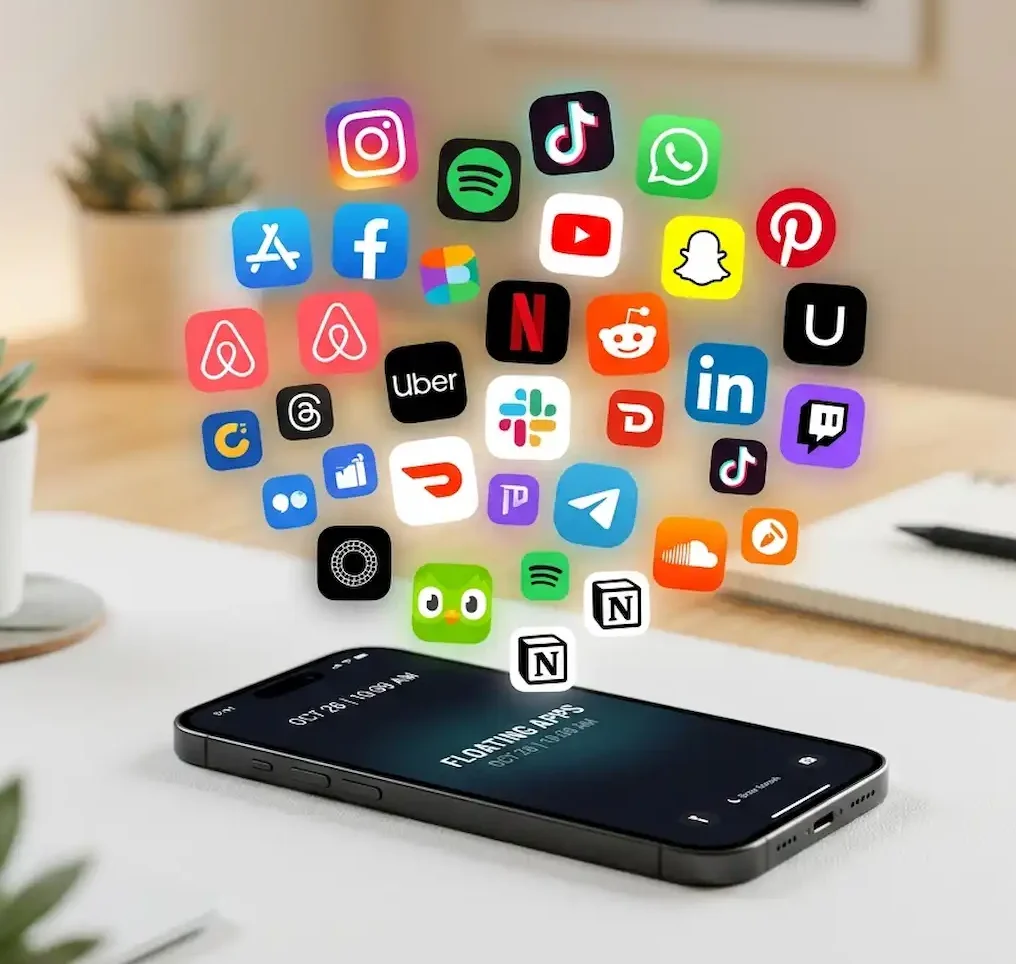
Navigating Pre-Installed Software: Which Default Phone Apps We Actually Swap Out
Key Takeaways
- The Stock Purge: Browsers, messaging tools, and photo galleries are the most frequently swapped pre-installed applications on both Android and iOS devices.
- Performance Drivers: Users routinely replace built-in tools to gain advanced privacy features, zero-latency caching, offline data capabilities, and cleaner interfaces without promotional bloatware.
- Platform Dynamics: While iOS users primarily supplement default apps with premium App Store alternatives like Google Chrome or Spotify, Android owners often completely disable system-level stock utilities.
- Data Transparency: Industry data shows that over 65% of active smartphone users replace at least three core factory-installed programs within the first week of device activation.
Why Do People Toss Pre-Installed Smartphone Apps For Third-Party Applications?
When unboxing a brand-new smartphone, users encounter a digital environment populated by dozens of pre-installed smartphone apps. Hardware manufacturers like Samsung, Apple, and Google pre-load these utilities to guarantee baseline functionality—ranging from web browsing and weather forecasting to media playback. Yet, market analytics show that millions of consumers immediately head to the digital marketplace to download third-party software replacements.
This behavioral shift happens because default software often prioritizes corporate data aggregation and broad commercial utility over specific user preferences. A factory browser might lock users into specific search engines or lack granular cookie protections, while a stock gallery app might bundle aggressive cloud-storage upsells directly into local media viewing. Swapping these utilities out unlocks localized speed, customized shortcuts, and advanced security layers that standard factory options rarely provide. Whether you are setting up a brand new smartphone or cleaning up an older device, evaluating your pre-installed smartphone apps is the first step toward reclaiming device performance. When evaluating pre-installed smartphone apps, power users always check whether pre-installed smartphone apps can be safely disabled or replaced entirely without breaking the operating system.
Which Default Web Browsers Do Users Replace First and Why?
The web browser stands as the single most frequently replaced pre-installed smartphone app across global mobile operating systems. Out of the box, iPhones arrive with Apple Safari, while standard Android handsets feature Google Chrome. Despite their deep system integration, millions of consumers bypass these defaults to install independent alternatives like Brave Private Browser or Mozilla Firefox.
The primary catalyst for this migration is script management and tracker blocking. Standard factory browsers often process heavy telemetry and behavioral tracking scripts by default. Independent browsers integrate aggressive on-device blocking engines that strip out intrusive ad scripts, reduce cellular data consumption by up to 40%, and accelerate page render times. Furthermore, cross-platform bookmark syncing and localized extension support make independent browsers far more flexible for power users managing multiple workstations. Replacing pre-installed smartphone apps like the stock browser is often the easiest way to boost page load speeds on any smartphone. Many consumers discover that replacing pre-installed smartphone apps also stops battery drain caused by background telemetry.
| Browser Category | Default Stock App | Common Third-Party Replacement | Core Motivation for Switching |
|---|---|---|---|
| iOS Platform | Apple Safari | Google Chrome / Brave | Cross-device bookmark syncing and advanced script blocking |
| Android Platform | Google Chrome | Mozilla Firefox / Opera | Extension support and customized privacy controls |
| Enterprise / Security | System Default | Tor Browser / DuckDuckGo | Zero-trace browsing and automated tracker eradication |
How Do Users Swap Their Default Messaging and Communication Apps?
Communication utilities represent the second largest category of factory software substitutions. While Apple relies on iMessage and FaceTime, and Android builds its communication stack around Google Messages and carrier RCS profiles, users frequently transition conversations to multi-platform utilities like WhatsApp Messenger, Telegram, or Signal.
The friction point with default communication software usually stems from hardware fragmentation. If a user communicates heavily with contacts across different operating systems, proprietary factory apps can degrade media quality or fail to maintain seamless group encryption. Third-party messaging utilities bypass carrier restrictions entirely, relying instead on direct data-packet routing that delivers instant message delivery, higher file-transfer size limits, and unified cross-platform history. Managing pre-installed smartphone apps effectively means keeping communication tools streamlined so your storage stays optimized.
What Makes People Switch From Factory Media Players and Galleries?
Media consumption hubs—specifically photo galleries and music streaming interfaces—form the third major wave of pre-installed smartphone app replacements. Factory tools like Apple Photos or Google Photos increasingly lean toward automated cloud categorization and subscription prompts. When users want immediate local file access without algorithmic curation or recurring storage fees, they turn to third-party alternatives.
In the audio space, streaming services like Spotify or Tidal routinely displace bare-bones manufacturer music players. On the visual side, lightweight open-source gallery apps provide lightning-fast local folder management without demanding mandatory cloud backups or exposing personal image metadata to automated server-side taggers. Swapping out pre-installed smartphone apps for photo management gives users absolute control over their local device storage.
Which Key Software Categories Beyond Browsers and Messaging Do Users Swap First?
- Keyboard and Input Tools: Factory keyboards often struggle with localized multilingual prediction, custom text expansion shortcuts, and swipe gesture precision.
- Navigation and Mapping: Native mapping utilities frequently lack offline vector tile caching, lane-level traffic alerts, or niche features like trail topo maps or transit routing.
- Note-Taking and Document Suites: Built-in memo tools rarely support Markdown formatting, bidirectional link networks, end-to-end local file encryption, or seamless desktop cross-syncing.
- Email and Calendar Clients: Manufacturer mail and calendar tools often lack unified cross-account inbox views, custom swipe gestures, deep natural language parsing, or granular notification Snooze rules.
- Calculator and Utility Tools: Standard stock calculators typically lack unit/currency conversion tools, memory stack inspection, programmable tape displays, or scientific graphing modes.
How Do Default Utility Apps Compare to Third-Party Software Upgrades?
| App Category | Factory Default App | Popular Third-Party Alternative | Key Hardware & Feature Advantage |
|---|---|---|---|
| Virtual Keyboards | Apple Keyboard / Gboard | SwiftKey / Fleksy | Multilingual auto-correct accuracy, gesture tuning, and custom layout sizing |
| Navigation & Mapping | Apple Maps / Google Maps | Waze / OsmAnd / Citymapper | Real-time crowd-sourced incident routing, full offline topography, and precise lane guidance |
| Note-Taking & Drafting | Apple Notes / Google Keep | Obsidian / Notion / Bear | Markdown support, local plain-text file ownership, graph linking, and desktop sync |
| Email Clients | Apple Mail / Samsung Mail | Spark / Outlook / Proton Mail | AI-powered priority triage, custom swipe actions, end-to-end encryption, and cross-platform unified inboxes |
| Calendar & Scheduling | iOS Calendar / Google Calendar | Fantastical / Cron (Notion Calendar) | Natural language entry parsing, unified conference link generation, and rich widget integration |
| Calculators & Converters | Stock Calculator | Soulver / PCalc / Ncalc | Sentence-based calculations, live currency conversion streams, and interactive history tapes |
Why Do Users Replace Default Keyboards and Input Engines?
Input interfaces represent one of the highest daily interaction points on any device. Stock virtual keyboards like Apple’s default iOS keyboard or basic AOSP (Android Open Source Project) keyboards often fall short for heavy typists or bilingual users.
Switching to alternatives like Microsoft SwiftKey or Gboard (on iOS devices) provides advanced machine-learned text prediction engines that adapt to an individual’s typing rhythm, vocabulary, and slang. Third-party keyboards also offer features such as haptic intensity customization, dedicated number rows, custom layout resizing, clipboard history managers, and seamless switching between multiple languages without manually toggling input modes. Upgrading pre-installed smartphone apps such as the virtual keyboard dramatically improves daily typing speed.
What Prompts Users to Swap Out Factory Navigation and Mapping Utilities?
While Apple Maps and Google Maps are widely used, specialized users routinely swap or supplement them with purpose-built navigation engines. Commuters in dense urban centers often rely on Waze for its real-time, crowd-sourced incident reporting and aggressive re-routing algorithms that bypass unexpected traffic bottlenecks.
For international travelers and outdoor enthusiasts, open-source mapping apps like OsmAnd or Organic Maps utilize OpenStreetMap (OSM) vector data to offer full offline navigation without requiring active cellular data connections or location tracking. Urban transit users frequently prefer dedicated transit apps like Citymapper for precise subway platform positioning and multi-modal routing. Assessing pre-installed smartphone apps ensures you always have the right offline map tool when traveling abroad.
Why Are Stock Note-Taking and Productivity Apps Replaced?
Built-in note apps like Apple Notes or Google Keep are excellent for quick scratchpads, but they quickly hit limits when managing complex information networks, research bases, or structured project notes.
Power users routinely transition to local-first or structured tools like Obsidian, Notion, or Bear. Obsidian, for instance, stores all notes locally as plain-text Markdown files, preventing vendor lock-in and allowing users to maintain ownership of their data. Advanced features like bidirectional page linking ([[Note Title]]), interactive graph views, tag hierarchies, and custom plugin ecosystems transform the device from a simple scratchpad into an interconnected knowledge database. Customizing your pre-installed smartphone apps with robust note tools keeps your research accessible everywhere.
What Drives the Migration Away from Default Email and Calendar Utilities?
Default email applications (such as Apple Mail or pre-installed manufacturer mail tools) often suffer from delayed push notifications, limited search indexing, and rigid inbox organization. Swapping to clients like Spark, Microsoft Outlook, or Proton Mail grants users access to unified inboxes that cleanly aggregate multiple personal, professional, and custom-domain accounts.
These third-party clients introduce features like automated email triage (grouping newsletters and notifications separately from personal threads), configurable swipe actions, scheduled sending, and integrated calendar scheduling. Similarly, third-party calendars like Fantastical excel by offering natural language event creation—allowing users to type phrases like “Lunch with Sarah at noon next Tuesday” to automatically populate event times, locations, and reminder alerts. Swapping out slow pre-installed smartphone apps for efficient mail clients saves hours of productivity weekly.
How Do You Change Default Apps on Android and iPhone?
Transitioning away from factory software requires navigating system-level preference menus. Below are the step-by-step instructions for updating default application assignments on both major mobile platforms.
Changing Defaults on Android
- Open the system Settings application from your app drawer or notification shade.
- Scroll down and tap on Apps or Applications, then select Default apps.
- Choose the specific category you wish to change, such as Browser app, Phone app, or SMS app.
- Select your preferred third-party application from the available list of downloaded software to set it as the new system default.
Changing Defaults on iPhone (iOS)
- Open the iOS Settings application on your home screen.
- Scroll down through the menu until you locate the specific third-party application you want to use (for example, tap Chrome or Firefox).
- Tap on the option labeled Default Browser App or Default Email App.
- Select your preferred third-party application from the checkmarked list to override the Apple default.
Changing Default Keyboards
- On Android: Go to Settings > System > Languages & input > On-screen keyboard > Manage on-screen keyboards, then toggle on your new keyboard and set it as default under Current keyboard.
- On iPhone: Go to Settings > General > Keyboard > Keyboards > Add New Keyboard… > select your installed third-party keyboard. Tap Edit to drag it to the top of the list or tap the keyboard name to toggle Allow Full Access.
Disabling Unused Factory Apps (Android)
If a factory application cannot be completely uninstalled, you can disable it so it stops taking up active system RAM or running in the background:
- Open Settings > Apps > See all apps.
- Select the pre-installed application you wish to remove (e.g., stock browser, default news app, or carrier bloatware).
- Tap Disable (or Force Stop) to remove it from your app drawer and halt background activity.
Frequently Asked Questions
Does replacing pre-installed apps save internal storage space?
Completely deleting system-level software is rarely possible without root or jailbreak access, as these files are baked into the protected operating system partition. However, changing your default settings and disabling factory applications prevents them from running background processes, updating automatically, or caching unnecessary data files, effectively reclaiming active system memory. Managing pre-installed smartphone apps properly guarantees smoother device operation.
Can third-party apps completely integrate with system hardware like stock apps do?
Modern mobile operating systems provide secure application programming interfaces (APIs) that allow third-party tools to access hardware features like cameras, biometric scanners, and GPS sensors. While certain deep system shortcuts remain exclusive to factory software, third-party apps achieve nearly identical functional performance for everyday tasks.
Are third-party replacements safer than factory default applications?
Safety depends entirely on the developer and permissions granted. Open-source third-party applications often provide superior transparency regarding data handling because their code can be independently audited. Always review requested permissions during installation to ensure the application only accesses data essential to its core purpose. Evaluating pre-installed smartphone apps against secure third-party alternatives is a core part of digital hygiene.
Additional Helpful Information
- Learn more about installing apps on smartphones – How to Install Apps on My Phone? iPhone or Android