How to Manage PDF Files on Your Phone: A Complete Mobile Strategy
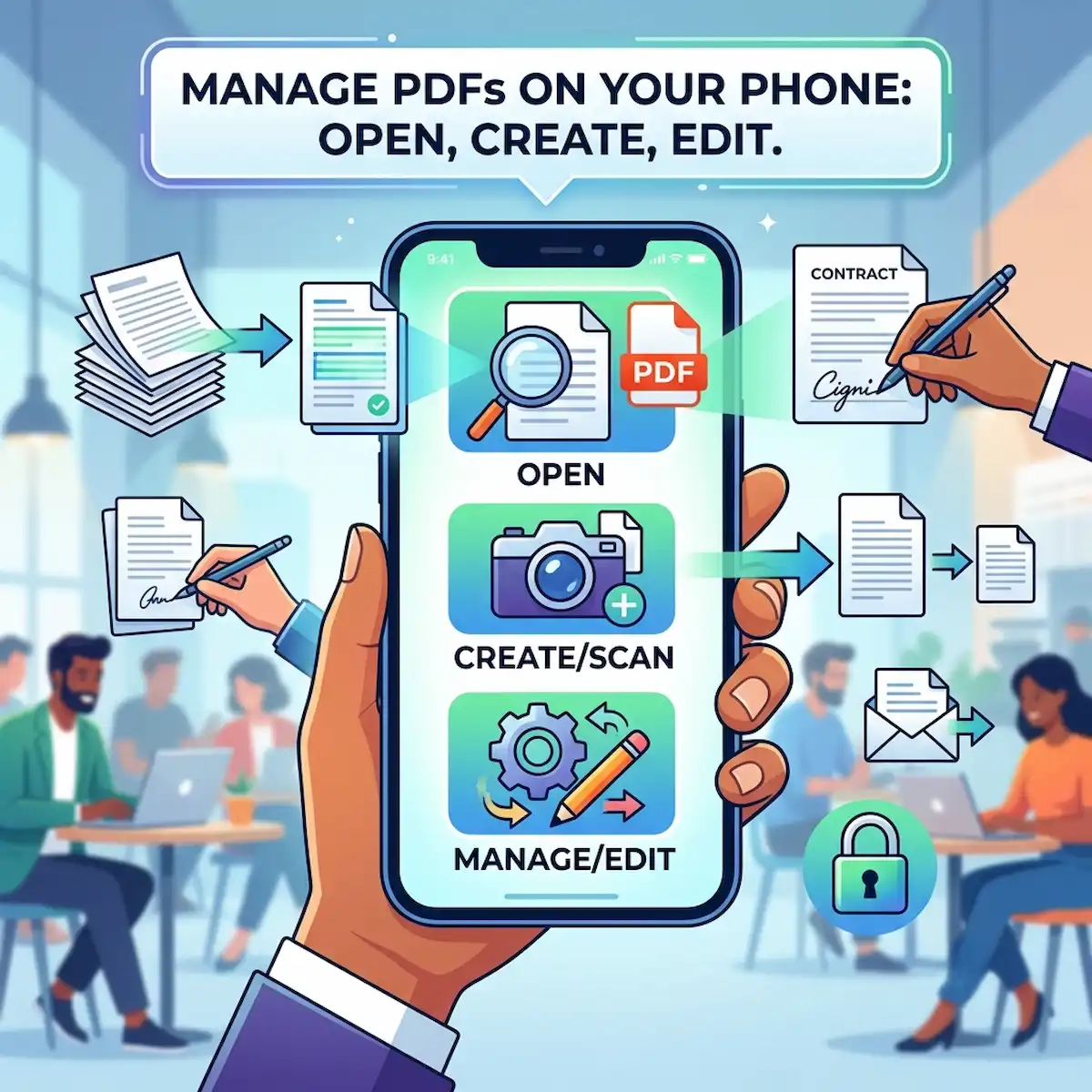
Managing documents while away from a computer used to be an exercise in frustration, but learning how to manage pdf files on your phone can completely transform your daily productivity. Whether you are a student pulling up a class syllabus on a crowded train, a real estate agent trying to scan a contract on a kitchen counter, or an executive reviewing financial quarterly reports while waiting at an airport gate, mobile document handling is no longer a luxury. Modern smartphones are more than capable of processing complex digital assets, yet many users still encounter formatting errors or unexpected layout distortions. This comprehensive guide details the precise operational steps to review, generate, and track portable documents natively and via industry-standard software. When you know how to properly manage pdf files on your phone, your mobile workflow remains seamless and efficient no longer tied to a traditional desk environment.
How do I open and read portable documents on my mobile device?
An application designed to display digital documents is software that parses text structures, embedded images, and layout geometries contained within an independent data file to present a uniform visual representation across varying screen resolutions without modifying the source asset data.
Opening an existing document should be direct, yet unexpected file layout errors frequently occur when a device lacks a dedicated interpreter. When a contractor sends a complex layout blueprint or an employer shares an onboarding handbook, relying on a generic web browser to render the file often distorts the visual alignment. Using native system applications ensures that the structural geometry of the document remains exactly as the author intended, helping you accurately manage pdf files on your phone.
To verify how the operating system handles these assets out of the box, review the integrated workflows for both major mobile platforms below:
Android Built-in Opening Workflow
- Navigate to the internal application drawer and select the system file directory explorer, typically labeled Files by Google.
- Browse through the directory structure to locate the Downloads folder or the specific storage path where the target asset resides.
- Tap directly on the target document item to invoke the default system viewer, which utilizes the integrated system engine to render the pages.
- If multiple document handlers are installed on the device, a system prompt will appear at the bottom of the screen; select the preferred viewing software and choose Always to establish the permanent file association rule to manage pdf files on your phone seamlessly.
iOS Built-in Opening Workflow
- Locate and open the default internal data explorer application, designated as Files, on the primary home screen layout.
- Tap the Browse tab situated at the bottom right corner of the user interface to navigate between local device storage and linked cloud directories.
- Access the specific folder containing the document and tap the file icon once to activate the quick look rendering engine.
- To access advanced navigation tools or pass the document to secondary productivity suites, tap the share utility icon located at the bottom left area of the display interface to efficiently manage pdf files on your phone.
What are the most reliable mobile applications for advanced document interaction?
Mobile viewing platforms are third-party application ecosystems that provide specialized compilation engines, annotation frameworks, and cloud-synchronized file management systems optimized for parsing multi-layered layout files on small-screen computing hardware.
While factory-installed viewers are perfect for a quick glance, they often lack the processing power required for advanced enterprise needs. Working with complex corporate data forms, interactive fields, or multi-layered text documents requires robust, dedicated software if you want to optimize how you manage pdf files on your phone. Installing an optimized third-party suite grants access to deep text searching, precise digital signature placement, and customizable night-reading interfaces.
The following data table compares the operational characteristics of the top mobile document management applications available in the current ecosystem:
| Mobile Software Suite | Core Processing Advantage | Cloud Storage Support Matrix | Security Implementation |
| Adobe Acrobat Reader mobile | Liquid Mode structural text reflow | Adobe Document Cloud, Google Drive, OneDrive, Box | 128-bit file encryption and secure signature locking |
| Fast PDF Reader suite | Native C-based parsing engine for speed | Local storage prioritize, manual offline exports | Local sandbox storage with zero background data tracking |
| Google Drive app | Real-time cloud collaboration | Google Workspace ecosystem exclusively | Account-level multi-factor authentication protocols |
| PDF Gear | Completely unrestricted free utility tier | Local device paths, iCloud Drive, OneDrive sync | Secure offline containerization of temporary data |
Using specialized apps like Adobe Acrobat for Mobile makes it incredibly straightforward to manage pdf files on your phone. Alternatively, users within the Google ecosystem can leverage Google Drive for Android to view and organize their files, while iOS users often prefer dedicated tools found on the Apple App Store to sort, view, and safely manage pdf files on your phone.
How can I generate crisp digital documents from scratch using my smartphone?
A portable document creation system is a digital framework that compiles rasterized image assets, unstructured text input blocks, or live camera optical captures into a standardized file format matching the universal ISO 32000 document specifications.
You do not need to wait until you are back at an office desk to assemble a polished project proposal or compile a set of receipts into a single expense report. Generating a clean, professional document can be done entirely on the go using your mobile device. Transforming local image files, text blocks, or physical sheets into an industry-standard layout takes only a few taps when you choose to actively manage pdf files on your phone using these hidden creation options.
Android Document Generation Steps
- Launch the default cloud drive application, Google Drive, and tap the colorful plus sign icon located in the lower-right sector of the screen.
- Select the option labeled Scan from the pop-up menu to initialize the device camera interface under an automated document-capture protocol.
- Align the physical page within the on-screen boundaries; the camera will capture the geometry, run an edge-detection sweep, and apply a legibility enhancement filter.
- Tap the checkmark icon to confirm the capture, use the add page button to append additional sheets if necessary, then select Save to compile the assets into a single document stored in your cloud directory, showing you how simple it is to manage pdf files on your phone.
iPhone Document Generation Steps
- Open the native Files organizer application and navigate to the directory where you want to generate the new document asset.
- Tap the triple-dot options menu icon located in the top-right corner of the interface to display the advanced folder action list.
- Select the Scan Documents command to engage the advanced optical capture system, then hold the device steady over the target paper sheet.
- The system will automatically execute the optical capture when the page framing is stable, save the image as a perfectly squared vector layout, and compile it directly into a standard document format upon tapping Save to help you intelligently manage pdf files on your phone.
What is the quickest way to convert local photos into a single document on an iOS device?
An image-to-document conversion workflow is an operational sequence that wraps individual raster graphics files into vector containers to construct cohesive multi-page text and image layouts without compressing the source pixel resolution.
A common issue occurs when someone tries to text or email a series of ten separate image files of a contract to a business partner, resulting in an unorganized mess of attachments. Combining those exact same images into a single, clean document preserves the original dimensions and layout, keeping everything neatly packaged in one file. The native iOS ecosystem includes a hidden shortcut inside the image gallery to handle this transformation instantly without requiring any paid subscriptions, giving you a clever way to manage pdf files on your phone.
The transformation sequence flows naturally through the system print architecture:
Local Image Gallery Asset ➔ System Share Utility ➔ Virtual Print Engine Matrix ➔ Pinch-to-Zoom Expansion ➔ Unified Multi-Page Document
Step-by-Step Image-to-Document Conversion
- Open the internal photo library application and locate the specific images intended for consolidation.
- Tap the Select option in the upper right, tap each desired photo file to include them in the batch, then touch the share icon in the bottom left.
- Scroll downwards through the action menu options and select the Print command to open the system print initialization panel.
- On the visual print preview layout screen, place two fingers on the thumbnail image and perform an outward pinching gesture to expand the asset.
- This physical gesture tricks the operating system into rendering the image collection through the virtual PDF generator layout; tap the new share icon on this expanded view to save the consolidated document directly to local storage to organize and manage pdf files on your phone.
How do I handle complex document operations across multiple business environments?
An enterprise document management framework is a set of structured workflows and file-handling rules that allow mobile workers to alter, protect, compress, and share layout files securely while maintaining regulatory compliance across various networks.
In everyday business operations, simply viewing or generating files isn’t enough; you must also adapt them to meet shifting technical constraints. If an online submission portal rejects an application because the file size is too large, or if a sensitive financial spreadsheet requires password protection before it is sent over public Wi-Fi, you need to know how to resolve these issues right from your screen. To successfully manage pdf files on your phone across enterprise landscapes, you must master file optimization, encryption, and asset consolidation.
The analytical breakdown below highlights how to tackle these practical, real-world challenges to effectively manage pdf files on your phone:
File Size Optimization for Public Portals
When an online portal limits uploads to 2MB, a high-resolution scanned contract can easily exceed this limit and stall your submission. To fix this, you can open the document inside an application like Adobe Acrobat Reader mobile and select the Compress utility. The optimization engine reduces the internal image data while keeping the text elements sharp and legible, scaling down the file footprint so it passes through portal size restrictions smoothly, proving why it is essential to learn to manage pdf files on your phone.
Securing Confidential Information Before Distribution
Sending unsecured medical history forms or sensitive corporate financial spreadsheets via email carries significant data risks. To protect this information, load the target document into a secure local handler like Fast PDF Reader suite, open the security settings panel, and apply a 128-bit AES master password lock. This encryption wraps the document data matrix, ensuring that only authorized recipients can decrypt and view the contents, which is the safest way to manage pdf files on your phone.
Consolidating Scattered Project Assets
When managing a project, keeping track of separate receipts, scattered image files, and brief text outlines can quickly become chaotic. Using a tool like PDF Gear or PDF Element allows you to import these mismatched file formats into a single workspace. The merging tool combines these varied assets into a single, chronologically organized file, giving you a clean, professional project summary ready for stakeholder review and demonstrating how to dynamically manage pdf files on your phone.
Frequently Asked Questions
Why do some files display missing font characters when viewed on a phone?
This layout issue occurs when the creator of the file fails to embed the specific font styles directly into the document structure. When a mobile operating system encounters an unavailable font family, it attempts to swap in a generic system font. This substitution can alter the character spacing and cause layout overlapping. Using an advanced reader helps mitigate this, as its rendering engine replicates missing typefaces more accurately, making it much easier to read and manage pdf files on your phone.
Is it safe to drop confidential corporate contracts into online conversion web tools?
Using unverified web-based conversion tools can expose your private data to security risks, as these free sites often store uploaded files on external servers for data-harvesting purposes. For sensitive business contracts or personal identification documents, it is best to use local processing software. Local applications process all document conversions entirely offline within your phone’s sandbox memory, keeping your data secure while you manage pdf files on your phone.
How can I fill out an interactive form field if the boxes will not let me type text?
If the text fields in a form do not respond to touch, the file may have been saved as a flat image layout rather than an interactive form, or your current viewing software may lack form-filling capabilities. To open and fill out these documents, import the file into a dedicated utility like Adobe Acrobat mobile or pdfFiller. These programs use form-field detection to locate the text lines, allowing you to fill out, sign, and manage pdf files on your phone.
Additional Helpful Information
Learn how to transfer documents to your smartwatch – How to Transfer Files to Smartwatch: Wireless Sync Guide