Managing Notifications on iPhones and Android Phones
Key Takeaways
- Global smartphone users receive an average of 60 to 80 app pushes daily, with nearly half categorized as low-value interruptions that fragment concentration.
- Mastering how to manage notifications involves leveraging granular iOS notification summaries and Android notification channels to filter out noise while preserving critical alerts.
- Industry data indicates that context-switching triggered by an unwanted alert costs up to 23 minutes of focus recovery time per interruption.
- Utilizing scheduled delivery summaries, priority modes, and custom category toggles drastically cuts down daily screen-checking habits without missing time-sensitive updates.
How to Manage Notifications: Why Your Phone is Constantly Buzzing and How to Stop It
We have all been there: sitting down to focus, only for our pockets to erupt into a synchronized chorus of pings, chimes, and vibrations. Smartphones are engineered to demand attention, capturing our focus through a relentless stream of digital pokes. If you want to know how to manage notifications effectively, you need to understand that the default settings on both iOS and Android are built for maximum engagement, not your personal peace of mind.
When my phone used to buzz every two minutes, I realized I was letting app developers dictate my emotional state. From grocery store apps sending discount alerts to group chats debating dinner plans at midnight, the cognitive load adds up fast. Research shows that every interruption breaks your train of thought, and getting back on track takes serious mental heavy lifting. Taking control of how to manage notifications is less about missing out and more about setting boundaries so your technology works for you, rather than keeping you on edge.
Why Are Notifications Actually Useful?
Before silencing everything in sight, it helps to remember that alerts serve a genuine purpose when they are properly curated. Real-time connectivity keeps us anchored to what matters, preventing missed appointments and bridging communication gaps across distances.
When utilized correctly, alerts act as an extension of your personal assistant. Instead of manually checking five different apps for updates, you rely on a push to bring the data directly to you. Here is a breakdown of why alerts remain valuable when properly tampered:
| Alert Category | Primary Utility | Typical Real-World Example |
| Time-Sensitive Communications | Immediate human contact or critical emergency updates | Direct text message from a family member or a flash flood warning |
| Logistical Reminders | Keeping schedules intact and preventing missed commitments | Calendar notification fifteen minutes before a doctor appointment |
| Financial & Security | Monitoring account safety and preventing fraud | Instant alert for an unauthorized credit card charge overseas |
| Utility & Transit | Managing daily movement and travel adjustments | Real-time gate change notification for an airline flight |
What Are Common Examples of Daily Smartphone Alerts?
Recognizing the sheer variety of interruptions helps you decide which ones deserve screen space. A standard device processes dozens of distinct event triggers daily, ranging from social validation loops to automated software logs.
Here are the most frequent examples of daily interruptions that flood modern mobile screens:
- Social media engagement prompts, including likes, mentions, direct messages, and trending topic suggestions from platforms like Instagram or X.
- Messaging and communication pings originating from SMS, WhatsApp, Signal, Slack, or corporate email clients.
- Delivery and logistics updates, tracking package locations from couriers like Amazon, FedEx, or local food delivery apps.
- Lifestyle and habit nudges, such as water intake reminders, fitness tracker milestone achievements, or meditation prompts.
- News and publishing bulletins, pushing breaking headlines from media outlets or sports score updates during a live game.
How Do iPhone and Android Notification Systems Compare?
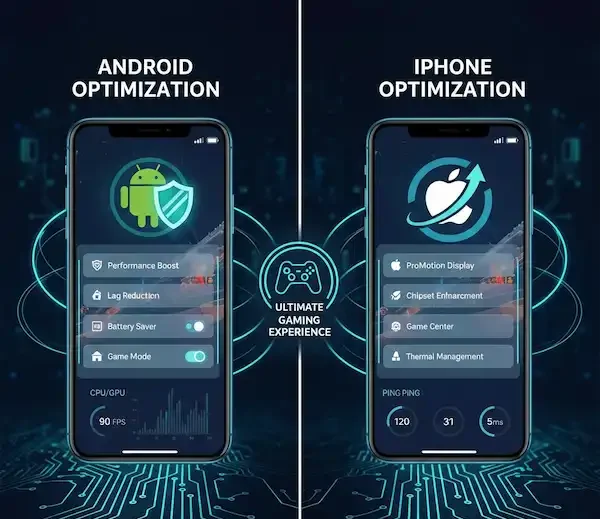
Understanding the architectural differences between iOS and Android notification management helps you apply the right strategies to your specific device. While both platforms aim to reduce user distraction, they approach the problem through distinct design philosophies.
| Feature / Capability | Apple iPhone (iOS) | Google Android (OS) |
| Core Philosophy | Curated, visual minimalism focused on scheduled summaries and focus filtering | Granular, channel-based hierarchy with deep app-level customization |
| Grouping Mechanism | Automatic grouping by app or intelligent chronological sorting | Stacked conversational threads with inline quick-reply options |
| Delivery Control | Scheduled summaries, time-sensitive bypass, and strict focus profile mapping | Notification channels, importance sliders, and silent minimization options |
| Badge Management | Numeric red dots and app-library integration | Notification dots, numeric badges, and shade count previews |
How to Turn Notifications On or Off Globally?
Sometimes a blanket approach is required before fine-tuning individual applications. Whether you are setting up a brand-new device or performing a hard reset on your digital habits, knowing how to manage notifications globally is the essential first step.
How to Manage Notifications Globally on iPhone
- Open the Settings app from your home screen or app library.
- Tap on the Notifications menu option near the top of the list.
- Review the Display As section at the top to choose whether alerts appear as a Count, Stack, or List on your lock screen.
- Scroll down to the app list and toggle individual master switches, or use Focus modes to suppress everything at once.
How to Manage Notifications Globally on Android
- Open your phone Settings app by swiping down the notification shade and tapping the gear icon.
- Select the Notifications menu item, which may also be nested under Apps & Notifications depending on your interface.
- Tap on App Settings or See All to view a comprehensive list of every installed application.
- Use the global master toggles or notification history settings to audit system-wide alert permissions.
How to Manage Notifications for Specific Apps?
Blanket settings often throw the baby out with the bathwater. True mastery over your device comes down to configuring specific apps so that high-priority communications break through while trivial promotions stay hidden.
How to Manage Specific App Settings on iPhone
When you tap an individual app under iOS Settings > Notifications, you unlock a suite of precise controls. You can choose whether alerts populate the Lock Screen, Notification Center, or temporary floating Banners. Turning off persistent banners for non-essential apps instantly reduces screen clutter. Furthermore, managing Sound and Badge toggles for individual apps ensures that grocery apps do not demand audio attention while messaging apps retain their distinct alerts.
How to Manage Specific App Settings on Android
Android handles specific app configurations through notification channels, a powerful feature that breaks a single app into distinct sub-categories. For instance, a food delivery app might have separate channels for Driver Chat, Order Status, and Promotional Discounts. By navigating to Settings > Apps > [App Name] > Notifications > Notification Categories, you can silence promotional alerts entirely while keeping order tracking sounds fully active. You can also adjust importance levels to ensure critical alerts pop up on screen while low-priority updates slide silently into your shade.
How to Use Focus Modes and Do Not Disturb to Reduce Noise?
When manual app curation isn’t enough, operating system-level filtering profiles offer a powerful safety net. Both platforms provide robust tools designed to silence distractions based on your physical location, time of day, or current activity.
On iOS, Focus profiles let you configure custom Home screens and permit only specific contacts or apps to reach you during work hours or sleep cycles. You can even tie a Focus mode to your Apple Watch or location. Android offers a similar suite via Modes and Routines, allowing you to automatically trigger a restriction profile when connected to your office Wi-Fi or when bedtime arrives. Setting these up requires an initial time investment, but the payoff in uninterrupted deep work is substantial.
Expert Insights: Industry Perspectives on Attention Economy Design
Digital wellness researchers and software architects have long studied how notification design shapes human behavior. According to interface usability studies, the average knowledge worker checks their phone over 50 times a day, heavily driven by unpredictable reward loops built into push alerts. Industry consensus points toward intentional friction—such as batching alerts into scheduled summaries—as the most effective defense against digital burnout. By consciously choosing when you consume information rather than reacting to every digital twitch, you reclaim cognitive bandwidth for meaningful tasks.
Frequently Asked Questions
What happens when I turn off notifications for an app?
Disabling notifications stops an app from sending visual banners, sounds, or vibrations to your lock screen and notification shade. The app will still function normally when you manually open it, and data will update in the background, but it will no longer demand your attention proactively.
Do time-sensitive notifications bypass Do Not Disturb?
Yes, on iOS, applications designated as time-sensitive can pierce through standard Focus modes and Do Not Disturb filters to deliver critical alerts, such as rideshare arrivals or urgent security warnings. You can manually revoke this permission inside each app’s notification settings if you prefer total silence.
Why am I still getting alerts from an app after turning notifications off?
If an app continues to send alerts after you toggled its system permissions off, check within the app’s internal settings menu. Some messaging and media applications feature custom in-app notification toggles that override or operate independently of system-level settings.
How do notification channels work on Android?
Notification channels allow developers to split their app’s alerts into different functional buckets, such as chat messages, billing updates, and marketing promos. This lets you block annoying promotional alerts while allowing critical functional updates from the exact same application.
Additional helpful information:
- Learn how to set up your phone – Set Up Your New Phone: iPhone & Android Setup Guide
External Resources and Further Reading
- Google Android Help Center for Controlling Device Alerts information you need without being overwhelmed.
- Apple Support Guide on Managing iOS Notifications