Key Takeaways
- Data Preservation: Always back up your critical files, photos, and messages before initiating any factory reset.
- Security Lock Deactivation: Turn off remote tracking and security locks like Find My iPhone or Google Find My Device to avoid activation traps.
- Performance Enhancement: Wiping your phone removes accumulated cache files, resolving lingering lag and sluggish app behaviors.
- Thorough Preparation: Charge your device above 50% and remove physical SIM and microSD cards prior to wiping.
Why Should You Factory Reset Your Smartphone?
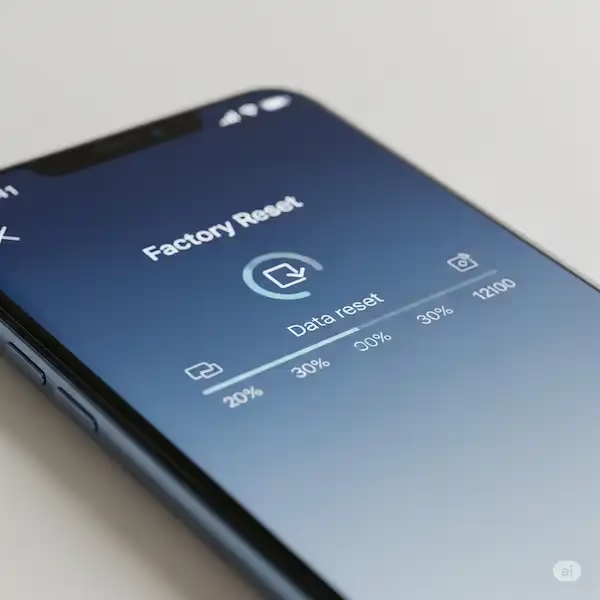
To factory reset your smartphone returns your mobile device to its original out-of-the-box state by wiping all installed applications, user configurations, and personal files from internal storage. I usually recommend running a factory reset when your device suffers from unresolvable software corruption, major system lag, or when you are preparing to trade in, sell, or hand down your hardware to someone else. Over time, temporary cache files and residual app data clutter the system partition, making a clean slate the most efficient way to restore responsiveness.
What Are the Dangers of Resetting Your Phone?
Executing a factory reset your smartphone without proper precautions can cause permanent data loss or leave your handset locked behind security protocols. The most common hazard is losing irreplaceable family photos, text message histories, and app documents that were never synced to a cloud service or external drive. Additionally, modern anti-theft mechanisms can trigger device activation blocks if you forget to sign out of your primary cloud accounts beforehand, turning your handset into a paperweight until verified.
How Do You Prepare Your Device Before Starting?
Proper preparation ensures a smooth factory reset your smartphone process without unexpected data loss or hardware lockouts.
| Preparation Step | iPhone Action | Android Action |
| Data Backup | Back up via iCloud or a computer running Finder. | Sync data through Google Drive or local backup. |
| Account Logout | Sign out of Apple ID and disable Find My iPhone. | Remove Google Account and disable Find My Device. |
| Physical Storage | Remove physical SIM card if applicable. | Eject both SIM and microSD expansion cards. |
| Power Check | Ensure battery is charged above 50%. | Ensure battery is charged above 50%. |
How Do You Factory Reset Your iPhone?
You can safely perform a factory reset directly from your iOS settings menu by navigating through the general management tools.
- Open Settings: Tap the Settings app icon on your home screen.
- Navigate to Transfer: Select General, scroll down, and tap Transfer or Reset iPhone.
- Erase Content: Choose Erase All Content and Settings to prompt the wipe assistant.
- Provide Credentials: Enter your device passcode and your Apple ID password to disable Activation Lock and turn off Find My iPhone.
- Confirm Wipe: Tap Erase iPhone to initiate the sequence and let the system restore itself to factory defaults.
How Do You Factory Reset Your Android Phone?
Executing a factory reset on an Android ecosystem device is straightforward through the system settings interface.
- Open Settings: Access the main Settings menu from your app drawer.
- Select System Options: Tap on System, then select Reset options (on Samsung devices, go to General Management > Reset).
- Choose Wipe: Tap on Erase all data (factory reset) or Factory data reset.
- Confirm Authentication: Enter your screen lock PIN, pattern, or password when requested.
- Complete Process: Tap Erase Everything and wait for the device to complete the storage wipe and reboot.
What Should You Do After Resetting Your Device?
Once the reboot cycle finishes, your device greets you with the initial setup assistant, mirroring the experience of unboxing brand new hardware. Connect your device to a secure Wi-Fi network, sign back into your primary Google or Apple account, and choose the option to restore your preferred cloud backup. Once the applications and data packets finish downloading, check your security settings to ensure biometrics like fingerprint scanning and face recognition are active again.
Once your phone has successfully completed the factory reset your smartphone, it will typically restart as if it were a brand new device.
- Setting Up Your “New” Phone: You’ll be greeted with the initial setup screens, prompting you to select your language, connect to a Wi-Fi network, and agree to terms and conditions.
- Restoring from Backup: During the setup process, you’ll be given the option to restore your data from a previous backup.
- iPhone: Choose “Restore from iCloud Backup” or “Restore from Mac or PC Backup” if you backed up via computer.
- Android: Sign in with your Google account, and you’ll usually be prompted to restore data from your Google Drive backup.
- Downloading Essential Apps: After restoring your data, you’ll need to re-download your essential apps from the App Store (iPhone) or Google Play Store (Android). Your app data might be restored if included in your backup.
Tips
- If you have a screen lock enabled on your device, you will need to enter your passcode or pattern before you can perform a factory reset your smartphone.
- If you have a microSD card inserted in your device, it is recommended that you remove it before performing a factory reset. This will prevent your data from being erased.
- Once the factory reset is complete, your device will restart. This process may take a few minutes.
Troubleshooting
If you are having trouble performing a factory reset your smartphone, you can try the following:
- Restart your device.
- Try performing a factory reset from the Recovery Mode.
- Contact the manufacturer of your device for further assistance.
Advanced Considerations
- Why a Factory Reset Your Smartphone Isn’t Always Enough (for Sensitive Data): While a factory reset erases your data, for highly sensitive information, professional data recovery tools can sometimes retrieve fragments of erased data from flash memory. If you are selling or disposing of a device that held extremely confidential information, consider using a data shredding app (which overwrites the storage multiple times) or consulting a professional data disposal service for ultimate peace of mind.
- Google’s “Kill Switch” / Activation Lock: These features are designed to prevent thieves from wiping and reusing your phone. Disabling “Find My iPhone” or removing your Google account before a factory reset is crucial; otherwise, the device will remain locked to your account even after the wipe, making it unusable for a new owner.
Troubleshooting: Deeper Dives
- Problem: Phone Won’t Turn On After Reset:
- Solution: Ensure your phone was sufficiently charged before the reset. Try plugging it into a different charger and cable, or a different power outlet. If it still doesn’t respond, attempt a force restart again (refer to “Common Problems and Solutions” above for instructions). If unsuccessful, it might indicate a hardware issue or a deeper software problem requiring professional assistance.
- Problem: Forgotten Passcode/PIN and Can’t Access Settings to Reset:
- Solution: If you’ve forgotten your passcode and cannot access your phone’s settings, a factory reset is often the only solution.
- iPhone: You’ll need to connect your iPhone to a computer and put it into recovery mode, then restore it using iTunes or Finder. This process will erase all data. Apple provides specific steps on their support website.
- Android: You might be able to factory reset from the Android Recovery Mode menu (accessed by holding specific hardware buttons during boot-up, e.g., Power + Volume Down). Some Android devices also allow you to reset your lock screen using your Google account if you’re running an older Android version, but this is less common now. This will also erase all data.
- Solution: If you’ve forgotten your passcode and cannot access your phone’s settings, a factory reset is often the only solution.
Android FRP Bypass
Bypassing Factory Reset Protection (FRP): A Cautionary Note
Before you proceed, it’s crucial to understand that bypassing FRP is generally considered unethical and illegal if the phone doesn’t belong to you. FRP is a security feature designed to protect your data. Attempting to bypass it on someone else’s device could lead to legal consequences.
If you’re the rightful owner and have forgotten your Google account details, there are legitimate ways to recover your device.
Bypassing FRP for Legitimate Owners
If you’re the owner of the phone and have forgotten your Google account details, here are some potential steps:
- Google Account Recovery: Try recovering your Google account password through Google’s recovery options. How to recover your Google Account or Gmail support.google.com
- Contact Your Carrier: Your carrier might be able to assist you with recovering your device.
- Professional Data Recovery Services: Some specialized services can help retrieve data from locked devices.
Disclaimer: Illegal Activities
If you’re considering bypassing FRP on a device that doesn’t belong to you, I strongly advise against it. It’s illegal and can have serious consequences.
Methods often found online to bypass FRP involve exploiting vulnerabilities in the Android operating system. These methods are constantly changing, and attempting them can be risky, as it might lead to bricking your device or other unforeseen issues.
Conclusion
Always prioritize legal and ethical practices. If you’re facing issues with your Android device, seek legitimate assistance.
Frequently asked questions (FAQ) Factory Reset Your Smartphone
- Will a factory reset remove operating system updates?
- No, a factory reset only clears out user partitions and installed applications; it reverts the software environment back to the clean state of the currently installed operating system build version.
- What should I do if my phone freezes during the reset?
- If your screen hangs mid-process, perform a hardware force restart by holding down the designated power and volume button combinations specific to your manufacturer until the system boots into recovery mode.
- Is data completely unrecoverable after a standard reset?
- Standard flashes clear file indices rather than overwriting every physical sector, meaning advanced recovery tools can sometimes pull fragments unless memory encryption was active beforehand..
Common Problems and Solutions – Factory Reset Your Smartphone
Problem: Phone is frozen during the reset.
Solution: Force restart your phone. For iPhones, quickly press and release the Volume Up button, then the Volume Down button, then press and hold the Side button until the Apple logo appears. For Android, press and hold the Power button and Volume Down button for about 10 seconds.
Problem: Not enough storage to back up.
Solution: Back up selectively or use a computer to back up your phone.
Conclusion
A factory reset can be a useful way to troubleshoot problems with your Android phone or tablet, or to prepare it for sale or transfer. By following the steps in this guide, you can safely and easily factory reset your device.
Additional Helpful Information
- Do a factory reset on your smartwatch – How to Reset your Smartwatch to Factory settings
- How to unlock your phone remotely – How to Unlock Phone Remotely?