Turbocharge Your Phone: A Comprehensive Guide for iPhone and Android Users 🚀
Is your phone feeling sluggish? Does it take forever for apps to load, or does scrolling feel like wading through molasses? Don’t despair! Whether you’re an iPhone aficionado or an Android enthusiast, there are several effective ways to speed up your phone’s speed and responsiveness. This easy-to-understand guide will walk you through various techniques, covering both built-in and specific, helpful third-party solutions. We’ll also help you troubleshoot common performance issues.
Understanding Why Your Phone Slows Down 🐌
Before diving into the solutions, it’s helpful to understand why phones tend to slow down over time:
- Full Storage: When your phone’s storage is almost full, it has less space to operate efficiently and manage temporary files.
- Too Many Apps: A large number of installed apps, especially those with background activity, consume resources like RAM and processing power.
- Outdated Software: Older operating system versions may lack the latest performance optimizations and bug fixes.
- Background Processes: Some apps constantly run in the background, checking for updates or providing notifications, which can drain resources and slow things down.
- Cluttered Cache and Data: Over time, apps and the system accumulate cached data and temporary files, which can impede performance.
- Battery Health (iPhone): On iPhones, an aging battery can affect performance, as iOS may reduce processor speed to prevent unexpected shutdowns.
Built-in Tools to Speed Up Your Phone 🛠️
Both iOS and Android offer powerful built-in features to help you optimize your phone’s performance.
Speed up Your iPhone
- Update iOS: Keeping your iPhone updated ensures you have the latest performance improvements and bug fixes from Apple. Go to Settings > General > Software Update.
- Manage Storage: Freeing up storage is one of the most effective ways to improve speed. Navigate to Settings > General > iPhone Storage to see recommendations and easily delete large or unused files and apps. You can also “Offload” apps you rarely use, which removes the app itself but keeps its data.
- Background App Refresh: Limiting apps from refreshing in the background conserves battery and processing power. Go to Settings > General > Background App Refresh and select “Wi-Fi” or “Off” for apps you don’t need to constantly update.
- Clear Safari History and Website Data: Over time, Safari accumulates Browse data that can slow it down. Clear this data in Settings > Safari > Clear History and Website Data.
- Reduce Motion and Transparency: These visual effects can consume resources. Disabling them can make the interface feel faster. Find these options in Settings > Accessibility > Motion > Reduce Motion and Settings > Accessibility > Display & Text Size > Reduce Transparency.
- Check Battery Health: An aging battery can significantly affect your iPhone’s performance. To check your battery’s health, go to Settings > Battery > Battery Health & Charging. If the “Maximum Capacity” is low, a battery replacement may be a good option.
Speed up Your Android Phone
- Update Android: Keeping your Android operating system updated is crucial for performance and security. Go to Settings > System > System update (the exact path may vary by device).
- Manage Storage: Free up space by deleting unused apps, photos, and large files. Navigate to Settings > Storage. Many Android phones include a “Storage Manager” or “Smart Storage” feature to help automate this process.
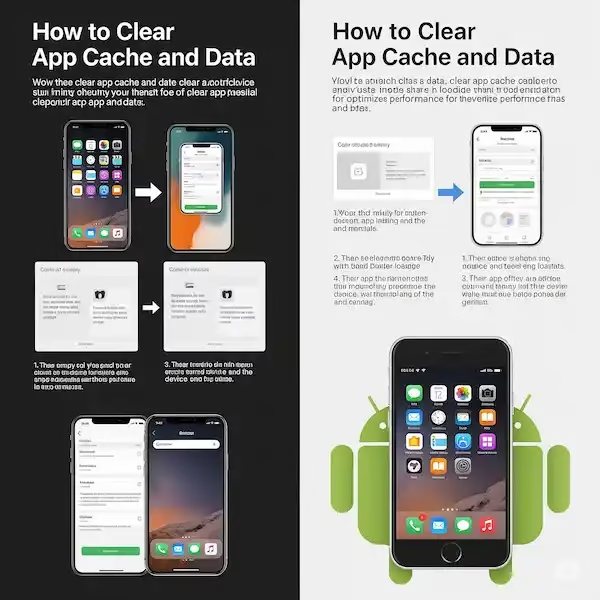
- Clear App Cache: Clearing the cache for individual apps can resolve performance issues. Go to Settings > Apps > See all apps, select an app, tap “Storage & cache,” and then “Clear cache.” (Clear App Cache and Data on iPhone and Android)
- Limit Background Processes: Restricting an app’s background activity can free up resources. Go to Settings > Apps > See all apps, select the app, tap “Battery,” and then “Restrict” or “Background restriction.”
- Developer Options: For advanced users, Android offers “Developer options” with settings that can enhance performance. To enable it, go to Settings > About phone and tap “Build number” multiple times. Be cautious, but you can adjust animation scales here (reducing them to .5x or turning them off) to make the UI feel snappier.
- Use “Lite” Apps: Many popular apps offer “Lite” versions that are smaller, use less data, and are designed for better performance on less powerful devices.
Specific Third-Party Apps to Help You Clean Up and Speed Up Your Phone 🧹
While many “booster” or “cleaner” apps are best avoided, specific third-party applications can be genuinely helpful for managing your phone’s storage and media. These apps don’t promise to “boost” your RAM but provide user-friendly tools to handle the cleanup tasks that directly impact performance.
- Files by Google (Android): This is a fantastic all-in-one file manager. It helps you find and delete junk files, old photos from chat apps, duplicate files, and unused apps with personalized clean-up suggestions.
- Google Photos (Both iPhone & Android): This app is a great solution for managing your photo and video library. It automatically backs up your media to the cloud, allowing you to use its “Free up space” feature to safely delete local copies, reclaiming significant storage.
- Dropbox / OneDrive (Both iPhone & Android): These cloud storage services are excellent for backing up and archiving large files and documents. By moving non-essential data to the cloud, you can keep your phone’s local storage lean and efficient.
Third-Party App Feature Comparison Chart 📊
| Feature | Files by Google (Android) | Google Photos (Android & iOS) | Dropbox / OneDrive (Android & iOS) |
| Primary Function | File management & storage cleanup | Photo and video backup & management | Cloud storage & file sharing |
| Core Value | Frees up local storage by identifying clutter | Frees up local storage by backing up media | Frees up local storage by archiving files |
| Clean-up Recommendations | Yes (identifies junk, duplicates, unused apps) | Yes (identifies backed-up photos to delete) | No (requires manual management) |
| Offline File Access | Yes, for all local files | Yes, for recently viewed and favorited media | Yes (with a “make available offline” setting) |
| Built-in Media Player | Yes (for music and videos) | Yes (for photos and videos) | Yes (for photos, videos, and documents) |
| Collaboration Features | Offline file sharing with nearby devices | Easy sharing of albums with others | Comprehensive file sharing, collaboration, and version history |
| Free Storage | N/A (manages local storage) | 15 GB (shared with Google Drive/Gmail) | 2 GB (Dropbox) / 5 GB (OneDrive) |
Troubleshooting Common Problems 🛠️ to Speed up Your Phone
- My phone freezes or crashes: Ensure your software is up to date and you have enough storage. Try restarting the problematic app or your phone. If the issue persists, the app might be buggy, and you may need to uninstall it.
- Apps take a long time to load: Clear the app’s cache (Android), ensure you have sufficient storage, and check your internet connection.
- The battery drains quickly: Limit background app refresh, reduce screen brightness, and check for apps that are consuming excessive battery in your battery settings.
- My phone overheats: Close unused apps, avoid direct sunlight, and ensure your software is up to date. If your phone frequently overheats, there might be a hardware issue.
Frequently Asked Questions (FAQ) 🤔 About How to Speed up Your Phone
Q: Why do you recommend avoiding most “booster” and “cleaner” apps? A: Most modern operating systems are designed to manage resources efficiently. Third-party cleaner apps often run constantly in the background, consuming the very resources (RAM, battery) they claim to be saving, which can actually slow down your phone.
Q: How often should I restart my phone? A: Restarting your phone once every few days is a good habit. It clears the RAM and ends background processes, which can resolve temporary performance glitches.
Q: I have a lot of photos and videos. How can I keep my phone fast? A: The best solution is to use a cloud storage service like Google Photos, Dropbox, or OneDrive. Back up your media to the cloud, then use the app’s built-in tools to delete the local copies from your phone’s storage.
Q: Will a factory reset make my phone faster? A: Yes, a factory reset will return your phone to its original state, which can significantly improve performance. However, it will erase all your data. Always back up your phone completely before performing a factory reset.
Additional Helpful Information
Here is how to make your WIFI faster – Improve Your WIFI Signal: Stronger, Faster Internet (iPhone/Android)
External Links for Authoritative Sources
- Apple Support: https://support.apple.com/
- Google Android Help: https://support.google.com/android/
- Files by Google Help: https://support.google.com/files/
- Google Photos Help: https://support.google.com/photos/