Improving home network performance starts with understanding how a WIFI router distributes bandwidth across physical structures. When you want to Improve Your WIFI Signal, moving your WIFI router out from inside a closed entertainment center or off the floor can immediately add several decibels of gain to your connection. Network congestion and physical interference are the primary culprits behind sluggish speeds, making it essential to optimize your WIFI router placement before buying expensive hardware upgrades. Securing a reliable connection requires ensuring your WIFI router has an unobstructed path to every corner of your living space.
Key Takeaways
- Physical barriers like concrete walls and heavy furniture drastically weaken a WIFI router broadcast.
- Switching devices to the 5 GHz band on your WIFI router avoids the heavy congestion found on older 2.4 GHz frequencies.
- Elevating your WIFI router off the floor allows the internal omnidirectional antennas to distribute the wireless wave more evenly.
- Keeping your hardware firmware updated ensures your WIFI router runs efficient packet-handling protocols.
How to Improve Your WIFI Signal throughout the house?
Getting a stronger connection requires tackling the physical obstacles blocking your WIFI router from reaching every room. A typical dual-band WIFI router loses up to thirty percent of its signal strength for every interior wall it has to punch through, especially if those walls contain lath and plaster or chicken wire reinforcement. When testing network speeds, moving your WIFI router into a central hallway rather than a distant corner room changes the line-of-sight path for your mobile device. If your layout features multiple stories or thick masonry, pairing your primary WIFI router with a dedicated mesh node ensures your devices maintain a stable link without dropping packets.
| Obstruction Type | Estimated Signal Loss | Mitigation Strategy |
| Drywall / Wood Door | 3 to 5 dBm | Minimal impact, standard placement works |
| Brick / Concrete Wall | 10 to 15 dBm | Position WIFI router in open doorways |
| Metal Appliances / Mirrors | 20+ dBm | Keep WIFI router away from kitchens and large glass |
Real-world deployment teaches us that even minor adjustments to antenna orientation can salvage a failing connection. If your WIFI router features external adjustable antennas, angling one vertically and another horizontally matches the polarity of modern mobile device chips. For deeper enterprise-grade guidelines on antenna propagation and channel optimization, you can consult technical whitepapers from Cisco Networking or review global standards at the Wi-Fi Alliance. Whenever you want to Improve Your WIFI Signal, proper physical positioning remains your absolute best tool.
Why does my WIFI signal keep dropping on my phone?
Frequent mobile disconnects usually happen when a WIFI router struggles to handle background interference from overlapping channels or nearby household appliances. Bluetooth speakers, baby monitors, and microwave ovens operate on the same 2.4 GHz spectrum as your WIFI router, creating invisible traffic jams that stall data packets. When a smartphone repeatedly bounces between cellular data and the local network, logging into the admin panel of your WIFI router to switch from an auto-selected channel to a fixed, clean channel like 1, 6, or 11 can resolve the dropping issue.
| Interference Source | Affected Frequency | Typical Symptom |
| Microwave Oven | 2.4 GHz | Temporary packet loss during kitchen use |
| Neighboring Networks | 2.4 GHz / 5 GHz | High ping spikes and random disconnects |
| Bluetooth Peripherals | 2.4 GHz | Audio stutter and delayed web page loading |
Working with client devices every day shows that phones often cling aggressively to a weak access point instead of roaming to a closer node. Resetting network settings on your handset clears out corrupted DHCP leases that frequently trigger these frustrating drop-outs. Upgrading to a modern WIFI router that supports Wi-Fi 6 or Wi-Fi 7 helps your WIFI router manage multi-user traffic more efficiently, ensuring your handset holds onto a stable link. If you consistently need to Improve Your WIFI Signal, eliminating these background radio conflicts is vital.
How do I fix slow internet speeds on my Android device?
Fixing slow performance on an Android device involves resetting the WIFI adapter stack and verifying that your WIFI router is not throttling bandwidth via Quality of Service rules. Open your Android settings app, navigate to the network section, and select the option to reset Wi-Fi, mobile, and Bluetooth to clear out bad cache files. Once the network is rejoined, ensure your WIFI router is actively steering your phone onto the faster 5 GHz band rather than letting it linger on a crowded 2.4 GHz frequency.
- Step 1: Open the Settings application on your Android device and tap on Network & internet or Connections.
- Step 2: Select Internet or WIFI , locate your home network name, and tap the settings gear icon next to it.
- Step 3: Tap Forget to clear the existing connection profile and cached credentials from your system memory.
- Step 4: Turn your WIFI toggle off for ten seconds, turn it back on, select your network, and re-enter your security passphrase.
- Step 5: Verify that your device has successfully bound to the 5 GHz band by checking the link speed in your developer options or router app interface.
Android devices running custom manufacturer overlays sometimes enable aggressive battery-saving features that throttle Wi-Fi performance when the screen dims. Disabling battery optimization for core connectivity apps ensures your WIFI router maintains an uninterrupted data stream during large downloads or video calls. Taking these steps will significantly help you Improve Your WIFI Signal on mobile hardware.
How do I optimize network performance on my iPhone?
Optimizing connectivity on an iPhone requires clearing corrupted lease data and verifying that private address tracking is not conflicting with your WIFI router security policies. Apple hardware relies heavily on clean DNS resolution and proper band steering from your WIFI router to maintain optimal throughput during heavy web browsing or media streaming.
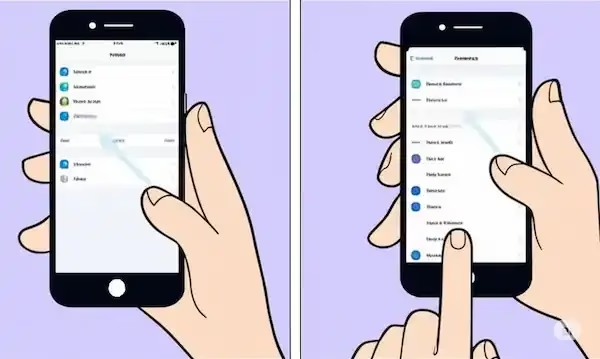
- Step 1: Open the Settings app on your iOS device and tap on WIFI to view your active network connections.
- Step 2: Tap the blue “i” information icon next to your home network name to open network configuration details.
- Step 3: Toggle off Private WIFI Address temporarily if your WIFI router uses advanced MAC filtering or enterprise security protocols.
- Step 4: Tap Forget This Network to purge old routing tables and cached configuration files from the iOS system directory.
- Step 5: Reconnect to your network by entering your secure password, then toggle WIFI assist off in cellular settings to prevent unwanted fallback to mobile data.
When iOS devices experience intermittent slowdowns near your hardware, a simple hard reboot of the phone flushes out temporary background routing anomalies. Ensuring your WIFI router firmware is completely up to date prevents compatibility bottlenecks with Apple’s latest Wi-Fi chipset drivers.
What is the difference between 2.4 GHz and 5 GHz bands on my WIFI router?
| Frequency Band | Physical Range | Maximum Speed | Primary Interference Sources |
| 2.4 GHz | Long range (up to 150 feet) | Slower (up to 450-600 Mbps) | Microwaves, Bluetooth, baby monitors |
| 5 GHz | Shorter range (up to 50 feet) | Fast (up to 1300+ Mbps) | Physical walls, closed doors |
| 6 GHz (Wi-Fi 6E/7) | Short range (single room) | Ultra-fast (Multi-Gigabit) | Minimal (wide open spectrum) |
Understanding how your WIFI router distributes frequency bands helps you maximize your connection across different living spaces. The 2.4 GHz band on your WIFI router travels farther through solid walls, but it offers slower data rates and higher congestion, which compromises your overall wireless signal performance. Conversely, the 5 GHz band on your dual-band WIFI router delivers significantly faster speeds over shorter distances, giving your mobile device a much stronger connection when you are in the same room.
When configuring your network SSID names, separating the bands into distinct names can give you explicit control over where your devices connect. If you leave smart home gadgets and high-end smartphones lumped onto a single smart-connect SSID, the hardware will often aggressively steer your phone down to the slower 2.4 GHz lane simply because of a temporary dip in signal strength. Keeping your streaming devices and phones locked onto the 5 GHz or 6 GHz bands prevents these unwanted downshifts and acts as a powerful way to Improve Your WIFI Signal effortlessly.
Frequently Asked Questions
Will moving my WIFI router higher up actually improve speed?
Elevating your WIFI router off the floor clears common physical obstructions like heavy furniture, baseboard heaters, and household clutter that absorb radio frequency waves. Because most consumer units project signals slightly downward and outward, placing the unit on a high shelf or wall mount improves line-of-sight coverage for all connected mobile devices.
Why does my speed test show fast internet, but my phone still lags?
A fast internet plan from your service provider does not guarantee a strong local connection between your device and your WIFI router. High local packet loss, channel interference from neighboring networks, or a weak wireless link can cause stuttering and high latency even if your broadband pipe is operating at maximum capacity.
Should I combine my 2.4 GHz and 5 GHz bands into one name?
Combining bands under a single network name allows your WIFI router to steer devices automatically, but it often forces smartphones onto the slower 2.4 GHz band unnecessarily. Separating them into distinct names gives you absolute control, ensuring your bandwidth-heavy mobile devices always attach to the faster 5 GHz frequency.
How often should I restart my WIFI router?
Rebooting your WIFI router every few weeks clears out accumulated cache memory, resolves memory leaks, and allows the device to select the cleanest available broadcast channel upon startup. This simple maintenance routine keeps your network operating at peak efficiency without requiring hardware replacements.
Additional helpful information
- This article can help you if you are having frequent WIFI disconnections – Fix WIFI Disconnects on iPhone & Android
- Improve your 5G connections based on your chip – Better 5G Performance Depending on Your Chip, Not Your Bars
External Authoritative Sources
To deepen your understanding and for further troubleshooting to Improve your WIFI Signal, consider these trusted resources:
- Microsoft Support – 10 tips to help improve your wireless network: https://support.microsoft.com/en-us/topic/10-tips-to-help-improve-your-wireless-network-d28bf4e4-cf8c-e66f-efab-4b098459f298
- Netgear Support: https://www.netgear.com/support/ (Excellent resource for router-specific information, firmware updates, and troubleshooting guides.)
- TP-Link Support: https://www.tp-link.com/us/support/ (Similar to Netgear, a good source for their products.)
- Intel – 2.4 GHz vs. 5 GHz vs. 6 GHz: What’s the Difference?: https://www.intel.com/content/www/us/en/products/docs/wireless/2-4-vs-5ghz.html
By implementing these strategies and leveraging the right tools, you can significantly Improve your WIFI Signal and enjoy a faster, more reliable internet connection on all your devices.