The Moment I Realized My Phone Was Finally Getting Smart
I remember sitting in a terminal at O’Hare about three years ago, trying to juggle a lukewarm coffee, a laptop, and a phone that kept buzzing with “flight delayed” notifications. I was desperately trying to rebook a connection, find a hotel that wasn’t a dungeon, and text my wife all at the same time. I remember thinking, “I have the sum of human knowledge in my pocket, so why is this so hard?”
Fast forward to 2026, and the game has completely changed. We aren’t just talking to our phones anymore; our phones are actually doing things for us. This shift from chatbots that give you recipes to mobile ai agents that actually book the table is the biggest jump in productivity I’ve seen in a decade. If you’ve been feeling like your smartphone is more of a distraction than a tool, it’s likely because you haven’t tapped into the power of these new digital workers.
What are mobile AI agents, really?
Before we get into the “how-to,” let’s clear the air on what we’re actually talking about. A few years ago, we had “assistants.” You’d ask for the weather, and it would show you a cloud icon. If you asked it to “book a flight,” it would just pull up a Google search for flights. It was a glorified search bar with a voice.
Today, mobile ai agents are different because they are “agentic.” This is a fancy industry term that basically means they can reason through a problem, make a plan, and then execute it across different apps. If I tell my phone today, “I’m going to be 20 minutes late to the board meeting, tell everyone and find a way to make up for the lost time on the agenda,” it doesn’t just send a text. It looks at my calendar, identifies the other attendees, sends them individual Slack messages or emails based on their preference, and then reshuffles my afternoon so the “deep work” block I had scheduled gets moved to tomorrow morning.
The secret sauce here is something called the Large Action Model (LAM). Unlike the chat models we’re used to, these systems are trained to understand how apps work. They know where the “submit” button is and how to navigate a checkout screen.
Setting Up mobile ai agents on Your iPhone
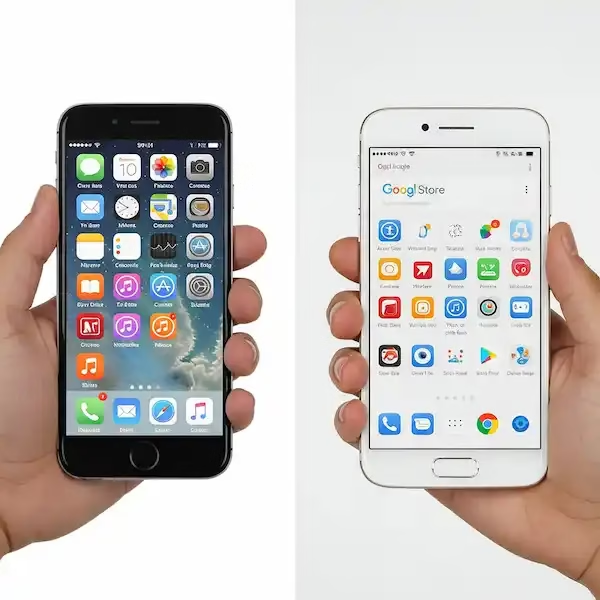
If you’re on the Apple side of the fence, you’ve probably heard about Apple Intelligence. For a long time, Siri was the butt of every joke in tech circles. But with the latest iOS updates, Apple has finally turned the corner by integrating these tools directly into the operating system’s “Intents” framework.
The Power of App Intents
As someone who spent years tinkering with the Shortcuts app, I can tell you that the real magic isn’t in the Siri interface itself; it’s in how mobile ai agents use “App Intents.” Think of an intent as a door that an app leaves unlocked for the AI to walk through.
When I’m using my iPhone, I don’t just use the voice command. I’ve mapped my Action Button to trigger a specific “Context Agent.” For example, if I’m at the grocery store, I can click that button and say, “What am I missing for that lasagna recipe I saved on Pinterest?” The agent opens Pinterest, reads the recipe, checks my Reminders list for what I’ve already crossed off, and then highlights the missing ingredients in a pop-up.
Step-by-Step for iOS Automation:
- Enable Apple Intelligence: Go to Settings > Apple Intelligence & Siri. Make sure the “Productivity” and “App Actions” toggles are on.
- Shortcuts Integration: Open the Shortcuts app. You’ll notice a new section for “Intelligent Actions.” These are pre-built blocks where mobile ai agents can do things like “Summarize my last three emails and create a task for each.”
- The “On-Device” Factor: One thing I love as a privacy nerd is that a lot of these mobile ai agents run locally on the A-series chips. This means your data isn’t always flying off to a server in Virginia just to tell you that you’re out of milk.
The Android Experience: Gemini and Beyond
Android has always been the “wild west” of customization, and that hasn’t changed with the arrival of mobile ai agents. Google has essentially replaced the old Assistant with Gemini, and the integration is deep.
Gemini Agent Controls
On my Pixel, I’ve been using the “Agent” mode within Gemini for about six months now. The biggest difference I’ve noticed compared to the iPhone is the “cross-pollination” of apps. Because Google owns the ecosystem (Gmail, Drive, Maps, Calendar), the agents are incredibly fluid.
I had a situation recently where I needed to plan a surprise party. I just told Gemini, “Look through my recent emails about the surprise party, find the venue address, and send a calendar invite to everyone mentioned in the thread for 7:00 PM next Friday.” It didn’t miss a beat. It even checked my “Surprise Party” folder in Google Drive to see if there was a guest list spreadsheet I had started.
Setting it up on Android:
- Activate Gemini Live: Long-press your power button and ensure you’ve opted into the “Advanced” or “Agent” features.
- Grant Extensions: This is the most important part. Go into your Gemini settings and look for “Extensions.” You need to toggle on the connections for Gmail, Google Maps, and specifically “Workspace.” Without these, your mobile ai agents are basically working with one hand tied behind their back.
- App Actions: Unlike iOS, Android allows these agents to “see” your screen (if you allow it). This is huge for apps that don’t have official APIs. The agent can literally read the text on a screen to help you finish a task.
Industry Insider: Why Most People Fail at Mobile Automation
I’ve spent a lot of time talking to developers who build these systems, and they all say the same thing: users expect the AI to be a mind reader. Even the best mobile ai agents need clear “Context Windows.”
In the industry, we talk about the Model Context Protocol (MCP). This is basically a standard that allows an agent to connect to a data source (like your Notion or your local Files app) safely. If you find that your mobile ai agents are “hallucinating”—meaning they’re making things up or failing to find information—it’s usually because you haven’t given them a clear path to the data.
My pro tip? Keep your important data organized in folders that the AI has permission to index. I keep a folder on my iCloud called “Active Context” where I drop PDFs of itineraries or project briefs. When I ask my mobile ai agents a question, I tell them specifically to “Look in my Active Context folder.” It cuts the error rate by about 80%.
Bridging the Gap with Third-Party Tools
While Apple and Google are building the foundations, some of the coolest things I’ve done with mobile ai agents involve third-party “glue” apps.
Zapier Central
If you haven’t checked out Zapier Central, you’re missing out. It allows you to create your own custom mobile ai agents that live on your phone but talk to over 6,000 different web apps.
I built a “Finance Agent” for myself. Every time I get a digital receipt on my phone, I just share that screenshot to my Finance Agent. It automatically reads the merchant, the amount, and the category, then logs it into my business spreadsheet and files the image in a specific Google Drive folder. I don’t have to open a single app. I just “share” the image and walk away.
Specialized Agents
We are also seeing the rise of niche mobile ai agents. For instance, there are health-focused agents that can look at a photo of your meal and automatically log the macros into an app like MyFitnessPal, while simultaneously checking your Apple Health data to see if you’ve hit your step goal for the day. This kind of “multi-step” reasoning is what makes them true agents.
The Privacy Conversation: Is it Creepy?
Let’s be real—for mobile ai agents to be useful, they have to know a lot about you. They need to read your emails, see your calendar, and know your location. I’ve had many friends ask me, “Isn’t this just a massive privacy nightmare?”
It can be. But the industry is moving toward “Local-First AI.” This is the idea that the “brain” of the agent lives on your phone’s hardware, not in the cloud. Apple has been very vocal about their Private Cloud Compute, which ensures that even when your phone needs extra power from a server, your data is never stored or accessible by them.
When you’re setting up your mobile ai agents, always look for the “On-Device” label. On Android, look for “Gemini Nano” features. These are tasks that happen entirely on your phone. If you’re handling sensitive business data, I always recommend sticking to these local models, even if they’re a little bit slower or less “clever” than the massive cloud ones.
Real-World Scenarios: How I Use mobile ai agents Daily
To give you an idea of how this actually looks in practice, here is a typical Tuesday for me:
8:00 AM: The Morning Brief
While I’m making coffee, I say to my phone, “Give me the lowdown.” My mobile ai agents scan my overnight emails, Slack messages, and my calendar. Instead of just reading them, the agent says, “You have a meeting at 10, but the traffic is heavy today, so you should leave 15 minutes early. Also, your sister emailed about the weekend—should I tell her you’re free Sunday after 2:00 PM?” I say “Yes,” and it’s done.
1:00 PM: The Document Sifter
I’ll often get a 40-page PDF report that I need to understand before a call. I’ll open the file on my phone and tell my mobile ai agents, “Summarize the financial risks mentioned on pages 12 through 20 and draft a list of three questions I should ask the CEO.” I can then review that draft while I’m grabing a sandwich.
6:00 PM: The “Second Brain”
If I see a book I want to read or a product I want to buy, I just take a picture of it. I tell my mobile ai agents, “Find the best price for this, but only from stores that have a good return policy, and add it to my ‘Want to Buy’ list in Notes.”
Lessons Learned: When mobile ai agents Fail
It’s not all sunshine and rainbows. I’ve had my fair share of “automation fails.” Once, I asked an agent to “Clean up my inbox,” and it interpreted that a bit too literally, archiving a bunch of threads I actually needed to keep an eye on.
The lesson? Start small. Don’t let your mobile ai agents have full “write access” to your life on day one. I always set mine to “Ask for Confirmation” before they delete anything or send an email to a client. Most of these systems have a “Human-in-the-loop” setting. Use it.
Another tip: Be specific with your language. Instead of saying “Tell Bob I’m late,” say “Send a Slack message to Bob Miller saying I’ll be 10 minutes late due to traffic.” The more specific you are, the less likely your mobile ai agents are to take a “creative” interpretation of your request.
The Future: Agents That Talk to Each Other
We are just starting to see the “Agent-to-Agent” (A2A) protocols being developed. Imagine my “Travel Agent” on my phone talking directly to a “Hotel Agent” at the Marriott. Instead of me navigating a website, the two mobile ai agents negotiate the best room rate and check-in time based on my known preferences.
This isn’t sci-fi; companies like Salesforce and Google are already working on these interoperable standards. In a year or two, your phone will be less of a communication device and more of a “negotiator” that moves through the digital world on your behalf.
FAQ: Navigating the World of mobile ai agents
1. Do I need a brand-new phone to use these?
Mostly, yes. Because mobile ai agents require a lot of processing power to run locally, you usually need a phone from 2024 or later. For iPhone, that’s the iPhone 15 Pro or newer. For Android, you’ll want something like the Pixel 8 or Samsung S24 and up.
2. Is there a monthly cost?
The basic features from Apple and Google are usually included with the OS, but the “Advanced” versions of mobile ai agents (like Gemini Advanced or ChatGPT Plus integration) typically cost around $20 a month. If you’re using them for work, it’s a tax-deductible no-brainer.
3. Can mobile ai agents work without an internet connection?
Some can! Many of the newer mobile ai agents are designed to perform basic tasks like setting alarms, searching your local files, or drafting messages while you’re offline. However, anything that requires web searching or external app updates will still need a connection.
4. What if the agent makes a mistake?
Most systems have an “Undo” feature or a history log. If my mobile ai agents send a text I didn’t like, I can usually see the log and correct it. This is why keeping a “confirmation gate” for important tasks is so vital.
5. How do I start if I’m not a “tech person”?
Start with voice commands for things you already do. Instead of opening the Calendar app, just say, “Put a lunch with Sarah on my calendar for Friday at noon at The Toasted Bun.” When you see how well your mobile ai agents handle that, you can move on to more complex tasks like “Find the confirmation number for my flight and save it to my Notes.”
Final Thoughts
The transition to using mobile ai agents is more of a mental shift than a technical one. We’ve spent twenty years learning how to “speak computer”—clicking buttons, navigating menus, and filling out forms. Now, we have to learn how to delegate.
I’ve found that the more I trust my mobile ai agents with the boring, repetitive stuff, the more energy I have for the things I actually enjoy. I’m no longer the guy frantically rebooking flights at a gate; I’m the guy sitting calmly with his coffee because my phone already handled it.
If you haven’t started yet, pick one task this week—maybe it’s summarizing your emails or organizing your grocery list—and let your phone take the lead. You might be surprised at how much of your “smart” phone you haven’t been using.
Additional Helpful Information
- Learn more about AI Phones – AI Phones: Why Your Next Device Is a Secret Agent
- Read about using AI for photo editing – New AI Photo Editing & Video Features on iPhone & Android
- Compare AI processors – Smartphone Chip AR Capabilities: Testing the A19 and Tensor G5 with Rokid Glasses