Download Movies to Your Phone: A Simple Guide for iPhone & Android 📱🎬
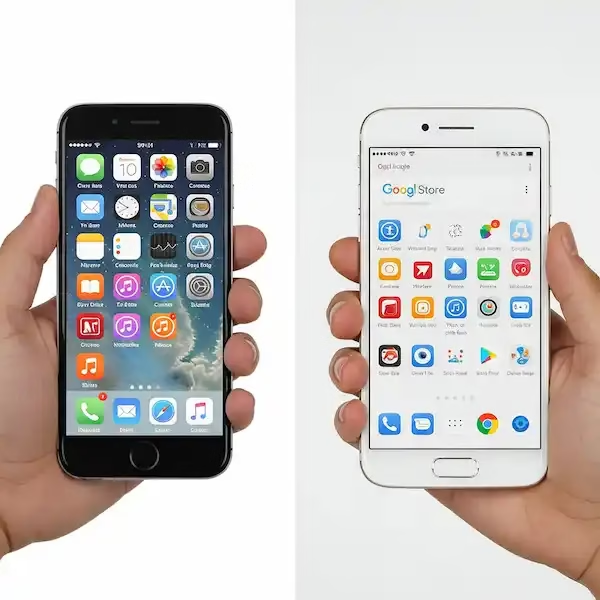
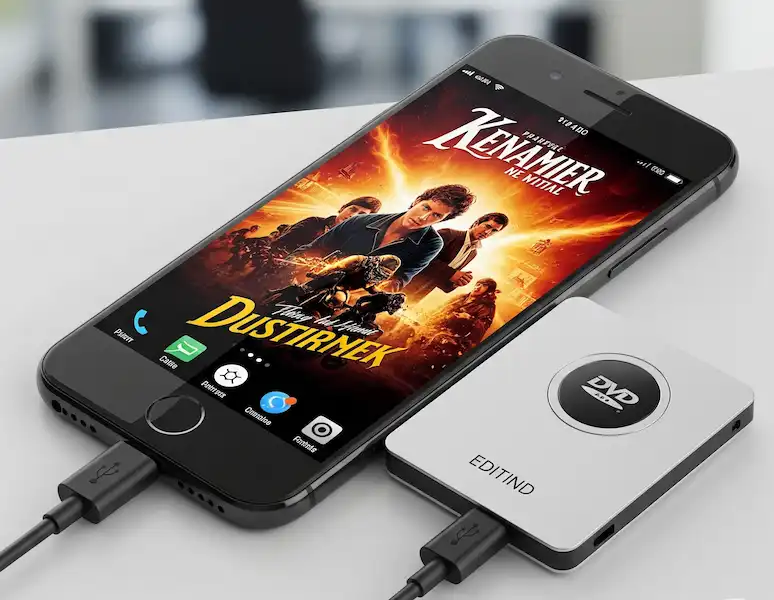
Want to watch your favorite films on the go without burning through your data? Downloading movies to your iPhone or Android device is easier than you think! This guide will walk you through the process, explore some helpful third-party apps, and provide tips for a seamless movie-watching experience.
Official Download Options
The most straightforward way to download movies is through official apps of streaming services or digital storefronts where you’ve purchased or rented content. Here’s how for some popular platforms:
Netflix:
- Open the Netflix app.
- Select the movie you want to download.
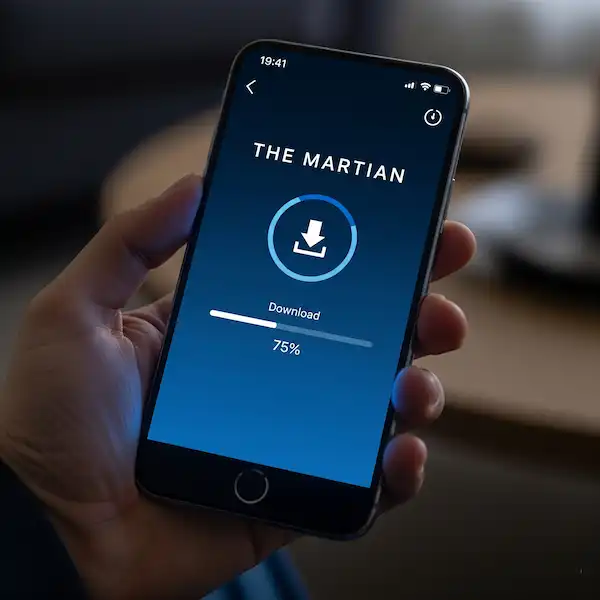
- Tap the Download icon (usually a downward-facing arrow).
- Find your downloads in the Downloads section of the app.
Amazon Prime Video:
- Open the Amazon Prime Video app.
- Locate the movie you want to download.
- Tap the Download button.
- Your downloads can be found in the Downloads tab.
Google Play Movies & TV (now Google TV):
- Open the Google TV app.
- Find the movie you want to download (must be purchased or rented).
- Tap the Download icon.
- Access your downloads in the Library tab under “Your movies & shows.”
iTunes Store (iPhone):
- Open the TV app on your iPhone.
- Go to the Store tab and find your purchased movies.
- Tap the download icon (cloud with a downward arrow) next to the movie.
- Your downloaded movies will be in your Library.
Third-Party Apps to Download Movies
While directly downloading from official services is common, some third-party apps offer alternative ways to download movies, often from various online sources. Please be aware that downloading copyrighted material without permission can have legal consequences.
Here are a few examples of third-party apps (availability may vary by region and platform):
- Video Downloaders: Apps like “Video Downloader Professional” (for Android) or similar apps found on app stores. These apps often allow you to download videos from websites, but functionality and legality can vary greatly.
- Torrent Clients: Apps like “Flud Torrent Downloader” (Android) or similar require you to find and download torrent files, which can be risky due to potential copyright infringement and malware.
Disclaimer: We do not endorse or recommend the use of third-party apps for downloading copyrighted movies illegally. This information is provided for informational purposes only. Always respect copyright laws and terms of service.
Feature Comparison Chart: Official Apps to Download Movies
| Feature | Netflix | Amazon Prime Video | Google TV (Play Movies) | Apple TV (iTunes) |
| Download Limit | Varies by plan (device & title) | Varies by title and region | Up to 5 devices per account | Varies by title |
| Expiration | Varies (typically 48 hours after starting) | Varies (typically 30 days after download, 48 hours after starting) | Varies (typically 30 days after download, 48 hours after starting) | Usually no expiration for purchased movies |
| Offline Playback | Yes | Yes | Yes | Yes |
| Download Quality | Adjustable (Standard, High) | Adjustable (Good, Better, Best) | Adjustable (SD, HD) | Varies |
| Availability of Downloads | Most, but not all, content available | Select movies and TV shows | Purchased or rented content only | Purchased content only |
Key Considerations
For users where internet access might be limited or expensive, downloading movies over WIFI can significantly reduce data costs. Consider these tips:
- Plan Ahead: Download movies when you have access to a free or affordable WIFI connection (e.g., at home, a cafe, or a public hotspot).
- Manage Storage: Download movies to an external SD card if your phone supports it to avoid filling up your internal storage.
- Choose Download Quality Wisely: Lower quality downloads use less storage and data.
- Check Expiration Dates: Be mindful of how long your downloaded movies are available offline, especially for rentals.
Additional Helpful Content
- Updating Apps: Ensure your streaming apps are up to date for the latest download features and bug fixes.
- Managing Downloads: Most apps allow you to manage and delete downloaded content within the app settings to free up storage.
- Airplane Mode: Once downloaded, you can enjoy your movies in airplane mode without using any cellular data.
- Connecting to a TV: Consider using an HDMI cable or screen mirroring to watch downloaded movies on a larger TV screen.
Troubleshooting Common Problems to Download Movies
- Not enough storage: Delete old downloads, apps, or files to free up space. Consider using an external SD card if your phone allows.
- Download option not available: Not all movies are available for download due to licensing restrictions. Ensure you are trying to download content that is offered for offline viewing.
- Slow downloads: Ensure you have a stable and strong Wi-Fi connection. Large files will take longer to download.
- Playback issues with downloaded content: Ensure your app is updated to the latest version. Restart the app or your device. Check the download expiration date.
- Third-party app issues: These apps can be unreliable. If you encounter problems, consult the app’s specific help resources or consider alternative apps (with caution regarding legality).
Frequently Asked Questions (FAQ)
Q: Can I download movies from any website? A: Officially, you can only download movies for offline viewing from authorized platforms where you have purchased or rented the content, or through subscription services that offer downloads. Downloading copyrighted material from other websites without permission is illegal.
Q: Do downloaded movies use up my phone data? A: No, once a movie is fully downloaded, you can watch it offline without using any cellular data. Ensure your Wi-Fi or mobile data is turned off during playback to avoid unexpected charges.
Q: How long do downloaded movies stay on my phone? A: The duration varies depending on the platform and the specific title. Rentals typically have a shorter viewing window once downloaded and/or after you start watching. Purchased movies usually remain available for download as long as you maintain your account. Subscription service downloads may expire if you cancel your subscription or if the content is removed from the platform.
Q: Can I transfer downloaded movies to another device? A: Generally, downloaded movies are tied to the specific app and device they were downloaded on due to digital rights management (DRM). Transferring them to another device is usually not possible.
By following these steps and tips, you can easily download movies to your iPhone or Android device and enjoy them anytime, anywhere! Remember to always download content legally and be mindful of storage and data usage.
Additional Helpful Content
- Here are some movie apps that will work well with your phone – Top Movie Apps for iPhone & Android: Watch Anywhere
External Links for Authoritative Sources
- Netflix Download Help: https://help.netflix.com/en/node/18500
- Amazon Prime Video Download FAQs: https://www.amazon.com/gp/help/customer/display.html?nodeId=GUXG7G8S2JWJ42W
- Google TV Help – Download Movies & TV Shows: https://support.google.com/googletv/answer/10070779?hl=en
- Apple Support – Download and stream shows and movies in the Apple TV app: https://support.apple.com/en-us/HT201628