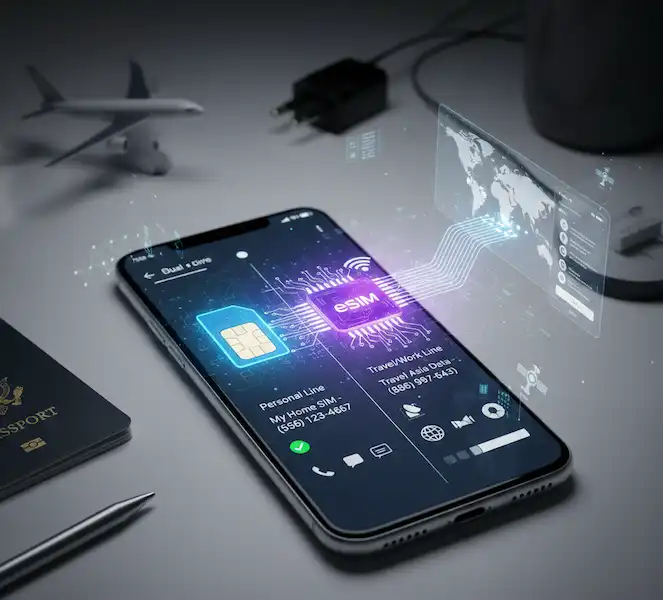
📱 Master Your Smartphone: The Essential Guide to eSIM and Dual SIM Setup
Smartphones today are more capable than ever, and a crucial feature for maximizing their utility is the ability to manage multiple phone numbers on a single device. This capability, known as Dual SIM, is now primarily powered by the latest mobile technology: the eSIM (embedded SIM).
🌟 Why eSIM and Dual SIM Matter
Dual SIM functionality, often achieved using a combination of a physical SIM card (pSIM) and an eSIM, provides significant advantages for specific user needs:
- Work/Life Balance: Keep your professional and personal lives separate without carrying two phones. You can have a dedicated work number and a personal number active simultaneously.
- International Travel: Use your home number for calls and texts while activating a local or regional travel data plan via an eSIM to avoid costly roaming charges.
- Separate Plans: Optimize your expenses by using one line for a generous data plan and another for an excellent voice/calling plan.
| Feature | Physical SIM (pSIM) | eSIM (Embedded SIM) |
| Form Factor | Small, removable plastic card | Digital profile embedded in device hardware |
| Activation | Manual insertion/swapping | Remote download (QR code, app, or manual) |
| Storage | One profile per card | Multiple profiles can be stored (typically 8+), with two active at a time (pSIM + eSIM or 2x eSIMs on newer models) |
| Device Swapping | Easy: Just move the card | Requires carrier transfer/re-activation process |
| Security | Can be physically removed (allowing tracking to be bypassed) | Cannot be physically removed (enhanced security if phone is lost/stolen) |
⚙️ Setting Up Your eSIM and Dual SIM: Step-by-Step Guides
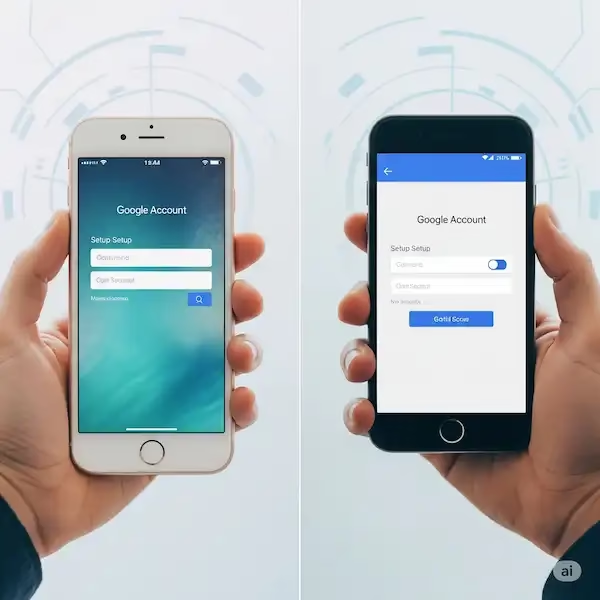
Activating an eSIM typically involves scanning a QR code provided by your carrier or using the carrier’s app. Ensure your phone is connected to Wi-Fi before starting.
🍎 iPhone Setup (iOS)
- Go to Settings > Cellular (or Mobile Data).
- Tap Add Cellular Plan (or Add eSIM).
- Choose your activation method:
- Scan QR Code: Use your camera to scan the QR code provided by your carrier.
- Transfer from Nearby iPhone: (If upgrading) Follow on-screen instructions to transfer your existing SIM/eSIM from your old device.
- Enter Details Manually: Select this option at the bottom and enter the SM-DP+ Address and Activation Code from your carrier’s documentation.
- Once activated, you will be prompted to label your new plan (e.g., “Business,” “Travel,” “Secondary”).
🤖 Android Setup (Samsung/Pixel)
Note: Steps may vary slightly depending on your manufacturer and Android version.
- Go to Settings > Connections (or Network & Internet).
- Tap SIM Card Manager (or Mobile Network > Advanced > Carrier).
- Tap Add Mobile Plan (or Add eSIM / Download a SIM instead).
- Choose your activation method:
- Scan Carrier QR Code: Scan the QR code provided by your carrier.
- Enter Activation Code: Select this option to input the activation details manually.
- Follow the prompts to download and activate the plan. You will be asked to set a name/label for the new plan.
Expert Tip: If you are converting a physical SIM to an eSIM on the same device, many carriers and device settings (e.g., Settings > Cellular > tap on your physical SIM > Convert to eSIM) now allow this process digitally without a new QR code.
📞 Managing eSIM and Dual SIM Functionality
Once both your primary (pSIM or eSIM 1) and secondary (eSIM 2 or eSIM) lines are active, you need to configure how your phone uses them for different services.
1. Labeling Your Lines
The most crucial step is clear labeling. This prevents calling your boss from your personal line or using expensive roaming data on your work line.
- iPhone: Settings > Cellular (or Mobile Data) > Tap each line to rename.
- Android: Settings > Connections > SIM Card Manager > Tap each SIM/eSIM to rename and assign an icon.
Example Labels: “Personal,” “Work,” “USA Data,” “Home,” “Travel.”
2. Assigning Default Lines
You can designate which line handles which service:
| Setting | Function | Example |
| Default Voice Line | Used for all outgoing calls and texts to non-contacts (or if no preference is set). | Set to “Personal” for most of your calls. |
| Default Mobile Data | Used for all internet browsing, app usage, and background data. | Set to “Work” if it has a larger data package, or “Travel” when abroad. |
| iMessage/FaceTime | Can be set to use one or both numbers. | Set to “Personal” only, or “Both” if you want to receive messages on both lines. |
3. Per-Contact Preference (Crucial for Experience)
Both iOS and Android allow you to assign a preferred line for specific contacts. This means when you call your partner, it always uses your “Personal” line, and when you call a client, it always uses your “Work” line.
- How to Set (iPhone Example): Open a contact in your Contacts app > Tap the current phone number > Tap ‘Default’ > Select the specific line you want to use for that contact.
4. eSIM and Dual SIM for International Travel (The Travel Hack)
This is one of the most popular use cases.
- Install a local/regional eSIM data plan (e.g., “Asia Data”).
- Go to Settings > Data (or Mobile Data).
- Set your Default Mobile Data line to the newly installed “Asia Data” eSIM.
- Keep your home line (“Personal”) active, but ensure Data Roaming is OFF for that line to avoid charges.
- This setup allows you to use cheap local data while still being able to receive calls and texts on your home number (via Wi-Fi calling or on the 2G/3G network if available).
❓ Frequently Asked Questions (FAQ) – eSIM and Dual SIM
Q: Can I use two eSIMs at the same time? A: Yes. Newer flagship smartphones (iPhone 13 and later, select high-end Samsung/Google Pixel models) support Dual eSIM, allowing two eSIM profiles to be active simultaneously, eliminating the need for a physical SIM card entirely.
Q: Does Dual SIM or eSIM use more battery? A: Generally, yes, a slight increase in power consumption is expected because your phone’s modem is constantly connected to two separate mobile networks. However, modern phone batteries and software are optimized to minimize the impact.
Q: What is a Hybrid SIM tray? A: A Hybrid SIM tray is a physical slot that can hold either a second physical SIM card OR a microSD card (for extra storage), but not both simultaneously. This is different from the pSIM + eSIM setup.
Q: Can I transfer my eSIM to a new phone? A: Yes, but the process is different from simply swapping a pSIM. You will need to use a carrier-specific eSIM Quick Transfer feature (common on newer iPhones and some Androids) or contact your carrier to deactivate the profile on the old device and re-activate it on the new one.
Additional Helpful Links – eSIM and Dual SIM
- Learn more about managing your WIFI network – How to Manage Your WIFI Network on iPhone & Android
🔗 Authoritative External Resources
For the highest level of trust and expertise (E-A-T), we recommend checking the official guides from the primary technology standards body and the device manufacturers:
- GSMA (Global System for Mobile Communications Association): The trade body representing the interests of mobile operators worldwide, responsible for the eSIM specification.
- Apple Support: Official guide for setting up Dual SIM with eSIM on iPhone.
- Google Support: Official guide for setting up eSIM on Google Pixel phones.
- Samsung Support: Official guide for managing SIMs on Galaxy devices.