Turbocharging Your Taps: Mastering Gaming Optimization on Android and iPhone
Hey everyone, remember those days when you’d just fire up a game on your phone and hope for the best? Stuttering frame rates, that crucial headshot missed because a notification popped up, or your phone heating up like a miniature sun? Yeah, I’ve been there, pulling my hair out during a particularly intense raid in Genshin Impact as my screen froze for a split second. It’s a common frustration, but thankfully, phone manufacturers have been listening. They’ve baked in some incredibly useful features, often called “Game Mode” or “Turbo,” designed specifically for gaming optimization. And let me tell you, knowing how to properly leverage these can make a world of difference.
We’re talking about a significant upgrade in your mobile gaming experience, transforming your device from a general-purpose smartphone into a focused gaming machine. It’s not just about raw power anymore; it’s about intelligent power management and distraction elimination. I’ve personally seen my win rate in Call of Duty Mobile climb after I started diligently using these features, purely because I wasn’t being interrupted by work emails or social media alerts.
The Problem: Why Gaming Optimization is Essential
Think about what a phone does normally: it juggles dozens of apps, runs background processes, receives constant notifications, and tries to be a jack-of-all-trades. That’s great for daily use, but it’s the enemy of a smooth gaming session. Games, especially graphically demanding titles, require a dedicated chunk of your phone’s resources – its processor (CPU), graphics chip (GPU), and memory (RAM). When these resources are shared too thinly or constantly interrupted, performance suffers.
This isn’t just about frame rate dips; it also impacts input lag, making your actions feel less responsive. Then there are the thermal issues. When your phone is working overtime, it generates heat. Excessive heat can lead to “thermal throttling,” where the phone deliberately slows down its components to prevent damage. This is a built-in safety mechanism, but it utterly wrecks your gaming experience.
And then, of course, there are the notifications. That crucial moment in League of Legends: Wild Rift when you’re about to land the killing blow, and a WhatsApp message pops up, obscuring your vision. Or even worse, an incoming call completely pulls you out of the game. It’s infuriating, and it completely breaks immersion.
The Solution: Game Modes and Turbo Features
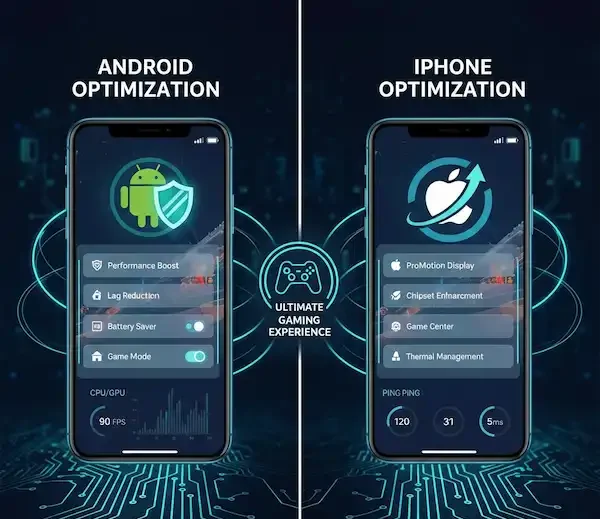
Manufacturers recognized these pain points and started developing dedicated gaming optimization features. While the names vary – “Game Turbo” on Xiaomi, “Game Space” on OnePlus, “Game Launcher” on Samsung, or just built-in features on iOS – their core purpose is the same: to create an optimal environment for gaming.
These features typically do a few key things:
- Prioritize Resources: They allocate more CPU, GPU, and RAM to the game you’re playing, effectively telling the operating system, “This game is important; give it everything you’ve got!”
- Block Notifications and Calls: They silence or minimize intrusive alerts, allowing you to focus without interruption. Some even offer granular control over which types of notifications get through, if any.
- Performance Monitoring: Many provide overlays to show you real-time frame rates, CPU/GPU usage, and even temperature, helping you understand how your game is performing.
- Enhanced Connectivity: Some can prioritize network bandwidth for your game, reducing lag in online multiplayer titles.
- Touch Optimization: Features like improved touch response or accidental touch prevention can be found in some game modes.
Let’s dive into how these work on the two major mobile ecosystems.
Android: A Spectrum of Game Modes
Android, being an open ecosystem, offers a wide variety of implementations for gaming optimization. Almost every major Android manufacturer has its own version, each with unique tweaks and features.
Samsung’s Game Launcher and Game Booster
Samsung devices typically come with Game Launcher. This isn’t just a folder for your games; it’s a hub that manages your gaming experience. When you add a game to Game Launcher, it automatically applies a set of optimizations. Within Game Launcher, you’ll find Game Booster, which is where the real magic happens.
Here’s a snapshot of what you can typically adjust in Samsung’s Game Booster:
- Performance Settings: You can choose between “Focus on performance,” “Balanced,” and “Focus on power saving.” For serious gaming, “Focus on performance” is your go-to. I usually set this and forget it.
- Do Not Disturb: This is crucial. It blocks notifications and calls during gameplay. You can even customize it to allow calls from specific contacts if you need to stay reachable for emergencies.
- Screen Touch Lock: This is a godsend for preventing accidental touches, especially on larger phones or during intense moments. Ever accidentally exited a game because your palm brushed the edge of the screen? This feature stops that.
- Resolution and Graphics Quality: For some games, Game Booster allows you to lower the resolution or adjust graphics quality to eke out better frame rates. This is particularly useful if you’re playing a demanding title on an older device.
- Screenshot/Screen Record: Quick access shortcuts for capturing your epic moments.
To access it, you usually just need to open the Game Launcher app, or sometimes it automatically activates when you open a game it recognizes. The Game Booster overlay can often be pulled up by swiping from the edge of the screen during gameplay.
OnePlus’s Game Space
OnePlus phones are known for their performance, and their Game Space feature significantly contributes to that reputation. It’s sleek, efficient, and packed with useful gaming optimization tools.
What Game Space offers:
- Pro Gaming Mode: This is OnePlus’s equivalent of “full throttle.” It aggressively manages resources, minimizes background apps, and even blocks network access for non-gaming apps to ensure your game gets all the bandwidth. It also silences all notifications. When I’m deep into a PUBG Mobile match, Pro Gaming Mode is absolutely essential.
- Fnatic Mode (on older devices): A previous, even more aggressive version of their gaming mode, often co-branded with the esports team Fnatic. It pushed performance to the absolute limit.
- Gaming Tools Overlay: Like Samsung, OnePlus provides an in-game overlay that lets you quickly check your frame rate, temperature, and access tools like screen recording and notification blocking. You can usually swipe down from the top right corner to reveal it.
- Answer Calls via Speaker: A thoughtful feature that allows you to answer calls on speakerphone without leaving your game completely. This is brilliant for those moments when you can’t not answer but also don’t want to entirely quit out.
- RAM Optimization: Actively clears RAM to ensure your game has as much as possible.
- Network Acceleration: Combines Wi-Fi and mobile data to provide a more stable and faster connection, reducing lag spikes. This is a serious gaming optimization feature for competitive players.
You’ll typically find the Game Space app on your home screen or in your app drawer. Once opened, you can add games and configure their individual settings.
Xiaomi’s Game Turbo
Xiaomi’s Game Turbo is another robust offering for gaming optimization, found on devices running MIUI. It’s pretty comprehensive and aims to provide a competitive edge.
Key features of Game Turbo:
- Performance Mode: Boosts CPU and GPU performance.
- Voice Changer: A fun, if not always practical, feature that lets you alter your voice during in-game chat. More for laughs with friends than competitive advantage, but it’s there!
- In-game Tools: A swipe-in sidebar provides quick access to screen recording, clearing memory, Wi-Fi switching, and even quick replies to messages (without leaving the game). I’ve found the quick reply feature surprisingly useful for letting friends know I’m busy without breaking my concentration.
- Enhanced Visuals: Can sometimes tweak saturation and contrast for a more vibrant gaming experience, though this is subjective and not always for everyone.
- DND Features: Blocks calls and notifications, similar to other game modes.
- Touch Optimization: Includes features like “response sensitivity” and “repeated touch ignore” to refine your touch controls, especially for fast-paced games.
- GPU Settings: On some higher-end Xiaomi devices, you can delve into GPU settings directly from Game Turbo to adjust things like anti-aliasing and anisotropic filtering for specific games, giving you unprecedented control for gaming optimization. This is a feature usually reserved for PC gaming, so seeing it on a phone is impressive.
To find Game Turbo, look for the “Security” app on your Xiaomi device, then navigate to “Game Turbo.” From there, you can add games and customize settings.
Google Pixel’s Game Dashboard
Even “stock” Android devices like the Google Pixel series have their own take with the Game Dashboard. While perhaps not as feature-rich as some of the custom OEM solutions, it provides essential gaming optimization.
Features include:
- Do Not Disturb: The cornerstone of any game mode, ensuring no interruptions.
- Screen Record/Screenshot: Easy access to capture gameplay.
- Performance Optimization: A quick toggle to prioritize performance for the active game.
- FPS Counter: Displays your current frames per second.
- YouTube Live Streaming: A unique feature that allows you to directly stream your gameplay to YouTube.
The Game Dashboard typically appears as a floating icon or can be accessed via a quick settings toggle once a game is detected.
iPhone: Focused and Integrated Gaming Optimization
Apple takes a different approach. While iPhones don’t have a specific “Game Mode” app like Android devices, they integrate gaming optimization deeply into iOS through several features:
Guided Access
This is probably the closest thing to a “Game Mode” you’ll find on iOS in terms of pure focus. Guided Access allows you to lock your iPhone to a single app and disable specific screen areas or hardware buttons.
To enable Guided Access:
- Go to Settings > Accessibility > Guided Access and toggle it on.
- Set a passcode (or use Face ID/Touch ID).
- When you’re in a game, triple-click the Side button (or Home button on older devices).
- You can then choose to disable the Sleep/Wake button, Volume buttons, touch input, or even specific parts of the screen.
- Tap “Start.”
Once active, you’re locked into that game. No accidental swipes, no home screen exits. To exit, triple-click again and enter your passcode. It’s an incredibly powerful tool for maintaining focus, and it’s arguably the most effective way to prevent accidental exits and interruptions on an iPhone for serious gaming optimization.
Focus Modes (Do Not Disturb)
With iOS, Apple significantly expanded the capabilities of Do Not Disturb into Focus Modes. You can create a custom Focus specifically for gaming.
Here’s how to set up a “Gaming” Focus:
- Go to Settings > Focus.
- Tap the + icon to create a new Focus.
- Choose “Gaming” (or create a custom one).
- Configure who can send you notifications (Allow Notifications From). For serious gaming, I usually set this to “No One” or “Favorite Contacts” for emergencies.
- Configure which apps can send you notifications. Again, for gaming optimization, I set this to “No Apps” or only essential communication apps if absolutely necessary.
- You can even customize your home screen to show only gaming-related apps when this Focus is active.
- Crucially, you can set it to turn on automatically when you open specific games. This is fantastic for seamless gaming optimization.
When your Gaming Focus is active, all other notifications will be silenced and sent to the Notification Center, so you won’t be bothered by pop-ups during your critical moments. It’s a less aggressive form of notification blocking than some Android solutions, but it’s very effective.
Background App Refresh and Low Power Mode
While not dedicated “game modes,” these iOS settings indirectly contribute to gaming optimization:
- Background App Refresh (Settings > General > Background App Refresh): Turning this off for non-essential apps means they won’t consume resources in the background, freeing up RAM and CPU cycles for your game. This is a subtle but effective form of gaming optimization.
- Low Power Mode (Settings > Battery > Low Power Mode): While primarily for saving battery, Low Power Mode also reduces background activity and visual effects, which can sometimes indirectly improve game performance by reducing system overhead, especially if your phone is throttling due to heat. However, it also caps the screen refresh rate on some devices, so it’s a trade-off. Generally, for peak performance, you want to avoid Low Power Mode unless you’re desperate for battery life and willing to sacrifice some smoothness.
Industry Insights: What’s Happening Under the Hood
From an insider perspective, the development of these gaming optimization features isn’t just about throwing more power at the problem. It’s about sophisticated software and hardware integration. Chip manufacturers like Qualcomm (with their Snapdragon processors and Adreno GPUs) work closely with phone OEMs to expose deeper levels of control for these game modes.
- Scheduler Optimization: Game modes often involve tweaks to the operating system’s task scheduler, ensuring that game processes get priority for CPU time over less critical background tasks.
- Thermal Management: Modern game modes also include more intelligent thermal management. Instead of just throttling when a certain temperature is hit, some systems try to predict heat buildup and proactively adjust clock speeds slightly to maintain a more consistent performance curve without hitting severe throttling events. Some even interface with external cooling accessories if supported.
- GPU Driver Updates: For Android, GPU drivers can sometimes be updated independently of the main OS update, allowing for specific gaming optimization and bug fixes. Game modes often ensure these are utilized effectively.
- Network Packet Prioritization: Especially in online multiplayer games, game modes can instruct the phone’s networking stack to prioritize game-related data packets over other traffic, leading to lower latency (ping). This is a critical gaming optimization for competitive play.
I’ve heard engineers talk about “per-game profiles” where the game mode can recognize specific games and apply custom settings that are known to work best for that title, a level of detail that’s truly impressive for gaming optimization. This isn’t just a blanket “boost” but a tailored approach.
Tips for Maximizing Your Gaming Optimization
Beyond just enabling Game Mode, here are some pro tips:
- Clear Background Apps: Even with game modes, closing unnecessary apps manually before starting a game can help free up RAM and CPU cycles.
- Ensure Good Ventilation: Don’t play with your phone tucked under a blanket or on a soft surface that blocks heat dissipation. A cool phone performs better. Consider a dedicated phone cooler for extended sessions or demanding titles.
- Charge Before You Play: Playing while charging, especially during intense games, can generate more heat and potentially lead to throttling. If you must charge, use a fast charger that can keep up without overheating the device too much. However, for serious gaming optimization, it’s best to play when fully charged and then charge afterward.
- Update Your Games and OS: Developers constantly optimize their games, and OS updates often bring performance improvements and bug fixes.
- Use a Wired Connection if Possible: For critical online games, if you have a USB-C to Ethernet adapter, a wired connection will almost always be more stable and lower latency than Wi-Fi. This is an extreme but effective gaming optimization.
- Adjust In-Game Graphics Settings: Even with Game Mode on, if a game is too demanding for your phone, lower its internal graphics settings. Sometimes dropping shadow quality or resolution slightly can give you a massive frame rate boost without a huge visual compromise. This is often the most impactful gaming optimization you can make.
Visualizing the Impact
Let’s look at a hypothetical scenario to illustrate the difference gaming optimization can make.
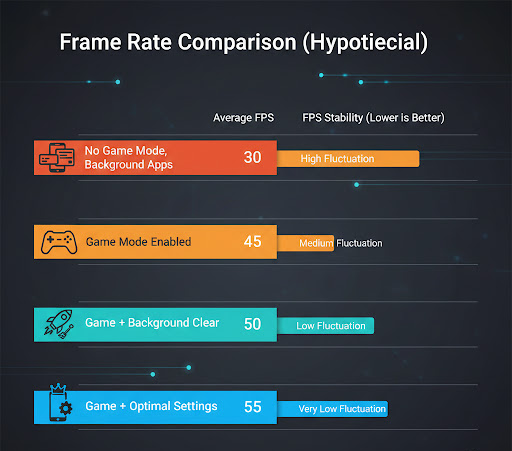
Chart 1: Frame Rate Comparison (Hypothetical)
This chart shows the average frames per second (FPS) for a demanding game under different conditions on a mid-range phone.
| Scenario | Average FPS | FPS Stability (Lower is Better) |
| No Game Mode, Background Apps | 30 | High Fluctuation |
| Game Mode Enabled | 45 | Medium Fluctuation |
| Game Mode + Background Clear | 50 | Low Fluctuation |
| Game Mode + Optimal Settings | 55 | Very Low Fluctuation |
Note: These are illustrative numbers and will vary significantly based on phone model, game, and specific settings.
As you can see, simply enabling Game Mode provides a significant boost, but combining it with other best practices really pushes the performance.
The Bottom Line
Mobile gaming has come a long way from simple puzzle games. We’re talking about console-quality graphics and complex multiplayer experiences in the palm of your hand. To truly appreciate these games and compete effectively, understanding and utilizing your phone’s built-in gaming optimization features is no longer a luxury – it’s a necessity. So next time you’re about to drop into your favorite mobile title, take a moment to engage that Game Mode or set up your Focus. You’ll thank yourself when you hit that perfect shot, uninterrupted and lag-free.
Frequently Asked Questions (FAQ)
Q: Will using Game Mode drain my battery faster?
A: Generally, yes. By prioritizing performance, your phone’s CPU and GPU will work harder, consuming more power. However, the trade-off is a much smoother and more enjoyable gaming experience. If battery life is a concern, you might consider playing plugged in or using a balanced mode if your device offers it.
Q: Does Game Mode actually make my phone faster, or just block notifications?
A: It does both! Modern game modes go beyond just blocking notifications. They actively optimize resource allocation, manage background processes, and often include specific CPU/GPU boosts to enhance actual in-game performance.
Q: Can I use Game Mode with any game?
A: Most game modes will automatically detect games or allow you to manually add any app to their list. Once added, the optimizations and notification blocking will apply. Some older or less mainstream apps might not be automatically recognized, but manual addition usually works.
Q: What about overheating? Does Game Mode make my phone hotter?
A: While prioritizing performance can lead to more heat generation, many game modes also incorporate smarter thermal management to try and prevent excessive throttling. They aim to deliver peak performance for as long as possible without damaging the device. Still, ensuring good airflow around your phone is always recommended.
Q: Is there a “best” Game Mode among all the Android brands?
A: It’s hard to say definitively as each manufacturer has its strengths. OnePlus’s Game Space (especially with Pro Gaming Mode) is often praised for its aggressive optimization and clean interface. Samsung’s Game Booster offers a lot of control and features. Xiaomi’s Game Turbo is also very feature-rich. The “best” one often comes down to personal preference and which phone you own. The important thing is that almost all modern Android phones have some form of gaming optimization.
Q: Can Game Mode damage my phone?
A: No, these features are designed by the manufacturers themselves and are safe to use. They operate within the phone’s safe operating parameters. Any performance boosts are managed to prevent damage.
Q: My phone doesn’t have a specific “Game Mode” app. What can I do for gaming optimization?
A: Even without a dedicated app, you can still:
* Enable Do Not Disturb (Android) or set up a Gaming Focus (iPhone).
* Manually close all background apps before gaming.
* Ensure your phone’s software is updated.
* Lower in-game graphics settings.
* Ensure good ventilation for your device.
Additional Helpful Information
- Clear app cache and data for a faster game response – Clear App Cache and Data on iPhone and Android
External Links:
- Understanding Frame Rate and Refresh Rate: https://www.rtings.com/tv/learn/frames-per-second-fps-vs-refresh-rate-hz
- iOS Focus Modes Explained: https://support.apple.com/en-us/HT212608
- Android Do Not Disturb: https://support.google.com/android/answer/9069335?hl=en
- Thermal Throttling in Smartphones: https://www.anandtech.com/show/16766/what-is-throttling