How to Connect Phone or Tablet to WIFI: A Comprehensive Guide
Connecting your phone or tablet to WIFI is a fundamental step in today’s digital world, unlocking a world of internet access without relying on your mobile data plan. This comprehensive guide, will walk you through the process for both iPhone and Android devices, delve into built-in and third-party apps, provide a helpful comparison, and offer practical troubleshooting tips. Learn how to easily connect phone or tablet to WIFI.
WIFI provides faster speeds, lower latency, and saves your mobile data. Whether you’re at home, a coffee shop, or an airport, knowing how to connect your device is essential.
Connect Phone or Tablet to WIFI: Built-in Apps
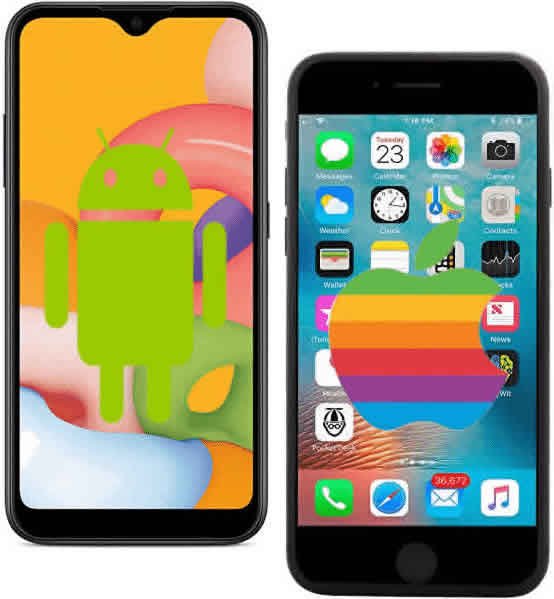
Both iOS (for iPhones and iPads) and Android offer intuitive built-in settings for WIFI connectivity.
Connect iPhone and iPad to WIFI
Apple’s iOS makes connecting to WIFI incredibly straightforward.
Steps:
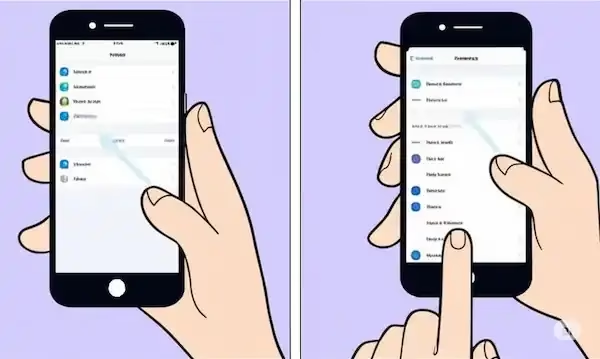
- Go to Settings: From your Home screen, tap the “Settings” app icon (it looks like a gear).
- Select WIFI: In the Settings menu, tap on “WIFI.”
- Turn on WIFI: Ensure the WIFI toggle switch at the top is in the “On” (green) position. Your device will immediately begin scanning for available networks.
- Choose Your Network: A list of available WIFI networks will appear under “Networks.” Tap on the name of the network you wish to join.
- Enter Password (if required): If the network has a padlock icon next to its name, it’s secured and requires a password. Enter the WIFI password (also known as a network key or security key) accurately. Passwords are case-sensitive.
- Join: Tap “Join” (or “Connect”) to establish the connection. Once connected, a blue checkmark will appear next to the network name, and the WIFI symbol will appear in your device’s status bar.
Pro-Tip for iOS: If you see “Auto-Join Disabled” under your connected network, tap the “More Info” button (i) next to the network name, and then tap “Auto-Join” to ensure your device automatically connects to this network in the future.
Connect Android Phones and Tablets to WIFI
Android’s WIFI connection process is similarly user-friendly, though the exact wording or icon placement might vary slightly depending on your Android version and device manufacturer (e.g., Samsung, Google Pixel, Xiaomi).
Steps:
- Open Settings: Swipe down from the top of your screen to open the Quick Settings panel, and then tap the gear icon (Settings). Alternatively, find and tap the “Settings” app in your app drawer.
- Navigate to Network & internet: Tap “Network & internet” (or “Connections” on some devices).
- Select Internet or WIFI: Tap “Internet” or “WIFI.”
- Turn on WIFI: Ensure the WIFI toggle switch is “On.” Your device will scan for available networks.
- Choose Your Network: A list of available WIFI networks will be displayed. Tap on the desired network name. Networks requiring a password will have a lock icon.
- Enter Password (if required): If prompted, enter the WIFI password.
- Connect: Tap “Connect” to join the network. Once connected, the network will typically show “Connected” below its name, and the WIFI icon will appear in your status bar.
Pro-Tip for Android: You can also add a hidden network by tapping “Add network” at the bottom of the list. You’ll need to manually enter the network name (SSID) and security details.
Enhancing Your WIFI Experience: Third-Party Apps to Connect Phone or Tablet to WIFI
While built-in settings handle basic connections, third-party apps can offer advanced features for WIFI analysis, optimization, and security. These apps are particularly useful for troubleshooting, finding the best WIFI channels, or identifying devices on your network.
Popular Third-Party WIFI Apps
- Fing (iOS & Android): A highly popular network scanner that helps you discover all devices connected to your WIFI network, identify unknown devices, run speed tests, and perform network diagnostics. Excellent for network visibility and basic security checks.
- NetSpot (iOS & Android): A professional-grade WIFI analyzer and site survey tool. While the full features might be more suited for advanced users or IT professionals, their mobile apps offer valuable insights into signal strength, channel interference, and overall network health.
- WIFI Analyzer (Android – by olgor.com): One of the oldest and most trusted WIFI analyzer apps for Android. It visually displays WIFI channels, helping you identify less crowded channels for better performance. Simple, yet effective.
- Ubiquiti WiFiman (iOS & Android): Developed by Ubiquiti, a major network hardware manufacturer, this app offers a clean interface for speed tests, signal strength monitoring, and identifying nearby WIFI networks. It also integrates well with Ubiquiti’s UniFi products.
- Speedtest by Ookla (iOS & Android): While primarily a speed test app, it’s crucial for verifying your internet connection’s performance after connecting to WIFI. It measures download and upload speeds and ping.
Comparison Chart of Features: Built-in vs. Third-Party WIFI Apps to Connect Phone or Tablet to WIFI
| Feature | Built-in WIFI Settings (iOS/Android) | Third-Party WIFI Apps (e.g., Fing, NetSpot, WIFI Analyzer) |
| Basic Connection | Yes | Indirect (facilitate connection through settings) |
| Password Management | Yes (save/forget networks) | Limited (some may offer password managers, but not primary) |
| Network Scanning | Basic list of SSIDs | Advanced (identifies all devices, details about each) |
| Signal Strength | Basic indicator (bars) | Detailed (dBm values, historical data, heatmaps) |
| Channel Analysis | No | Yes (shows crowdedness, suggests optimal channels) |
| Speed Testing | No | Yes (download, upload, ping) |
| Device Discovery | No | Yes (lists all connected devices, IP/MAC addresses) |
| Security Scanning | Basic (WPA2/3 indicator) | Advanced (port scanning, vulnerability checks) |
| Interference View | No | Yes (helps identify sources of interference) |
| Troubleshooting Aids | Limited (reset network settings) | Advanced (diagnostics, logs, specific recommendations) |
Additional Helpful Content:
- Understanding WIFI Security: Always connect to networks that use WPA2 or WPA3 encryption. These are the most secure standards and protect your data from eavesdropping. Avoid open or unsecured networks unless absolutely necessary, and use a VPN if you do.
- Public WIFI Etiquette: When using public WIFI, be mindful of what you’re doing. Avoid accessing sensitive information like banking or personal accounts.
- Naming Your Network (SSID): For home networks, consider changing the default SSID to something unique and easily identifiable. Avoid using personal information in the SSID.
- Router Placement: The physical location of your WIFI router significantly impacts signal strength. Place it centrally, away from obstructions and other electronics that might cause interference.
Troubleshooting Common WIFI Problems About Connect Phone or Tablet to WIFI
Even with the best instructions, WIFI connections can sometimes be temperamental. Here’s how to troubleshoot common issues:
- “Unable to Join Network” or “Incorrect Password”:
- Double-check password: Passwords are case-sensitive. Ensure Caps Lock is off.
- Restart devices: Power off your phone/tablet, wait 10 seconds, and turn it back on. Do the same for your WIFI router and modem (unplug for 30 seconds, then plug back in modem first, then router).
- Forget Network: Go to your WIFI settings, tap the network name, and choose “Forget This Network” (iOS) or “Forget” (Android). Then, try connecting again.
- Connected but No Internet:
- Check other devices: See if other devices (laptops, other phones) can access the internet on the same WIFI network. If they can’t, the issue is likely with your internet service provider (ISP) or your router/modem.
- Restart router/modem: As above, a full power cycle often resolves this.
- Check ISP status: Contact your internet service provider to see if there’s an outage in your area.
- Slow WIFI or Dropping Connection:
- Move closer to the router: Signal strength decreases with distance and obstructions.
- Check for interference: Other electronics (microwaves, cordless phones, Bluetooth devices) can interfere with WIFI signals.
- Change WIFI channel: Use a WIFI analyzer app (like those mentioned above) to identify less crowded WIFI channels and change your router’s settings accordingly.
- Restart router/modem: Again, a simple restart can sometimes improve performance.
- Update router firmware: Check your router manufacturer’s website for firmware updates.
- Reset Network Settings (last resort): This will delete all saved WIFI networks and other network configurations.
- iOS: Settings > General > Transfer or Reset [Device] > Reset > Reset Network Settings.
- Android: Settings > System > Reset options > Reset WIFI, mobile & Bluetooth (path may vary).
- WIFI Toggle Grayed Out or Won’t Turn On:
- Restart your device: A simple reboot can often fix software glitches.
- Check for software updates: Ensure your phone or tablet’s operating system is up to date.
- Factory Reset (extreme last resort): If the issue persists, a factory reset might be necessary, but this will erase all data on your device. Back up your data first!
- Hardware issue: If none of the above work, there might be a hardware problem with your device’s WIFI module, requiring professional repair.
Frequently Asked Questions (FAQ) For Connect Phone or Tablet to WIFI
Q1: What’s the difference between 2.4 GHz and 5 GHz WIFI? A1: 2.4 GHz offers a wider range and better penetration through walls but is generally slower and more prone to interference. 5 GHz provides faster speeds and less interference but has a shorter range and struggles more with obstacles. Many modern routers offer both.
Q2: How do I find my WIFI password? A2: If it’s your home network, the password is often printed on a sticker on the bottom or back of your WIFI router. If someone else set it up, you’ll need to ask them. On connected devices, you might be able to view the password (e.g., on Android 10+ by sharing the QR code, on iOS via Keychain Access if synced with a Mac).
Q3: Is public WIFI safe? A3: Public WIFI is generally not secure. Avoid accessing sensitive information (banking, email logins) on public networks. Using a Virtual Private Network (VPN) is highly recommended when on public WIFI to encrypt your data.
Q4: My WIFI signal is weak in certain parts of my house. What can I do? A4: Consider moving your router to a more central location. You can also invest in WIFI extenders, mesh WIFI systems, or powerline adapters to boost coverage.
Q5: What is an SSID? A5: SSID stands for Service Set Identifier. It’s simply the name of your WIFI network that appears in the list of available networks.
Q6: Why does my phone automatically connect to a weaker WIFI network instead of my strong home network? A6: Your phone prioritizes networks it has previously connected to and “prefers” based on various factors, sometimes including past stability over current signal strength. You can “forget” the weaker network or manually select your preferred network to override this.
Additional Helpful Information
An easy method to share a WIFI password – How to Share WIFI Password With QR Code?
External Links for Authoritative Sources
- Apple Support – Connect to WIFI on your iPhone, iPad, or iPod touch: https://support.apple.com/en-us/HT202639
- Android Help – Connect to WIFI networks on your Android device: https://support.google.com/android/answer/9075847
- WIFI Alliance (for information on WIFI standards and security): https://www.wi-fi.org/
- Cloudflare – What is DNS? (helps understand internet connectivity): https://www.cloudflare.com/learning/dns/what-is-dns/