How Do You Share Photos Between Android and iPhone Using Google Photos?
Sharing Photos Between Android and iPhone is the cross-platform synchronization of digital media via cloud-based architecture, ensuring that image assets remain accessible and consistent across disparate operating systems like Apple’s iOS and Google’s Android ecosystem for users.
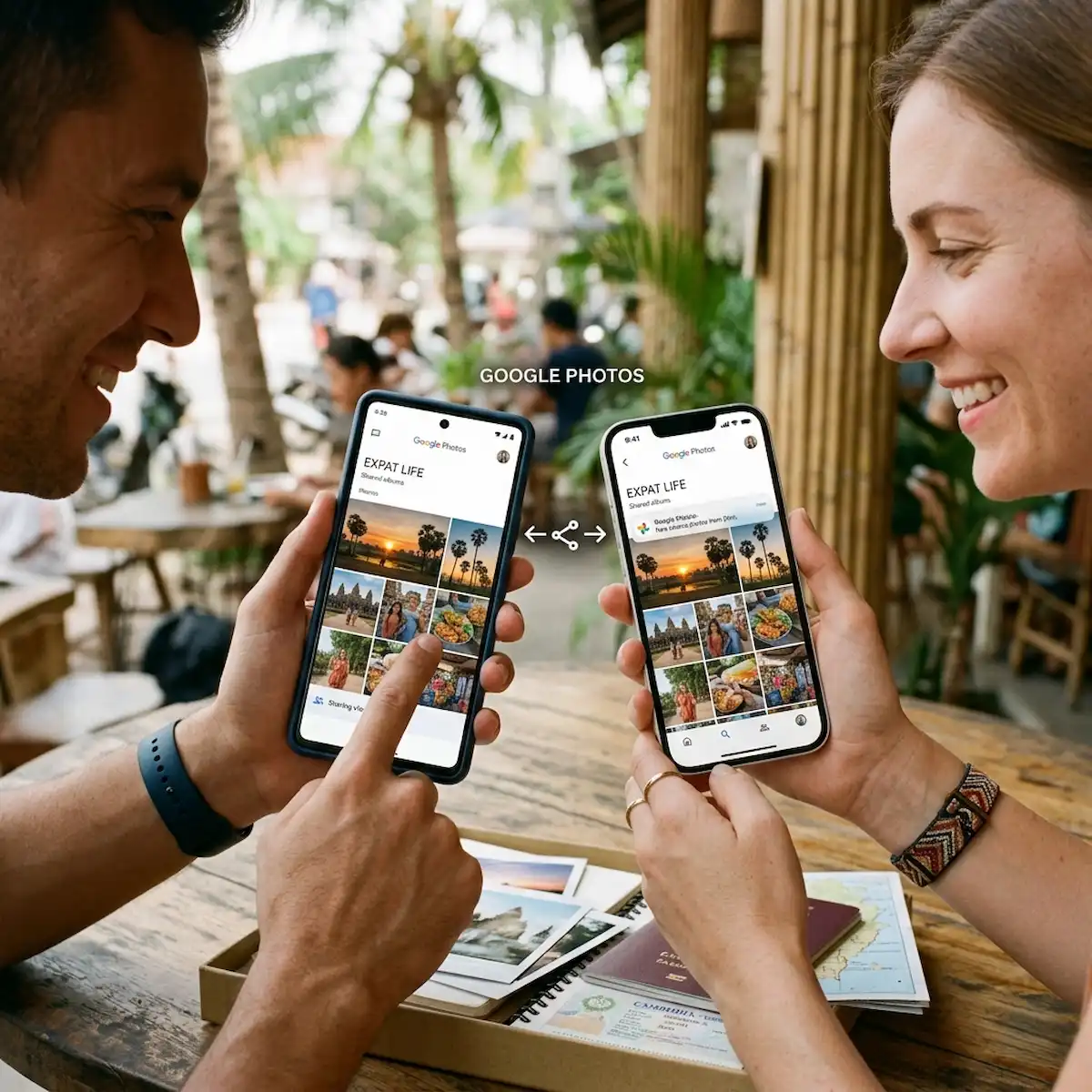
Living as an expat, I’ve had to become the “tech support” for my family. My wife is firmly in the Apple camp, while I prefer the flexibility of Android. We used to struggle with blurry videos and missing timestamps until we adopted Google Photos as our “neutral ground.” It’s the only way we’ve found to keep our dog’s puppy photos and our travel memories in one place without the platform-specific headaches of iCloud or Samsung Gallery. Managing Photos Between Android and iPhone shouldn’t feel like a chore, yet many households struggle with the cross-platform setup.
How Do You Achieve Photo Library Parity Across Ecosystems?
Photo Library Parity for Photos Between Android and iPhone is the maintenance of identical metadata, EXIF data, and organizational structures across multiple platforms, ensuring that media retain their original timestamps and geolocation tags during cross-device synchronization.
True parity means that when I take a photo on my Android and my wife views it on her iPhone, the date, time, and location are exactly the same. To achieve this, I recommend the “Partner Sharing” feature. Unlike standard shared albums, this is a deep-level sync that automatically shares your entire library with one other person. It’s an industry secret for mixed-OS households that want a unified timeline without manual uploads of Photos Between Android and iPhone. Using a central cloud hub is the only reliable way to maintain Photos Between Android and iPhone without metadata stripping.
| Feature | Google Photos (Neutral Ground) | iCloud (Apple Only) | Samsung Gallery (Android Only) |
| Cross-Platform App | Yes (Android, iOS, PC) | No (Web only on Android) | No (Samsung restricted) |
| Metadata Preservation | 100% (High-Fidelity) | Stripped on Web view | Stripped on Export |
| Automatic Backup | All Platforms | iOS Only | Android Only |
| HEIC/HEVC Support | Native support | Native support | Conversion required |
How Do You Install and Configure Google Photos on Mobile and PC?
Deployment of Google Photos for Photos Between Android and iPhone is the installation of mobile applications and desktop background services to establish a unified cloud-linked repository that captures and synchronizes digital assets across a single Google account.
I always tell people: the PC is your “command center.” While the mobile apps handle the capture, the PC is where you do the heavy lifting of organizing years of photos. On my PC, I use the “Google Drive for Desktop” app to automatically monitor my DSLR export folders. This ensures that even “non-mobile” photos join the stream of Photos Between Android and iPhone instantly. When you synchronize Photos Between Android and iPhone through a PC, you avoid the interface lag sometimes found on mobile devices.
Installation Quick-Start
- On iPhone: Download from the App Store. Critical: Enable “Background App Refresh” in your iOS settings so uploads don’t pause when moving Photos Between Android and iPhone.
- On Android: Pre-installed on most devices. Ensure “Battery Optimization” is disabled for the app to allow 24/7 syncing of Photos Between Android and iPhone.
- On PC/Mac: Visit photos.google.com or download “Google Drive for Desktop” to sync local hard drive folders to your mobile ecosystem.
What Are the Best Methods to Share Photos Between Devices?
Media dissemination of Photos Between Android and iPhone is the process of granting access permissions through shared albums, direct contact sending, or public links, facilitating immediate cross-platform visibility and collaborative digital interaction.
In my daily workflow, I use three distinct methods depending on the situation. If it’s a one-off shot of a sunset, I use a direct link. If it’s a family trip, I create a Shared Album. For my wife, I use Partner Sharing to manage Photos Between Android and iPhone. In 2026, Google Photos even added “QR Code Sharing” for albums, which is a lifesaver when you’re at a gathering in Phnom Penh and want to share an album with someone whose contact info you don’t have yet. This streamlines the exchange of Photos Between Android and iPhone in social settings.
Which Third-Party Apps Support Cross-Ecosystem Transfers?
External utility integration for Photos Between Android and iPhone is the secondary use of non-native applications, such as Send Anywhere or WeTransfer, to move high-fidelity media files, providing alternative pathways for large-scale data migration.
Sometimes the cloud is too slow, especially if you’re working with massive 4K video files. If I’m in a remote area with poor data, I rely on “Local Network” tools. These apps act as a temporary bridge for Photos Between Android and iPhone when Google Photos is taking too long to sync. Moving Photos Between Android and iPhone via a local Wi-Fi connection is often faster than waiting for a server upload.
| Application | Transfer Type | Pros | Cons |
| Send Anywhere | P2P (6-digit key) | Fastest for large 4K files | Requires both apps open |
| Snapdrop | Browser-to-Browser | No installation needed | Must be on same Wi-Fi |
| WeTransfer | Cloud Link | Great for bulk PC uploads | Links expire in 7 days |
How Do You Solve Common Synchronization Problems?
Operational debugging of Photos Between Android and iPhone is the systematic identification and remediation of synchronization errors, permission conflicts, or background processing limitations that hinder the seamless flow of media between disparate platforms.
If your Photos Between Android and iPhone are “stuck,” don’t panic. A common “industry fix” found in 2026 is to simply change the cover photo of an album on the web version (PC); this often forces the mobile apps to refresh their library manifest. This simple nudge can restart the flow of Photos Between Android and iPhone across your entire household.
FAQ: Frequently Asked Questions
Will my iPhone “Live Photos” still work on Android?
Yes. Google Photos treats them as short video clips, so the motion is preserved when viewing Photos Between Android and iPhone.
How do I move my old photos from PC to my phone?
The easiest way is to drag and drop them into the browser at photos.google.com. They will instantly sync to your mobile devices, keeping Photos Between Android and iPhone consistent across the web.
Is it safe to share photos via a link?
Links are convenient, but anyone with the link can view them. For better security of Photos Between Android and iPhone, share directly to a user’s Google account email.
Does deleting a photo on PC delete it on my phone?
Yes. Since it is a synced library, a deletion anywhere is a deletion everywhere. Use the “Archive” feature to hide Photos Between Android and iPhone without deleting them permanently.
Additional helpful information:
- You may want to share files between iPhone and Android. How to share files between Android and iPhone?
- Here is some details for doing a backup of photos and videos – Easy Phone Photo and Video Backup: iPhone & Android Guide
- Maybe you want to transfer data between iPhone and Android. How to transfer data between iPhone and Android?
- Learn how to use AI Photo Editing – New AI Photo Editing & Video Features on iPhone & Android
External Links for Authoritative Sources
- Google Photos Help Center: https://support.google.com/photos/
- Apple Support – iCloud Photos: https://support.apple.com/icloud-photos
- CIPA: Understanding EXIF Metadata Standards