Key Takeaways
- Preparing essentials like your Wi-Fi password, account credentials, and a fully charged battery beforehand makes the process to set up your new phone much smoother.
- Apple uses a proprietary peer-to-peer connection for Quick Start, which allows you to transfer app data and settings directly when you set up your new phone rather than relying entirely on cloud backups.
- When you set up your new phone on the Android platform, you can use a direct cable connection or wireless transfer tools to move your information, while manufacturers like Samsung offer specialized applications like Smart Switch.
- Completing post-setup essentials such as installing software updates, reviewing privacy settings, and enabling two-factor authentication ensures your device remains secure and up-to-date after you set up your new phone.
- Transitioning to a fresh device when you set up your new phone can take anywhere from 15 minutes to over an hour depending on your internet speed and the volume of data being moved.
What do I need to prepare before starting my new phone setup?
Getting ready to set up your new phone requires gathering a few essentials to ensure the process goes smoothly without unexpected interruptions. Before you turn on your device, you should collect your Wi-Fi network name and password, a fully charged battery on your current phone, and your SIM card along with its ejector tool if you are not using an eSIM. Having your Apple ID or Google Account credentials ready alongside any important passwords for banking, email, or social media apps will save you time when you set up your new phone. If you are moving between devices of the same operating system, keeping a compatible cable nearby is also recommended for a faster data transfer to set up your new phone successfully.
| Preparation Item | Purpose |
| Wi-Fi Details | Connects the device for updates and data restoration |
| Account Credentials | Logs you into your Apple ID or Google Account |
| SIM Ejector Tool | Inserts your physical SIM card into the new hardware |
| Compatible Cable | Speeds up the direct data transfer process |
How do I set up my new iPhone using Apple Quick Start?
Apple’s setup process is famously intuitive, especially when you use the Quick Start feature to transition your data. For the most detailed and up-to-date instructions on iPhone setup, always refer to Apple’s official support page at Apple Support.
Power on your device by pressing and holding the side or power button until the Apple logo appears, and wait for the Hello greeting to show in multiple languages. Choose your preferred language and country or region to ensure proper date, time, and contact formatting when you set up your new phone.
To use Quick Start, place your current running iPhone near your new device to trigger the prompt automatically, then tap Continue and use your old camera to scan the appearing animation. Enter your old device passcode, set up Face ID or Touch ID, and choose your preferred data migration route to set up your new phone:
- Transfer Directly from iPhone: Directly shifts settings and application data using Apple’s peer-to-peer connection. This is the fastest and most comprehensive method if both iPhones run iOS 12.4 or later.
- Download from iCloud: Pulls information down from a previously saved cloud backup.
- Restore from Mac or PC: Utilizes a computer backup through Finder (macOS Catalina or later) or iTunes (Windows or older macOS).
- Don’t Transfer Apps & Data: Bypasses migration to start completely fresh.
After selecting your method, sign in with your Apple ID (entering any required verification codes from your old hardware), review the Data and Privacy terms, configure optional services like Siri, Screen Time, Location Services, and Analytics sharing, and choose your preferred visual appearance mode (Light or Dark Mode, along with text and icon scaling options).
How do I configure and transfer data to a new Android phone?
Android setup is streamlined around your Google Account to help you quickly pull over your essential information and preferences. For comprehensive guides on how to set up your new phone on Android, visit Google’s official Android Help documentation at Android Help.
Turn on the hardware by pressing and holding the power button until the Android logo appears, select your language and region, and connect to a stable Wi-Fi network.
Next, choose your copy apps and data path to move your digital life over from an old device when you set up your new phone:
- From an old Android phone: Connect via a physical cable for the fastest transfer or use wireless options via the setup tool by opening the Google app on your old phone and searching for “set up my device”.
- From an iPhone: Follow prompts to bring over media and content, optionally utilizing tools like Apple’s Move to Android app or Google Photos for media synchronization.
- Don’t copy: Skip migration to initialize a clean system environment.
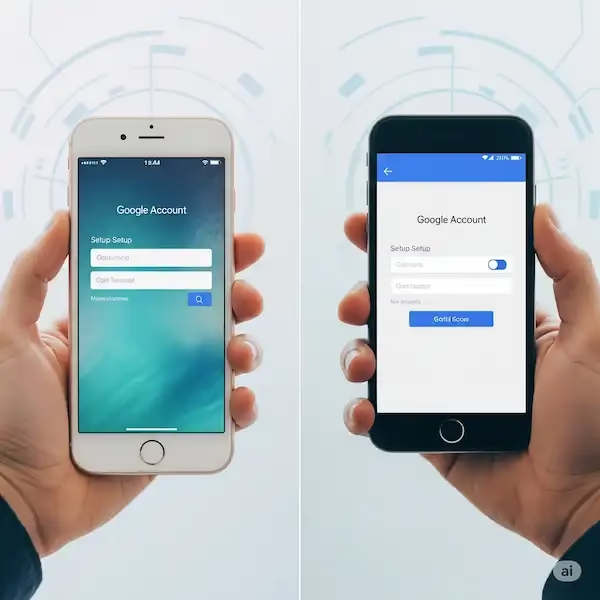
Sign in with your Google Account to sync your core data, review service terms for features like location tracking and app scanning, set up your secure screen lock (PIN, pattern, password) and biometric options (fingerprint or face unlock), and configure auxiliary options like Google Assistant and Google Pay. Finally, review the suggested app list to install your preferred programs. While the core Android framework remains uniform, remember that specific manufacturers like Samsung with Smart Switch or Google Pixel may present extra prompts for transferring data or setting up unique features, so always heed your device’s on-screen instructions.
What steps should I take right after finishing my new phone setup?
Once the initial sequence is complete, taking care of post-setup tasks ensures your device is fully personalized and secure. The initial sequence to set up your new phone, especially with data transfer, can take anywhere from 15 minutes to over an hour, depending on the amount of data and your internet speed.
You should immediately head to your system settings to install software updates (found under Settings > General > Software Update on iPhone or Settings > System > System update on Android), because beyond new features, software updates often contain critical security patches that protect your device from vulnerabilities. Additional key post-setup actions to execute after you set up your new phone include:
- Customizing Display and Audio: Tweak your brightness levels, activate dark mode, change font sizes, and adjust notification ringtones, volumes, or haptic vibration patterns.
- Downloading Essential Apps: Populate your home screen by grabbing your daily productivity, banking, social media, and entertainment software from the Apple App Store or Google Play Store.
- Pairing Accessories: Connect your wireless headphones, smartwatches, car audio systems, and other Bluetooth accessories.
- Reviewing Privacy and Security: Manage app permissions, organize home screen widgets, and verify that Find My or Find My Device tracking is fully operational.
- Enabling Two-Factor Authentication: Secure your Apple ID or Google Account with 2FA to require an extra verification step during logins, and ensure you use strong, unique passwords.
What should I do if I encounter common troubleshooting issues during setup?
Running into hiccups is normal, but most common obstacles that happen when you try to set up your new phone can be resolved with basic troubleshooting steps. Review these common hurdles if you get stuck:
- Wi-Fi Connection Failures: Double-check your network password, verify router status, and power-cycle both your phone and router.
- Slow or Frozen Data Transfers: Ensure both devices stay powered, charged, and close to a steady Wi-Fi access point or connected securely via cable.
- Account Sign-in Problems: Utilize the official account recovery pathways provided by Apple or Google if you forgot your credentials.
- Unrecognized SIM Cards: Verify that physical cards are seated correctly in the tray, keeping in mind that newer devices utilizing eSIM will require direct carrier activation instructions.
- Cross-Platform Message Hurdles: Understand that while specific apps like WhatsApp feature dedicated cross-os migration tools, standard SMS messaging history generally does not transfer directly when switching between iOS and Android.
- Unresponsive Hardware: If your phone won’t turn on during your attempt to set up your new phone, try charging it for at least 30 minutes before contacting the retailer or manufacturer for assistance.
Frequently Asked Questions (FAQ)
How long does it usually take to set up a new smartphone?
The time required to set up your new phone, especially when transferring a large amount of data from an old device, can take anywhere from 15 minutes to over an hour depending on your internet speed and file volume.
Can I transfer my data if I am switching from Android to iPhone (or vice versa)?
Yes, you can transfer data across operating systems when you set up your new phone. Google provides options during Android setup to pull content from an iPhone, and Apple offers the “Move to iOS” application for users moving in the opposite direction, though certain items like text message histories may require third-party or app-specific solutions.
What is an eSIM and do I need a physical SIM card?
An eSIM is an embedded digital SIM card built directly into newer hardware models, which eliminates the need for a physical plastic SIM card. Your mobile carrier will provide specific activation instructions for eSIM during or after you set up your new phone.
Why is updating my phone software immediately after setup so crucial?
Installing system updates right away ensures your device operates with the latest features and closes security gaps by applying critical patches that protect your personal data from vulnerabilities after you set up your new phone.
Additional Helpful Information:
- Start from the beginning, back up your phone regularly – Backup your Phone – iPhone or Android
- Learn how to set up screen time limits for your kids – Parental Control & Kids Screen Time Limits
- Take a look at these best email apps – Best Email Apps for iPhone & Android – Boost Productivity
External Links for Authoritative Sources:
Setting up a New iPhone:
- Set up your iPhone or iPad – Apple Support: This is the primary and most comprehensive guide from Apple itself, covering everything from initial power-on to data transfer, Apple ID setup, and essential features like Face ID/Touch ID and Find My.
- Turn on and set up iPhone – Apple Support (SG): Another official Apple guide focusing on the initial power-on and setup process, including using Quick Start and transferring data from Android.
Setting up a New Android Phone:
- Switch to a new Android device – Google Help: This is the official Google support page for setting up a new Android device, including transferring data from old Androids or iPhones, signing into a Google Account, and essential security features.
- Transfer Your Data to Your New Android – Android.com: An excellent official resource from Android covering various data transfer methods (wireless, cable) for switching between Android devices or from an iPhone.