Locked Out? A Guide to Unlocking Your Phone
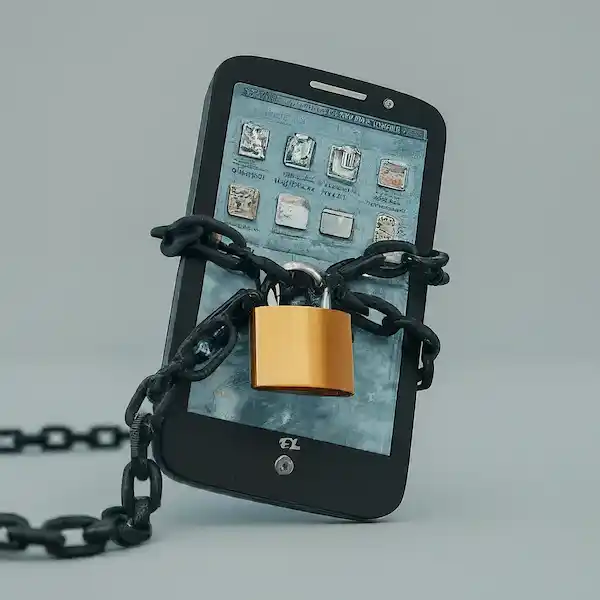
When you’ve spent an hour meticulously grouping your travel apps into one folder and your smart home toggles into another, there is nothing more annoying than accidentally dragging an icon into the “digital abyss” because your thumb slipped. This is exactly why manufacturers built the “lock” feature. But when you actually want to make a change, that same safety net feels like a brick wall.
I’ve spent years tinkering with mobile interfaces, from the early days of rooting Android phones to the latest iOS 18 beta cycles. I can tell you that “unlocking” isn’t just about a toggle in the settings; it’s about reclaiming your digital workspace. Whether you’re trying to Unlock Phone layouts on a brand-new Samsung or a seasoned iPhone, the process is slightly different but equally satisfying once you get the hang of it.
Key Takeaways
- Understanding UI Persistence: The “Home screen layout locked” message is an intentional safety feature designed to prevent accidental icon deletion or repositioning, not a system glitch.
- Simple Fix for Android (Samsung/Xiaomi/Pixel): Unlocking your layout usually takes just a few taps—long-press an empty spot on your home screen, jump into Settings, and switch off Lock Home screen layout.
- iOS Navigation Trick: iPhones don’t have a direct layout lock switch; if your icons won’t move, make sure you hold down an icon long enough to trigger “Jiggle Mode,” or check Screen Time Restrictions to allow app editing.
- Watch Out for Corporate Profiles: If a device has a Work Profile or MDM (Mobile Device Management) installed, IT policies may permanently lock the home screen layout until administrative permissions are changed.
- Customization Best Practices: Once unlocked, optimize your device by placing frequently used apps in your thumb’s natural reach zone, using widget stacks on iOS, or tweaking grid sizes on Android.
Why Your Layout is Locked in the First Place
Before we dive into the “how-to,” it’s worth understanding why this happens. In the mobile industry, we call this “User Interface (UI) Persistence.” Manufacturers like Samsung and Xiaomi often enable this by default on certain “Easy Mode” profiles to prevent elderly users or children from deleting the phone app or moving the settings icon where it can’t be found.
If you see a message saying “Home screen layout is locked,” your phone isn’t broken—it’s just being overprotective.
How to Unlock the Layout on Android Devices
Android is the wild west of customization. Because every brand (Samsung, Pixel, OnePlus, Xiaomi) uses its own “skin” on top of Android, the buttons aren’t always in the same place. However, the logic remains the same. To Unlock Phone layout settings on Android, follow these brand-specific paths.
Samsung Galaxy (One UI)
Samsung is probably the most common place where people run into this. They love their “Lock Home Screen Layout” toggle.
- The Long Press Shortcut: Find a tiny patch of empty space on your home screen (where there are no icons or widgets). Press and hold your finger there.
- Settings Gear: You’ll see the screen shrink back and a menu appear at the bottom. Tap the Settings icon (usually a small gear).
- The Toggle: Look for the option that says “Lock Home screen layout.” If the switch is blue or “on,” tap it to turn it off.
- Test it: Go back to your home screen and try to wiggle an icon. It should move freely now.
Google Pixel and “Stock” Android
Pixels are much more minimalist. Usually, they don’t lock by default, but if you’ve enabled certain accessibility features, you might find things stuck.
- Long-press the home screen.
- Tap Home settings.
- Ensure “Add app icons to Home screen” is enabled if you’re trying to add new things, and check for any layout restrictions in this menu.
Xiaomi (MIUI/HyperOS)
Xiaomi phones have a very specific “Pinch” gesture.
- Use two fingers to “pinch” the home screen as if you’re zooming out of a photo.
- Tap the Settings icon that appears in the corner.
- Toggle off “Lock Home screen layout.”
Insider Tip: If you can’t find the setting by long-pressing, go to your main Settings app and search for “Launcher.” Sometimes the layout lock is buried deep within the “Home Screen” sub-menu rather than the display menu.
How to Unlock the Layout on iPhone (iOS)
Apple handles things differently. Technically, iOS doesn’t have a “Lock Layout” toggle in the same way Android does. If you can’t move your apps, it’s usually due to one of three things: a software glitch, “Screen Time” restrictions, or you simply aren’t holding the icon long enough.
To Unlock Phone customization on an iPhone, try these steps:
1. Entering “Jiggle Mode”
The most common issue is people letting go too early.
- The Trick: Press and hold an icon. A small menu will pop up. Keep holding. Don’t let go when the menu appears. Wait another second until all the apps start shaking (jiggling) and little minus (-) signs appear. Now you can move them.
2. Checking Screen Time Restrictions
If the apps don’t jiggle or the “Edit Home Screen” option is missing, someone (or you, accidentally) might have turned on restrictions.
- Go to Settings > Screen Time.
- Tap Content & Privacy Restrictions.
- Tap iTunes & App Store Purchases.
- Check “Deleting Apps” and “Installing Apps.” If these are set to “Don’t Allow,” the phone essentially locks the layout to prevent changes. Set them to Allow to Unlock Phone editing capabilities.
3. iOS 18 and the New “Free Placement”
If you are on iOS 18, Apple finally caught up to Android. You can now leave empty spaces. If your apps are snapping back to the top, it might be because you haven’t updated yet. To truly Unlock Phone potential on iPhone, make sure you’re on the latest firmware via Settings > General > Software Update.
Personal Experience: The “Ghost” Lock
I remember helping a friend who was convinced their phone was haunted because they couldn’t move their banking app. It turned out they had a “Work Profile” installed by their employer. In the corporate world, IT departments can push a “Policy” to your device that locks the layout so you don’t accidentally delete the company’s security apps.
If you see a small briefcase icon on your apps, that’s a Work Profile. You might not be able to Unlock Phone layouts in that specific section without talking to your IT guy. It’s a bit of “insider knowledge” that saves a lot of frustration—sometimes the lock isn’t a setting; it’s a permission.
Pro-Level Customization Tips
Once you Unlock Phone layouts, don’t just move icons—optimize them. Here is how we do it in the industry:
- The Rule of Thumb: Place your most-used apps (Messages, Browser, Camera) in the bottom-right corner (if you’re right-handed). This is the “Green Zone” where your thumb naturally rests.
- Invisible Folders: On Android, you can use “Nova Launcher” to create folders that look like a single icon. Swiping up on the icon opens the folder, but tapping it opens the main app. It’s the ultimate clean look.
- Widget Stacks: On iPhone, don’t waste three pages on widgets. Long-press one widget and drag it on top of another of the same size. You’ve just created a “Stack” you can flick through.
Troubleshooting Common Issues
“My icons still won’t move!” If you have disabled the lock and they still won’t budge, try a “Force Restart.” For most modern phones, this involves holding the Power and Volume Up buttons simultaneously. This clears the “Springboard” (the app that runs your home screen) and usually fixes the glitch.
“I unlocked it, but now my apps are a mess.” If you go too far and regret your changes, both systems have a “Reset” button.
- On iPhone: Settings > General > Transfer or Reset iPhone > Reset > Reset Home Screen Layout.
- On Android: This usually requires clearing the data of your “System Launcher” app in the Apps menu, but be careful—this wipes all your folders!
Additional Thoughts from a Tech Obsessive
The ability to Unlock Phone layouts is really the first step in making a device feel like yours. We spend upwards of five hours a day looking at these screens; they shouldn’t feel static or frustrating.
Whenever I get a new device, the very first thing I do is dive into these settings. I usually turn off the layout lock, increase the “Grid Size” (to 5×6 or 6×6) so I can fit more on one screen, and then I lock it back up once I’ve achieved “home screen nirvana.”
If you’re still stuck, remember that most manufacturers provide detailed guides on their support pages, like the Official Apple Support or Samsung Support portals. But honestly? Usually, it’s just that one hidden toggle we talked about.
FAQ: Everything You Need to Know
Can I lock my layout so my kids don’t mess it up? Yes! Once you’ve finished arranging your icons, go back into the settings we discussed and toggle “Lock Home screen layout” back to ON. This is a lifesaver for parents.
Does unlocking the layout drain my battery? Not at all. The “lock” is just a software flag. It doesn’t use any extra processing power. However, adding lots of “Live Widgets” after you Unlock Phone layouts can impact battery life.
Why does my Samsung say ‘Home screen layout locked’ in the car? If you are using Android Auto or a “Driving Mode,” the phone simplifies the UI for safety. You often cannot change the layout until you disconnect from the car or exit the driving app.
What is the best way to Unlock Phone layouts on a budget phone? Cheaper Android phones often have “Lite” launchers. If your settings don’t have a lock toggle, consider downloading “Lawnchair” or “Niagara Launcher” from the Google Play Store. These third-party apps give you total control that the manufacturer might have hidden.
Can I hide apps without deleting them? On iPhone, long-press an app and select “Remove from Home Screen.” It stays in your App Library. On Android, most launchers have a “Hide Apps” setting within the same menu where you found the layout lock.
Additional helpful information
How to your lock screen – https://www.smartphoneassistant.com/lock-your-home-screen-layout/
Here is how to unlock your phone remotely – How to Unlock Phone Remotely